SmartCoding on the Dashboard - Overview
What is inca SmartCoding?
In this tool, you can add/remove/edit/merge the codes generated by the AI model for your open-ended verbatim.
For the coded data, users can either export them to SPSS or CSV data file and run tables in their preferred tabulation tool or export them to inca's dashboard and run tables in the Crosstab page.
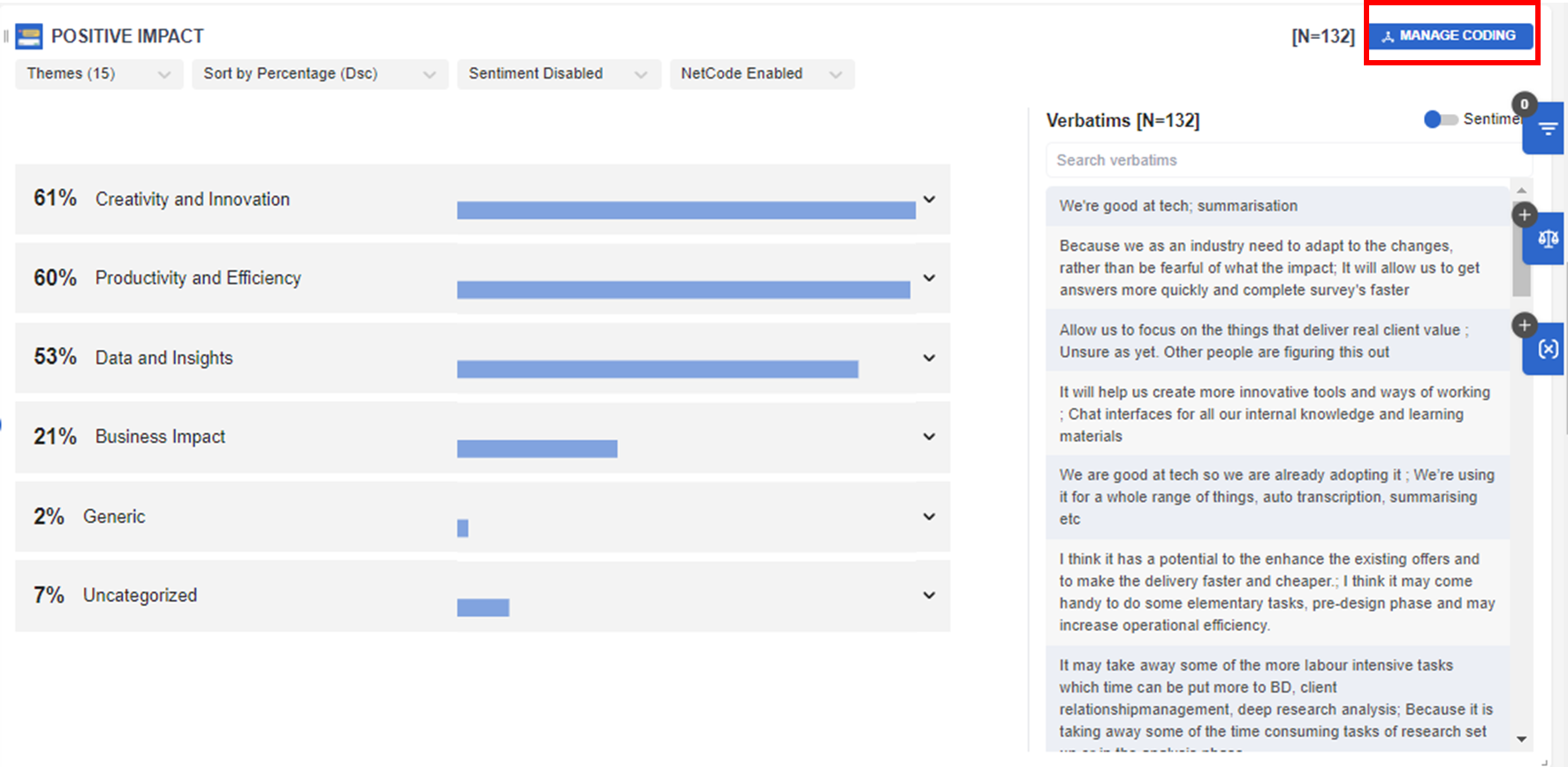
To do this, click MANAGE CODING in the upper right of the open-ended question.
Then you can select the starting point - you can select between Themes and Keywords as the base model, and then go to the SmartCoding page for further modification.
Usually, for longer verbatim, we suggest using Themes, while for shorter responses like brand name, we suggest using Keywords.
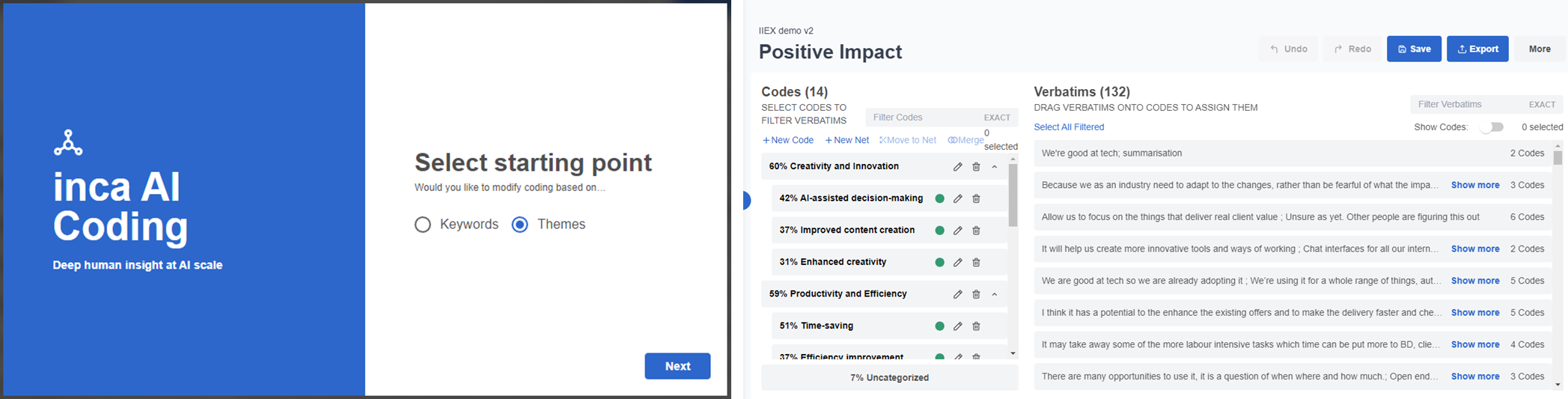
On the SmartCoding page, there are a few things you can do.
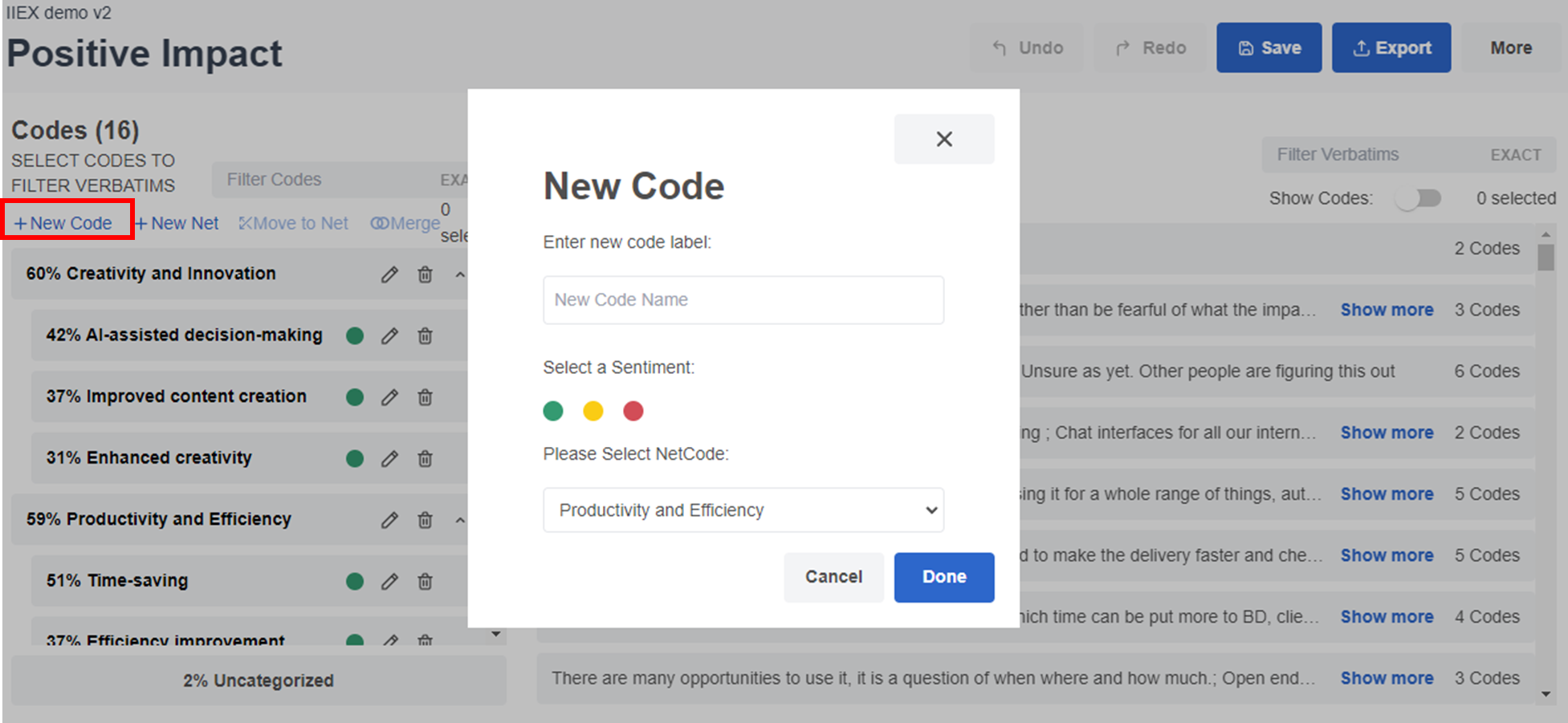
A. Add a new code
A1. To add a new code, click + New Code. In the popup, input the name of the new code, then select the sentiment and select the NETCode (key theme) in which it will be.
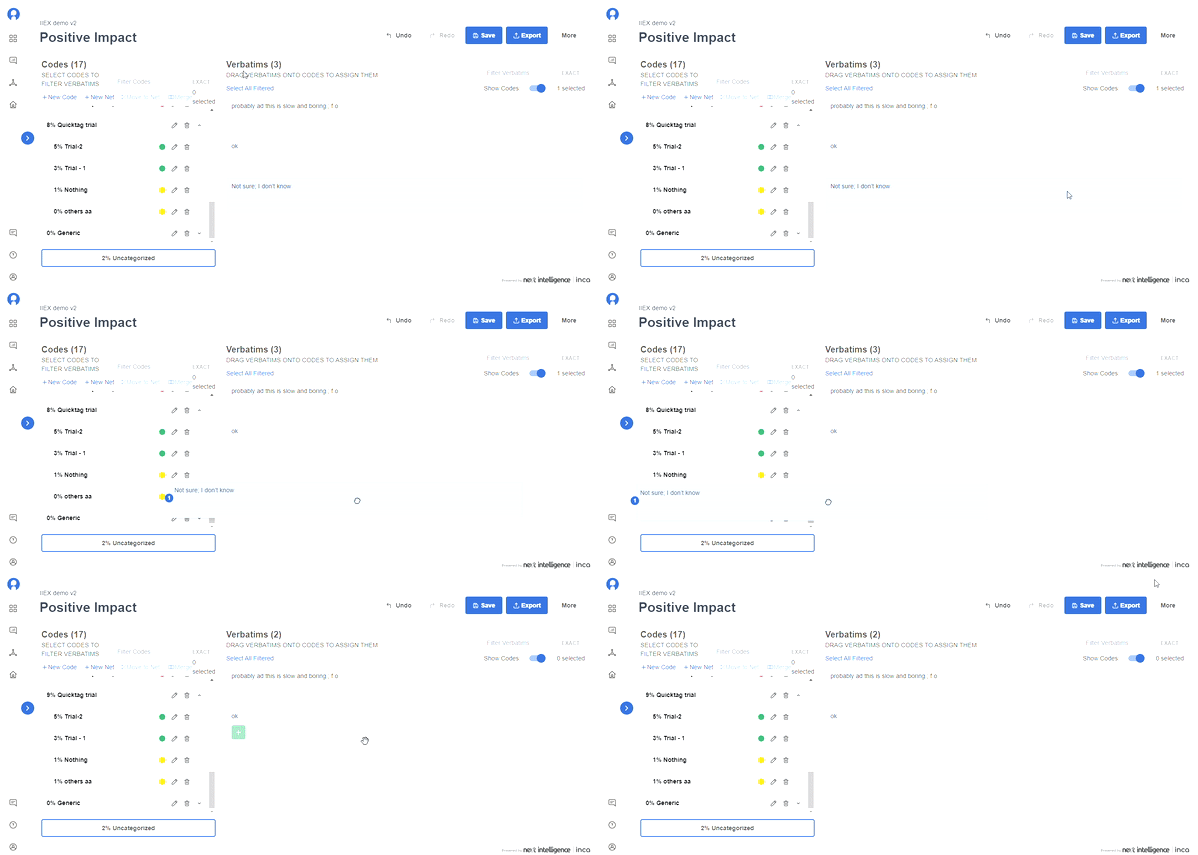
A2. On the Verbatim side, simply drag the OE response/verbatim you want to include in the new code.
B. Add a new NET (key theme)
B1.To add a new Net or NETCode (key theme), click + New Net. In the popup, simply input the label of the new NET code or key theme.
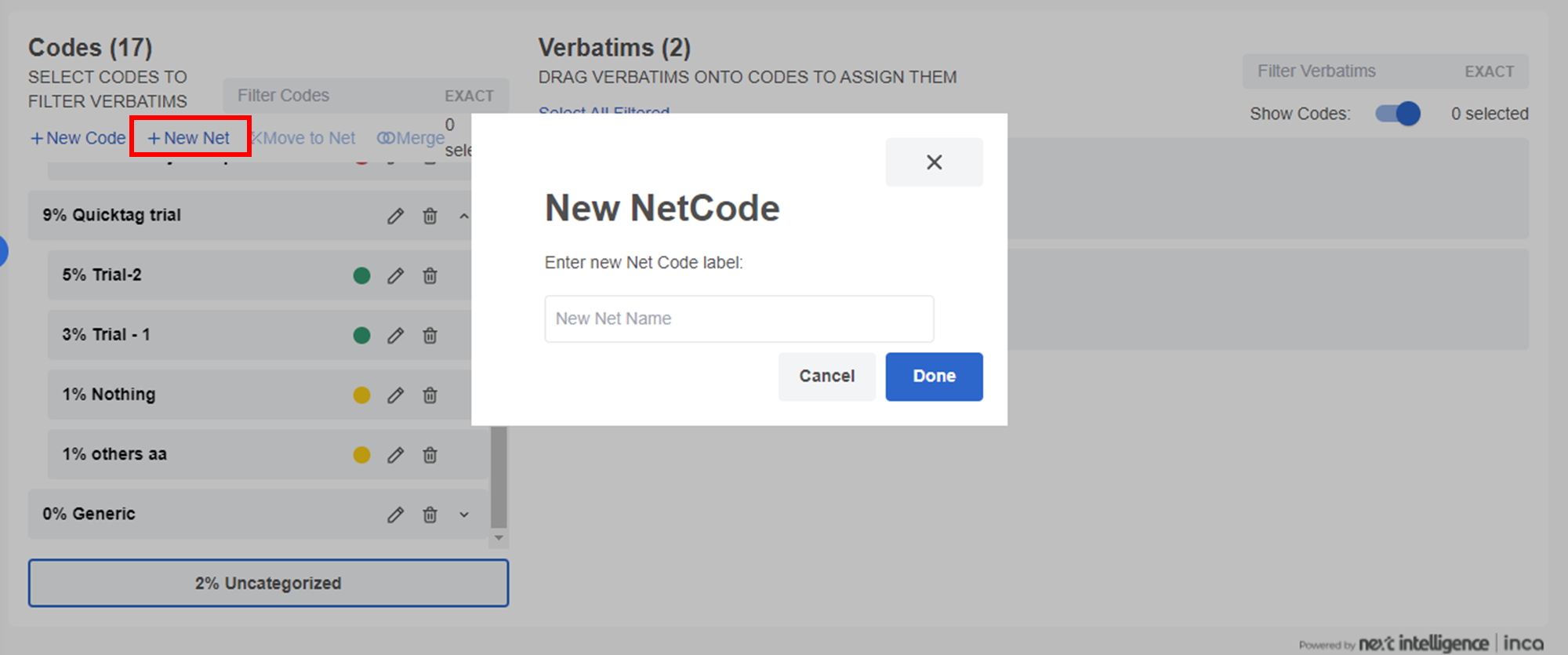
B2. Note that in the new Net, you can either move an existing code (click Move to Net) or create a new code under it.
C. Move a code to a new Net(key theme)
C1. To move a code to a new Net or Netcode, simply click the code (that you will edit) then click Move to Net. You can also select multiple codes by holding the shift keyboard, and then select Move to Net.
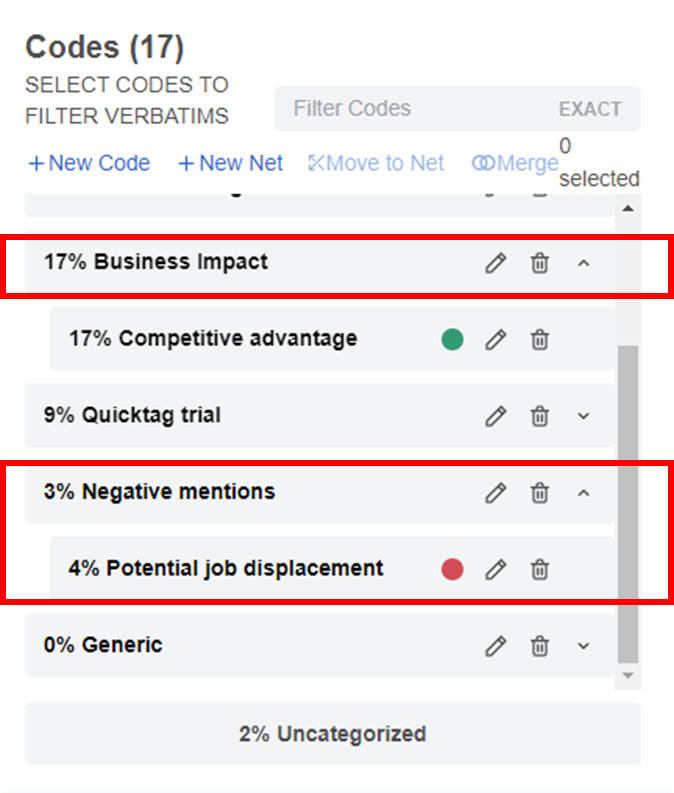
For example, you want to move Potential job displacement (4%) to a new net Negative Mentions. Simply click on Potential job displacement, then click Move to Net.
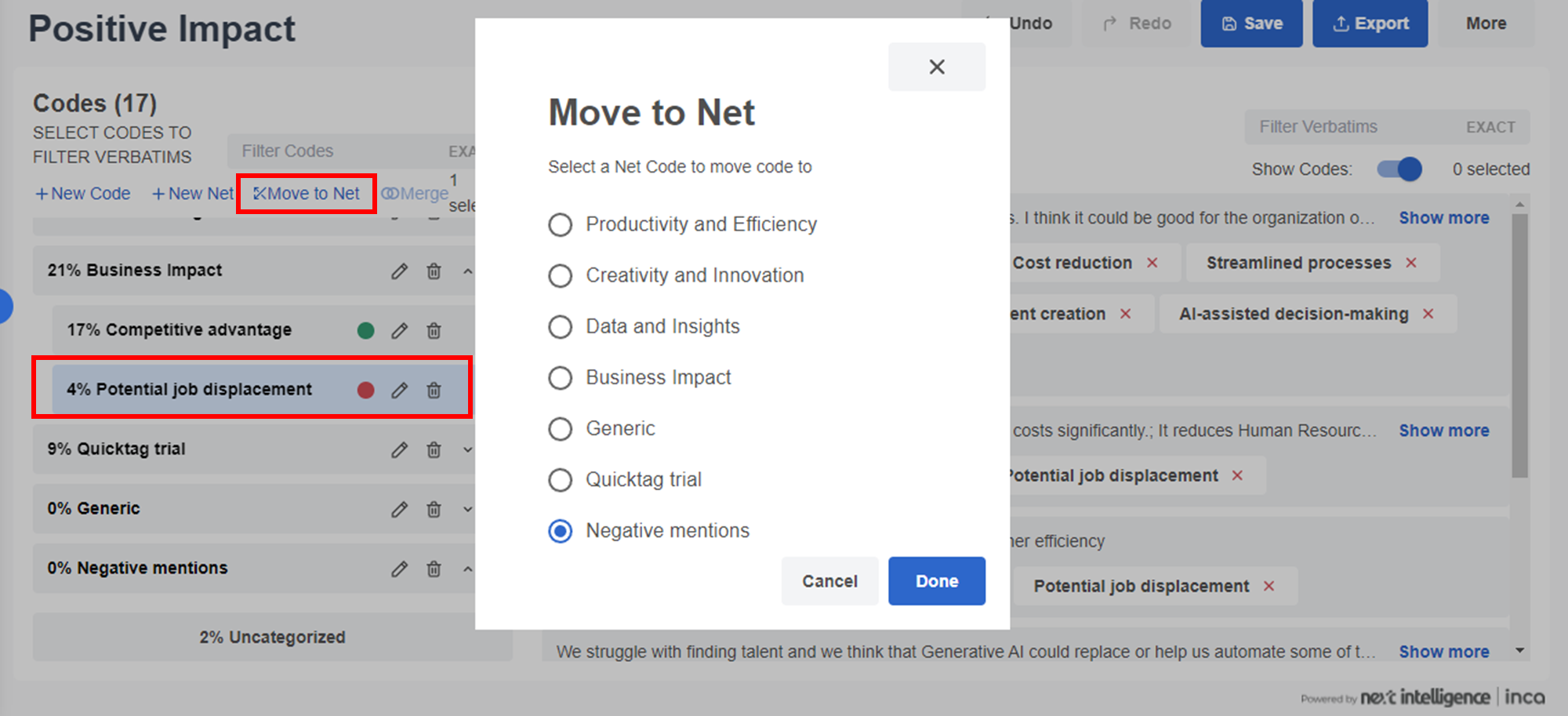
C2. In the popup, select the new NET it will be under(for example Negative mentions) and the net scores for both Negative mentions and Business Impact will be updated.
D. Combine code
D1. Select the codes you want to combine by holding the shift keyboard. After selecting, click Merge
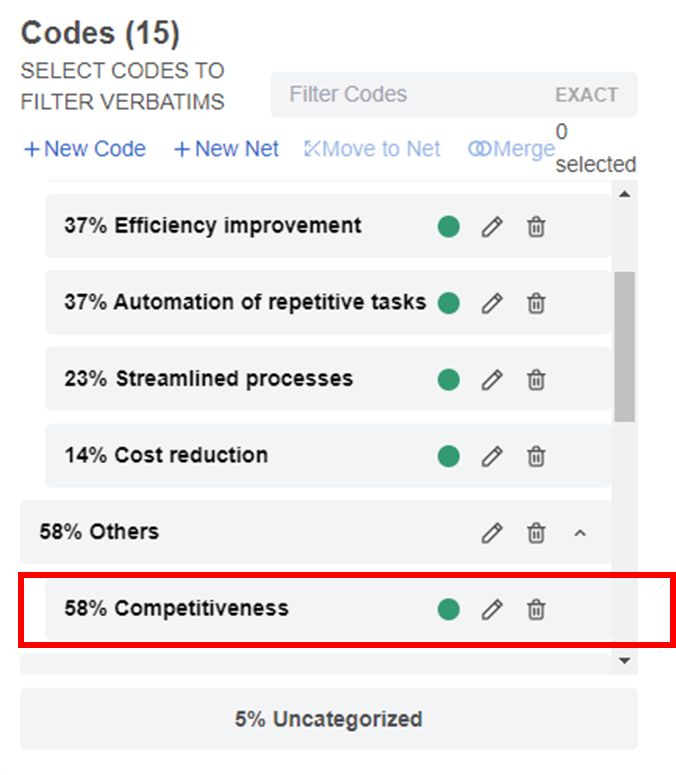
For example, you want to combine 3 codes Faster insights generation (47%, Better data analysis (42%), and Competitive advantage (17%) to a new code (Competitiveness).
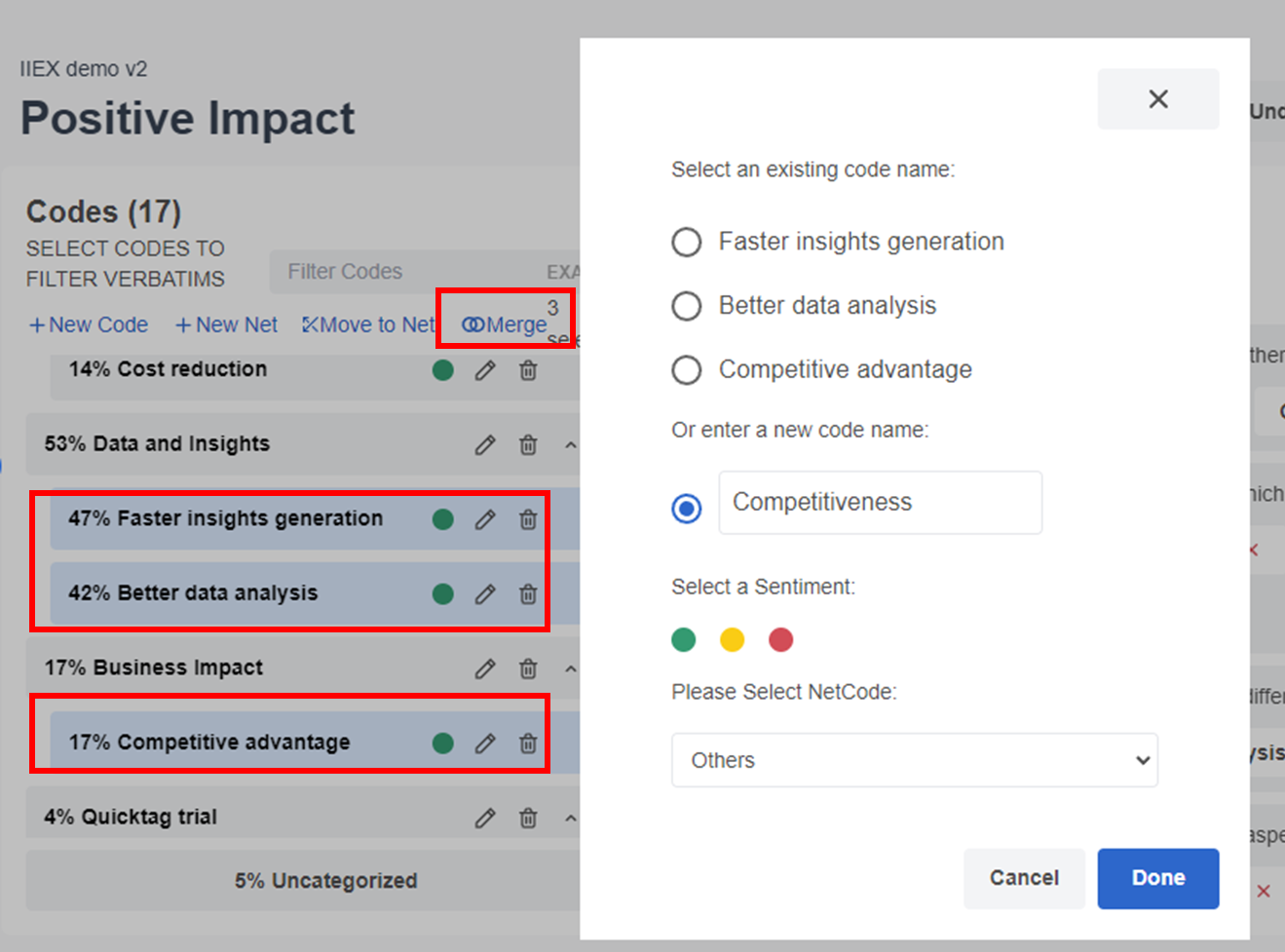
D2. In the popup, You can either use an existing code name, or input a new code name. Then select the sentiment and then select the NetCode it will be under.
In the same example, all three codes are now combined into one code Competitiveness (58%)
Export Coding Results
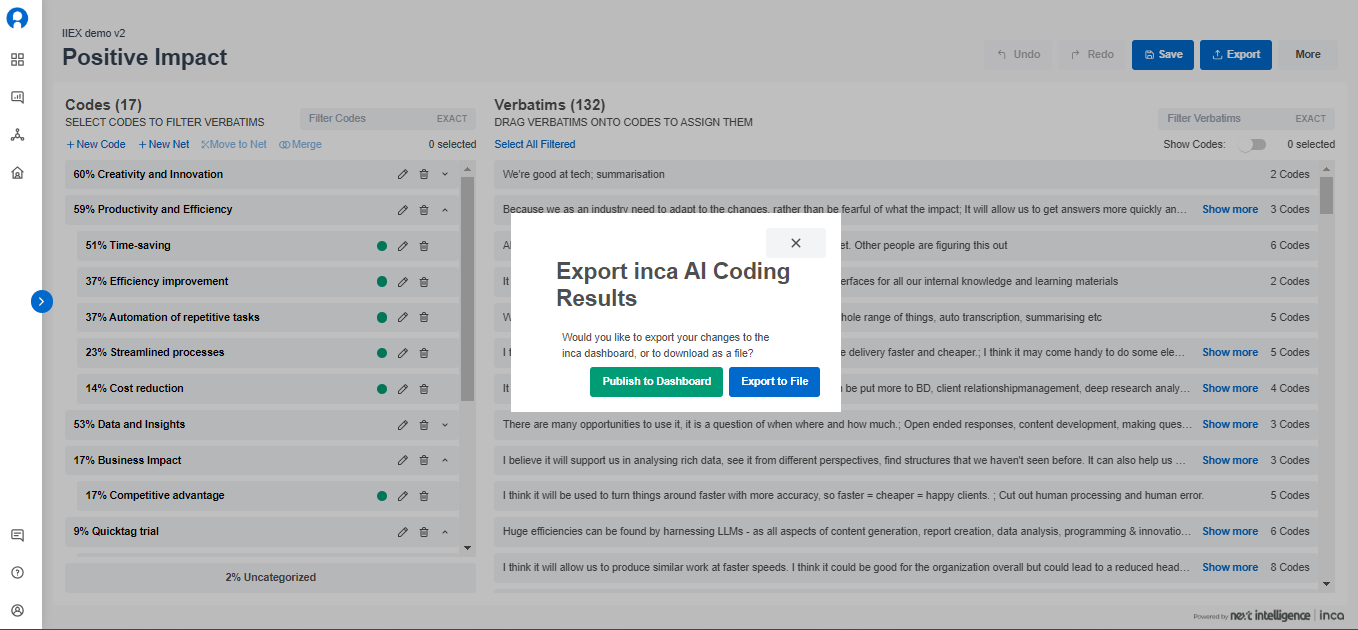
After you are happy with the coding, you can click the Export button on the top right and then choose Publish to Dashboard or Export to File.
Publish to Dashboard
When you select Publish to Dashboard, you will be directed back to the Reports page of Dashboard. Then the open-ended question card that you have modified, select Codes in the drop-down to show the modified coding results.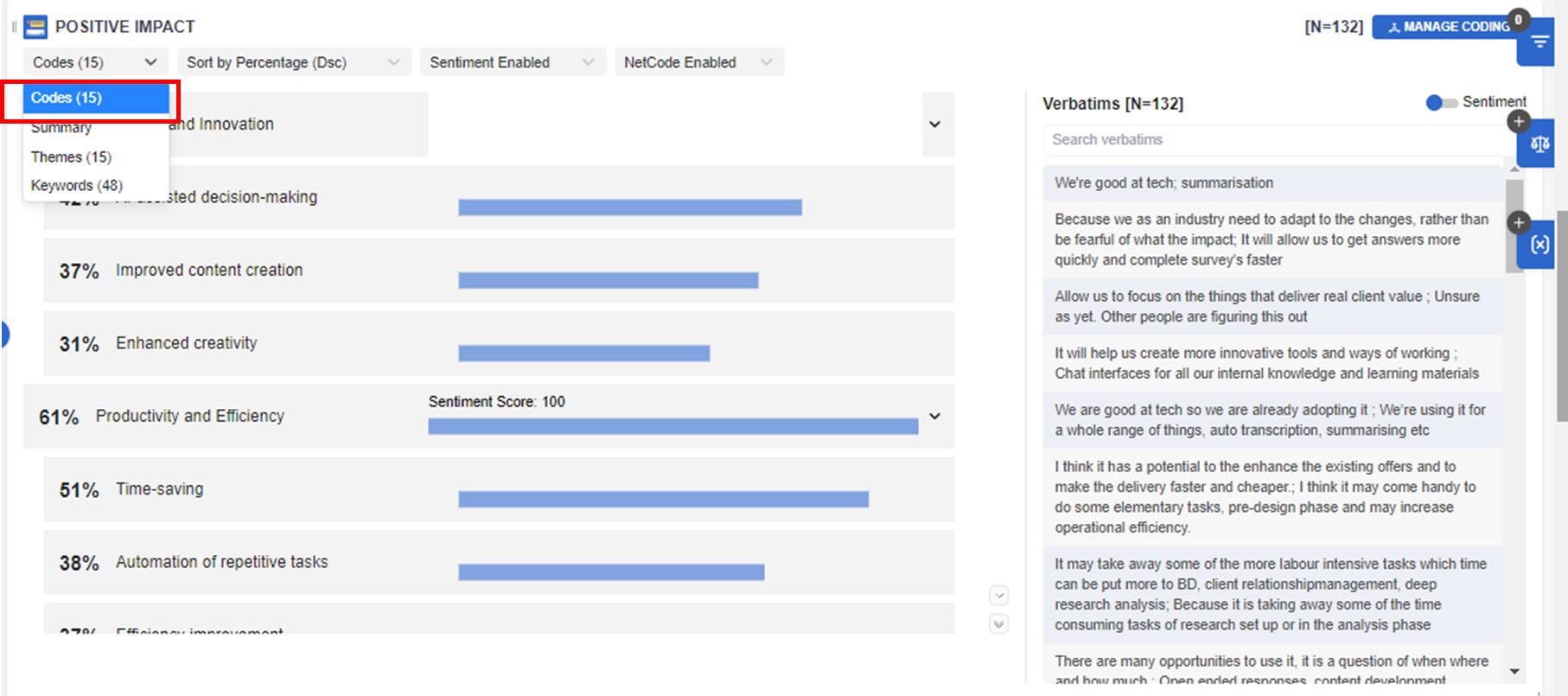
Export File
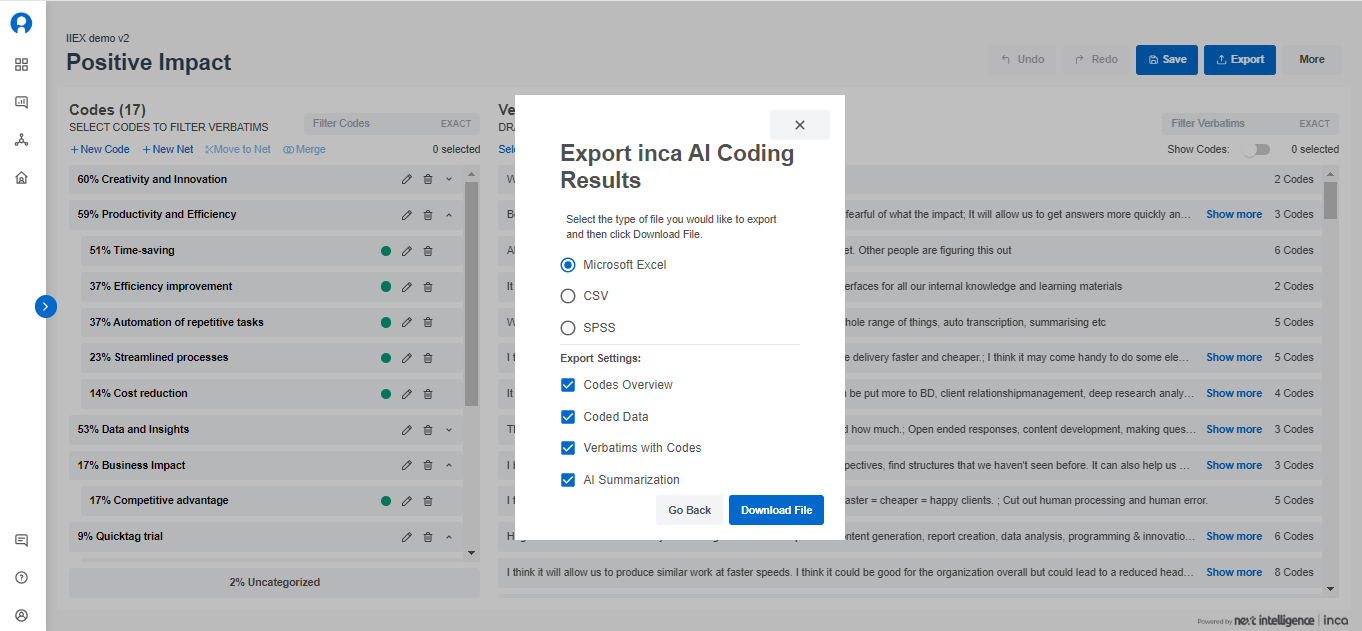
If you choose to Export to File, then there are a few options you can choose in terms of the file format and content. You can then use your preferred tabulation tools to run the analysis.
Related Articles
How to filter data in the Dashboard?
In the Dashboard, FILTERS are useful analysis tool that allows you to filter the responses from the total sample and show only the data for a certain group/segment or data set that you have selected. How to set it up? 1. You can use the Filter ...How are voice and video responses analyzed on the dashboard?
The Media Count feature tracks the total number of individual media uploads per open end question. This includes open end questions where Voice or Video responses are enabled. In the project dashboard, go to the open end question card and in the drop ...How to make summaries from different segments in the Dashboard?
What is Smart Summary? The Smart Summary feature similarly works like a Crosstab but for Open End questions. Smart Summaries are AI generated summaries that allow you to view verbatim summaries based on the total sample (Total), side-by-side with the ...How to make data tables or crosstab in the Dashboard?
What is a CrossTab? The Crosstab feature is a useful analysis tool commonly used to compare the results for one or more questions/variables with the results of another question/variable. Crosstabs (cross-tabulation) are basically data tables that ...How to view verbatims with profile or participant information?
In the Dashboard, Participant Info allows you to profile each participant verbatim text making each verbatim have additional context and analysis (i.e. Age, Gender, Brand Usage). Participant Info can be seen at the end of each verbatim text across ...