How to filter data in the Dashboard?
In the Dashboard, FILTERS are useful analysis tool that allows you to filter the responses from the total sample and show only the data for a certain group/segment or data set that you have selected.
How to set it up?
1. You can use the Filter feature on both the Report or CrossTab pages, by clicking the first blue box on the right side. Then click Add New Filter.
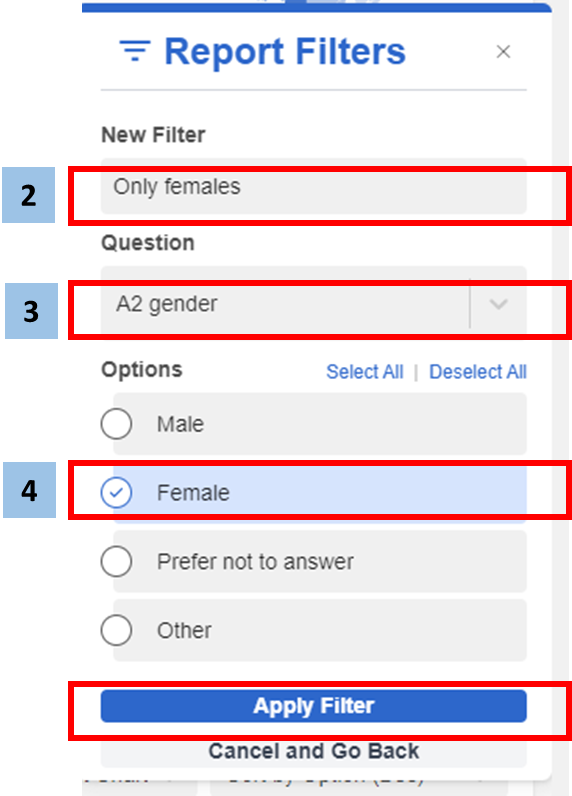
2. Input the name of the new variable in the New Filter field
3. Select the Question in which you would base your filtered sample or data
4. Tick the Options (For example, tick Female if you want to filter data among Female participants only), then click Apply Filter
5. Once the new filter has been added, it will show as an active filter. On the Report page, you can see how many filters are added/active in the filter icon/blue box.
If activating multiple filters, the condition will always be AND. (Active filters: Filter 1 AND Filter 2)
6. To deactivate a filter, toggle the bar to set the filter off. Or click Disable All. You may also edit/delete the filter by clicking the ellipsis button.
What question types are available for filters?
| Current question types that you can add in FILTER | Single Choice, Multiple Choice, Rating, Rank Order, Scale, Map, Popup Cards, Image Hotspot, Tradeoff Ranking, Treeman, NPS Plus, Virtual Question, OE question (after codes exported from AI Coding)
|
| Other source questions that you can add as FILTER | System Medata (includes language, device, panel) and Analysis Variables |
Related Articles
How to make data tables or crosstab in the Dashboard?
What is a CrossTab? The Crosstab feature is a useful analysis tool commonly used to compare the results for one or more questions/variables with the results of another question/variable. Crosstabs (cross-tabulation) are basically data tables that ...How the data is analyzed and visualized for Loop Questions?
Looped Questions in Dashboard 1. Report Page Each question in the Loop has a visualization chart. Within each chart, a Loop drop down allows users to filter results by a specific loop. Example Visualization for Loop: Question based Example ...How the data is analyzed and visualized for Video Annotations?
How do Video Annotations work? Video Annotations are mainly used to test ideas and concepts in which the video stimulus can be evaluated scene by scene. Participants are asked to select and pause the scene in which they feel like, dislike, or are ...How the data is analyzed and visualized for Image Hotspot?
How does Image Hotspot work? Image Hotspot is mainly used to test images or ads/concepts that are a mixture of image and text. Participants are presented with an image with predefined regions to select from and choose whether they feel like, dislike ...How the data is analyzed and visualized for Text Highlighter?
How does Text Highlighter work? Text Highlighter is mainly used to test ideas, concepts, messages, taglines, and slogans in which the text format stimulus material can be evaluated word by word, phrase by phrase, or by sentences. Participants are ...