How the data is analyzed and visualized for Text Highlighter?
How does Text Highlighter work?
Text Highlighter is mainly used to test ideas, concepts, messages, taglines, and slogans in which the text format stimulus material can be evaluated word by word, phrase by phrase, or by sentences. Participants are asked to highlight a word or phrases/sentences and select whether they feel like, dislike or confusing. An open-ended question is then asked to comment on the reasons for their selection.
Please see more details about What is Text Highlighter and how to set it up here.
How the data is analyzed and visualized for Text Highlighter
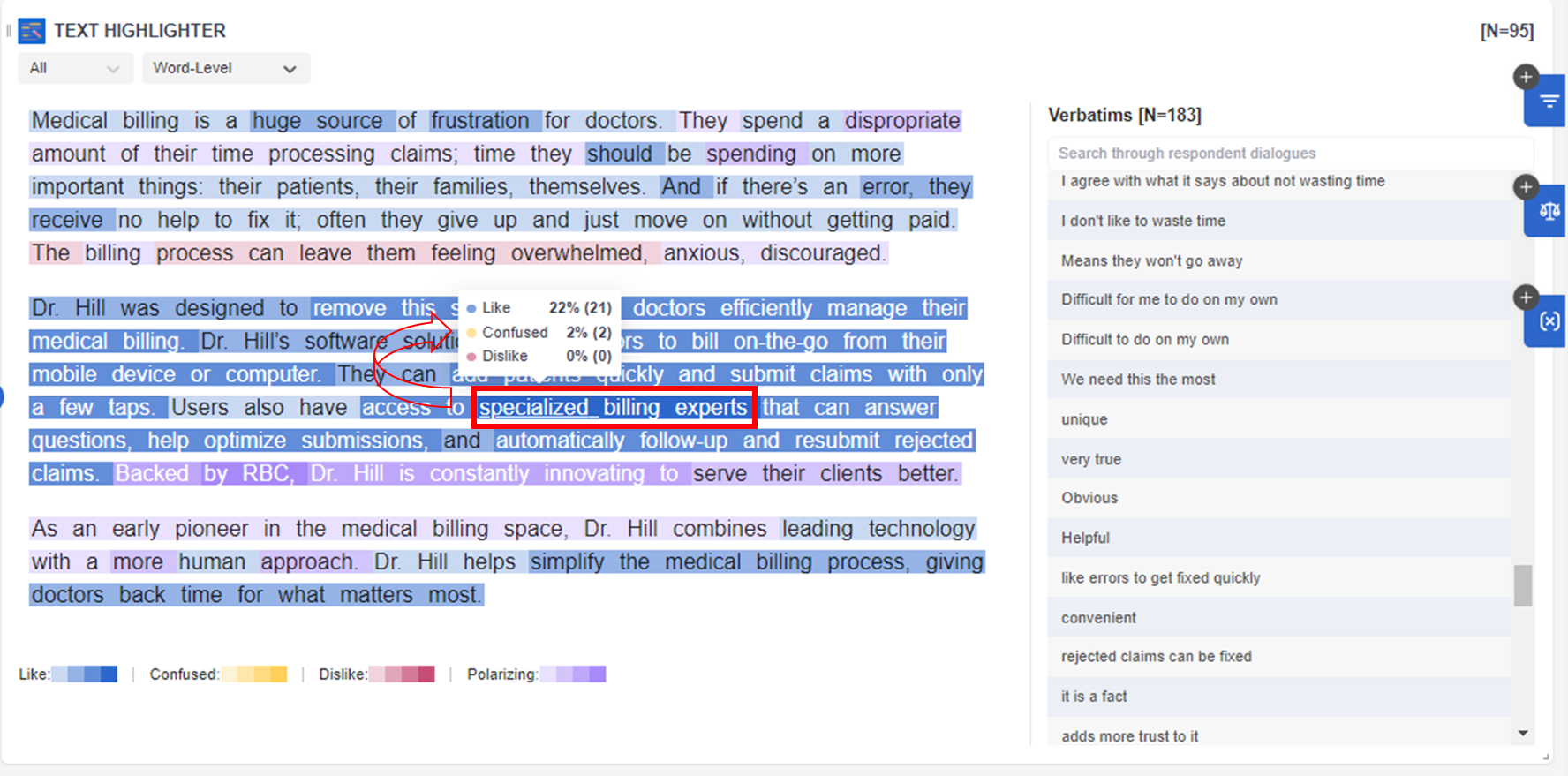
On the dashboard REPORT PAGE, users can see a visualization like the following screenshot for Text Highlighter. Users can choose between Word Level or sentence-level analysis. In summary (ALL), words highlighted in BLUE are the LIKED elements, those in yellow are CONFUSED elements, and DISLIKES are highlighted in red. POLARIZING elements are highlighted in purple. The section on the right also shows that verbatim for all responses.
WORD-LEVEL ANALYSIS
By hovering the mouse over the selected word, Word-Level will show the numbers for every word or phrase that participants LIKED, CONFUSED, or DISLIKED. This analysis tool works best for evaluating short taglines, messages or slogans.
In this example, "specialized billing experts" appear to be the most liked words/phrases in the concept with 22% or n=21 participants.
SENTENCE-LEVEL ANALYSIS
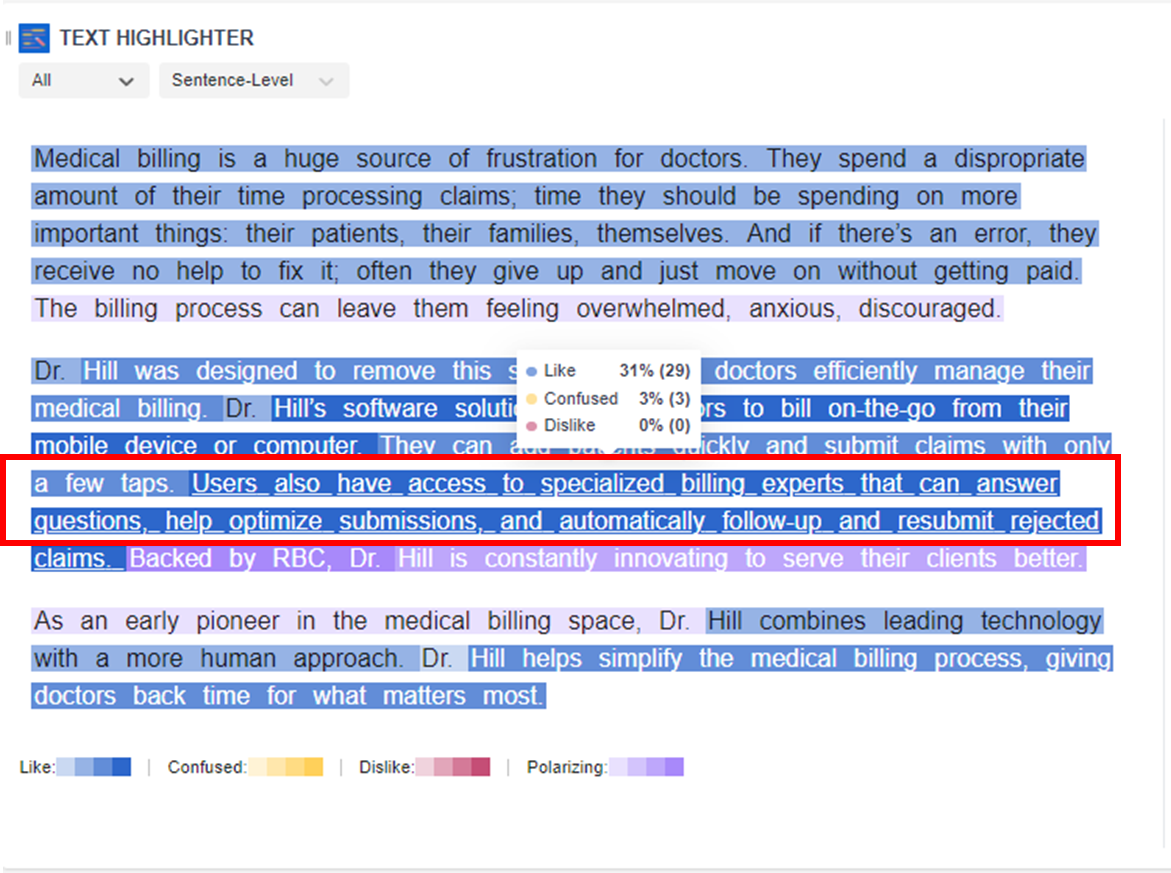
By hovering the mouse over the selected sentence, SENTENCE-LEVEL will show the numbers for each sentence that participants LIKED, CONFUSED, or DISLIKED. This analysis tool is ideal for evaluating ideas or concepts with relatively longer scripts.
In comparison with the example above, the sentence with "specialized billing experts" remains the most liked sentence in the concept with 31% or n=29 participants with minimal participants being confused only 3%.
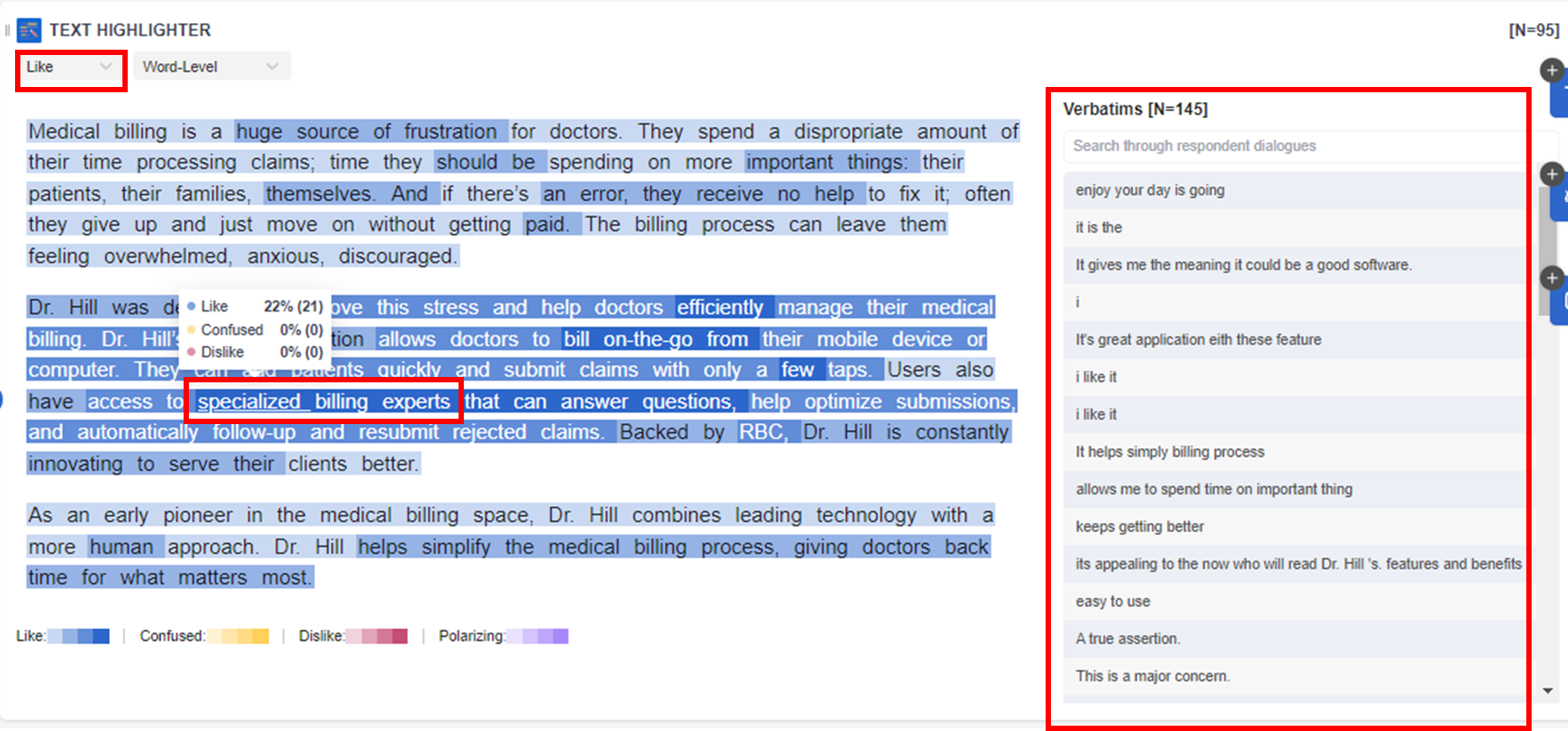
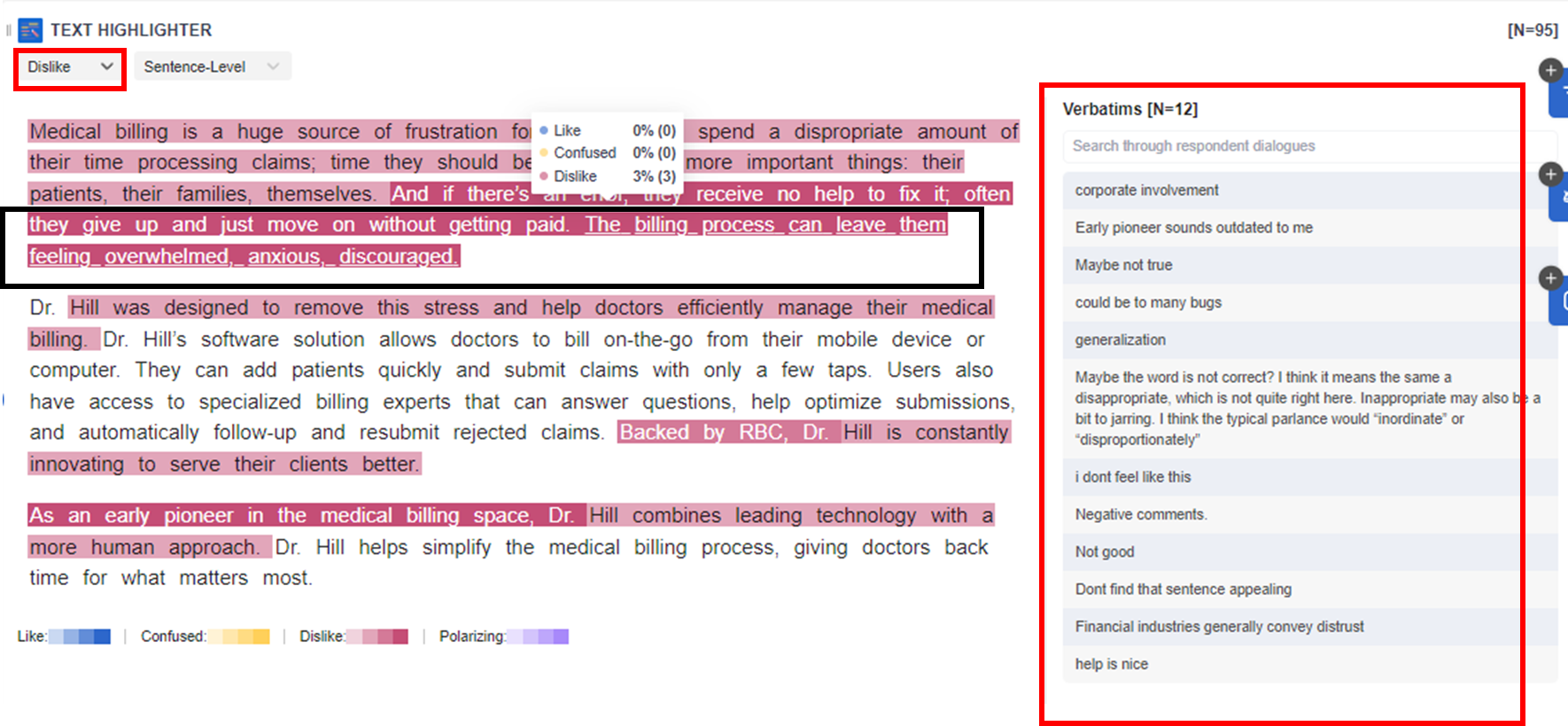
Apart from the summary (ALL), users can also select to show only options for LIKE, CONFUSED, and DISLIKE in the drop-down button. In this tool, users can filter responses based on each option and show verbatim explaining their selection (i.e. Reason for likes)
1. LIKE ANALYSIS: This will show only the participants who answered and selected LIKE (n=145). Note that each participant can select/highlight multiple words/sentences depending on the survey design.
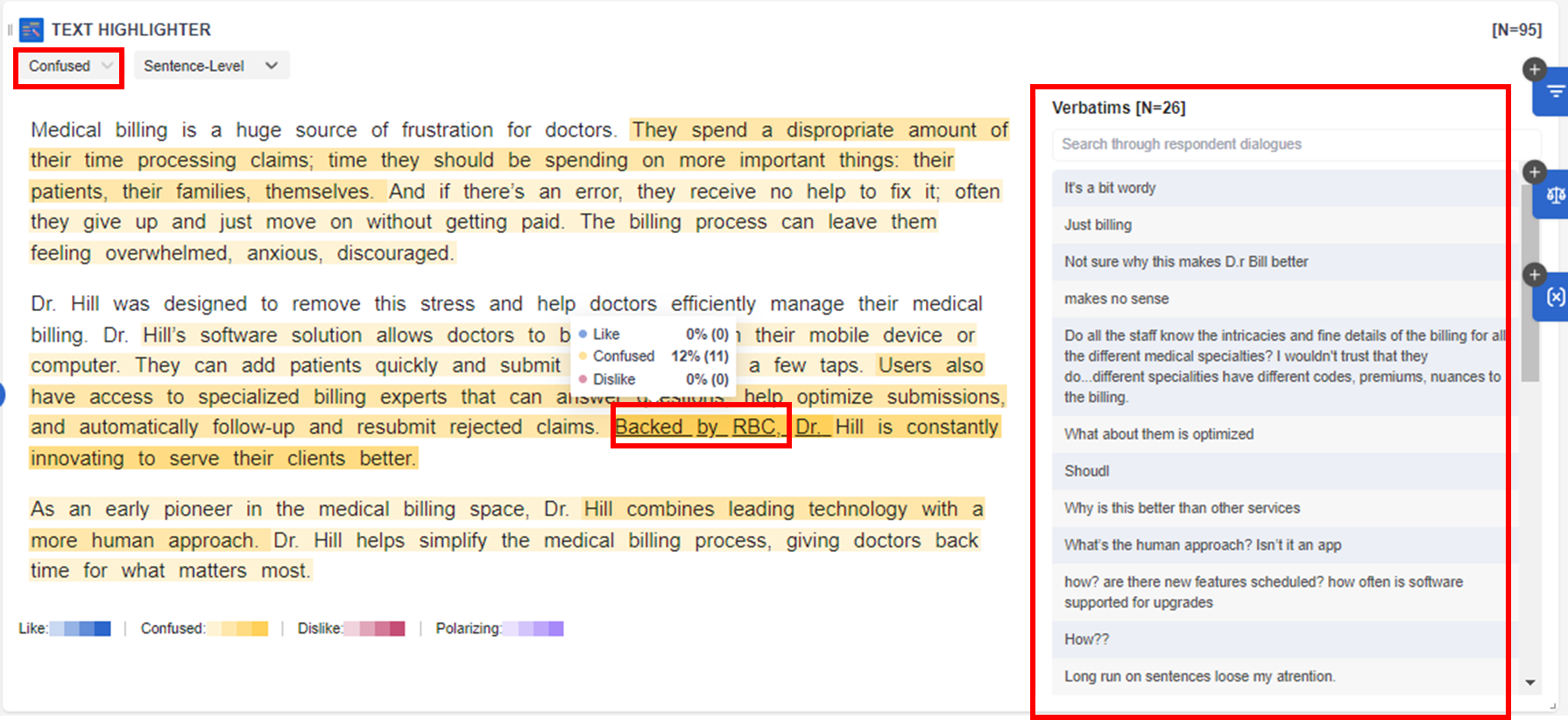
2. CONFUSED ANALYSIS: This will show only the participants who answered and selected CONFUSED (n=26). Note that each participant can select/highlight multiple words/sentences depending on the survey design.
3. DISLIKE ANALYSIS: This will show only the participants who answered and selected DISLIKE (n=12). Note that each participant can select/highlight multiple words/sentences depending on the survey design.
Related Articles
How the data is analyzed and visualized for Image Hotspot?
How does Image Hotspot work? Image Hotspot is mainly used to test images or ads/concepts that are a mixture of image and text. Participants are presented with an image with predefined regions to select from and choose whether they feel like, dislike ...How the data is analyzed and visualized for Video Annotations?
How do Video Annotations work? Video Annotations are mainly used to test ideas and concepts in which the video stimulus can be evaluated scene by scene. Participants are asked to select and pause the scene in which they feel like, dislike, or are ...How the data is analyzed and visualized for Treeman Projective?
How does Treeman Projective work? Treeman is a Projective technique that elicits the emotions and feelings of participants on a particular topic. It is mainly a single-choice question and all the options add up to 100%. An open-ended question is then ...How the data is analyzed and visualized for Tradeoff Ranking?
How Tradeoff Ranking works? Tradeoff Ranking is mainly used to test the attractiveness and competitiveness of different ideas, including concepts, messages, logos, features and other stimulus materials. It explores further why the customers like or ...How the data is analyzed and visualized for Guided Fantasy Projective?
On the dashboard report page, the Guided Fantasy is analyzed and visualized with a Summary: Note: If users need coded results or Themes, users can export the verbatims of the Guided Fantasy question from the raw data file or copy the verbatims ...