How to remove or hide participants from the completed interviews?
During project monitoring or after fieldwork, there are cases where users might want to remove survey participants on the dashboard such as adjusting the quota completed or removing bad-quality responses.
The Inca platform has a data quality control system that generally detects bad-quality open-end responses and straight liners (those who select the same answer) from some close-end questions. However, in some cases, some open-ended responses are still regarded as poor quality by the user.
In either case, you may delete the IDs/participants by following these steps:
1. In your project Dashboard, go to theData Export and download the CSV data to identify the Respondent IDs of the participants you want to delete. You may also send the Tracker ID to your panel provider as their reference ID in case you want these participants to be replaced on fieldwork.
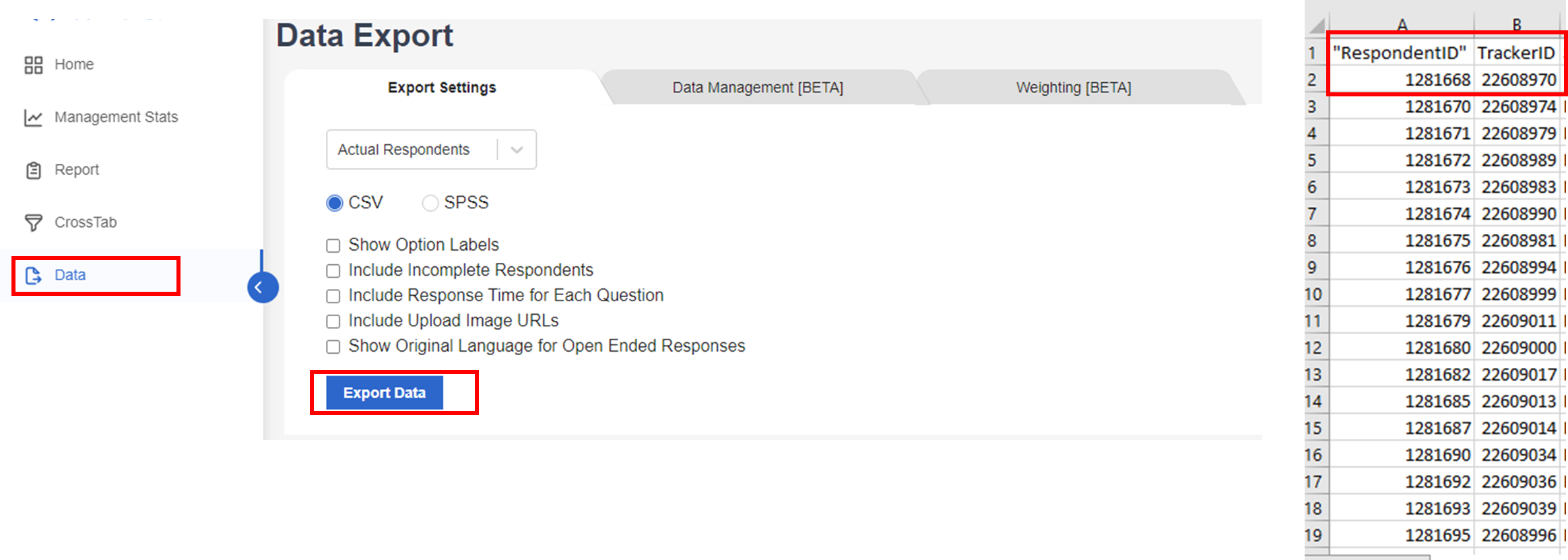 2. Once you've identified the Respondent IDs to be removed, go to the Data Management tab tick the Respondent ID you want to remove, and click Hide on Dashboard.
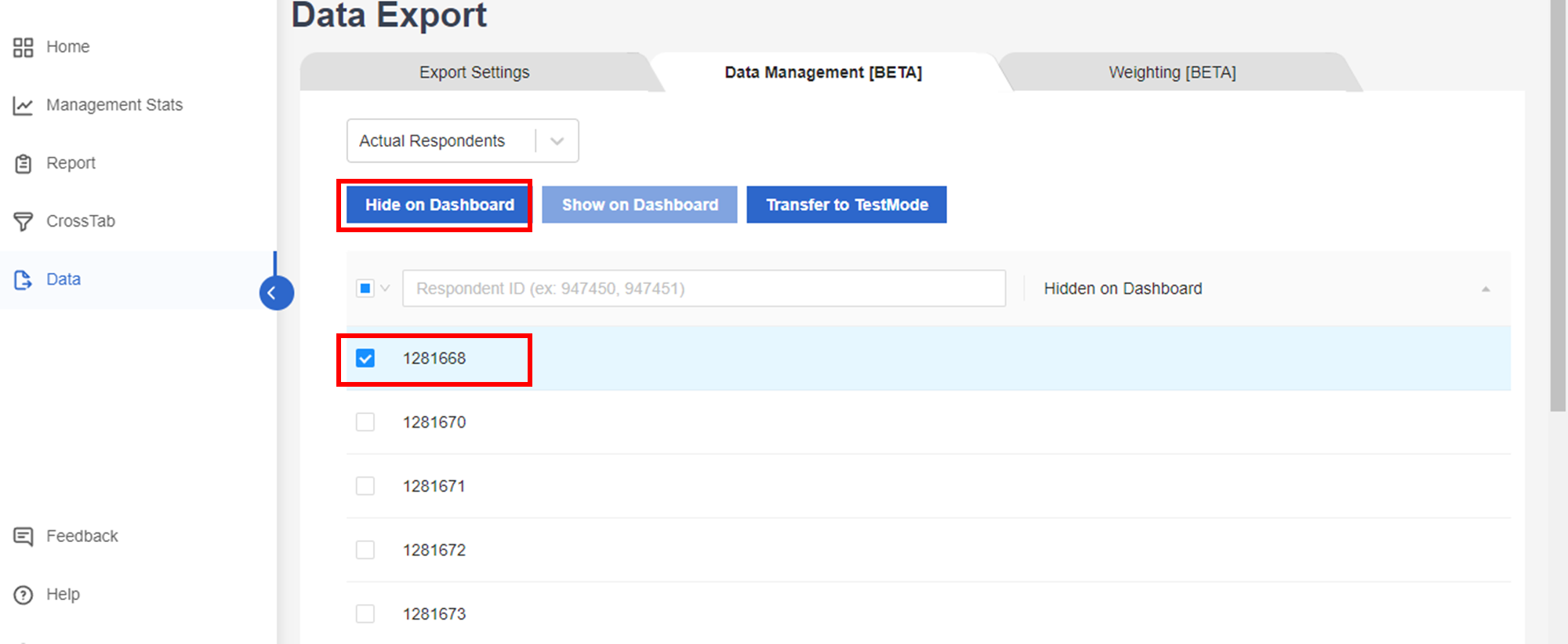
Note that users can use the search bar to find the relevant IDs, and when there are multiple IDs, they can separate them with a comma in the search bar.
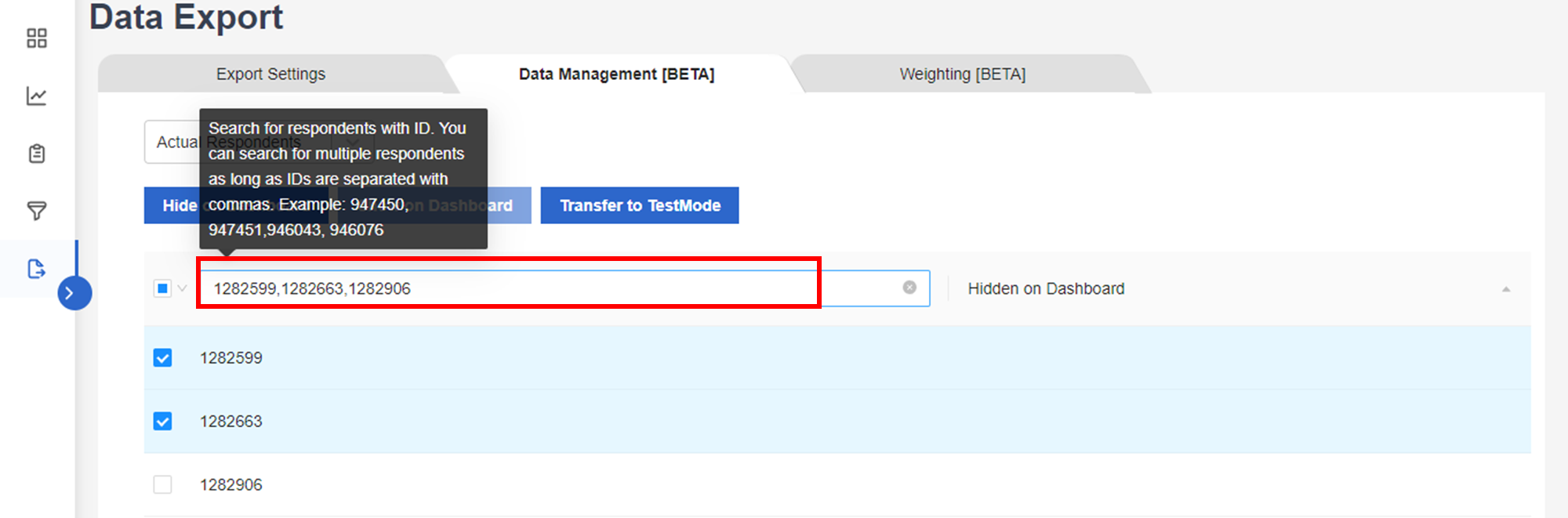
3. Once the respondent's IDs have been hidden, the Dashboard will be refreshed and the number of completes will be reduced. Note that the data won't be updated immediately on the Dashboard/data file, it would take a few minutes to refresh the data.
Additional Note:
Hide/show on the Dashboard is usually for quality control for all the real data collected from the Live link, and when the data is hidden, it won't show on the Dashboard but will still show in the data file with the status "Hidden".
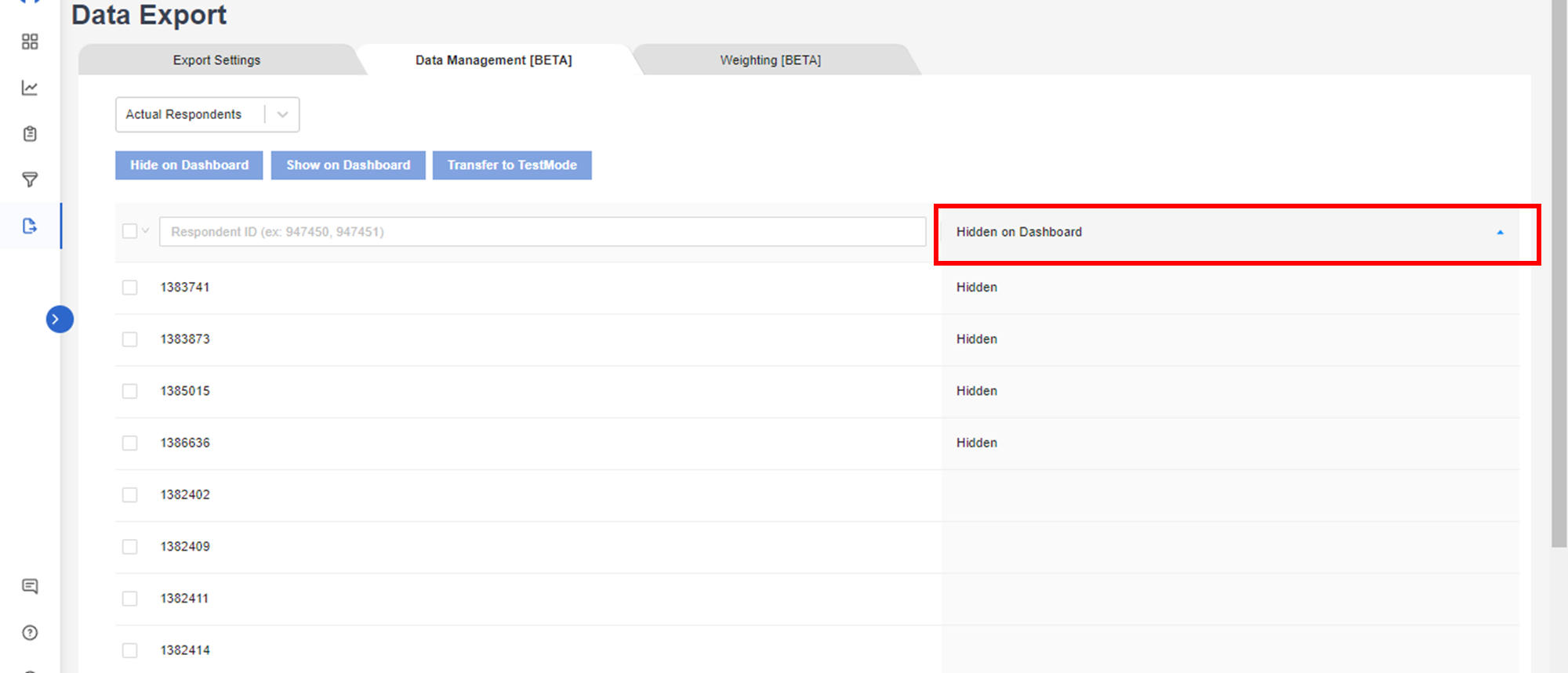
Transfer to/from TestMode
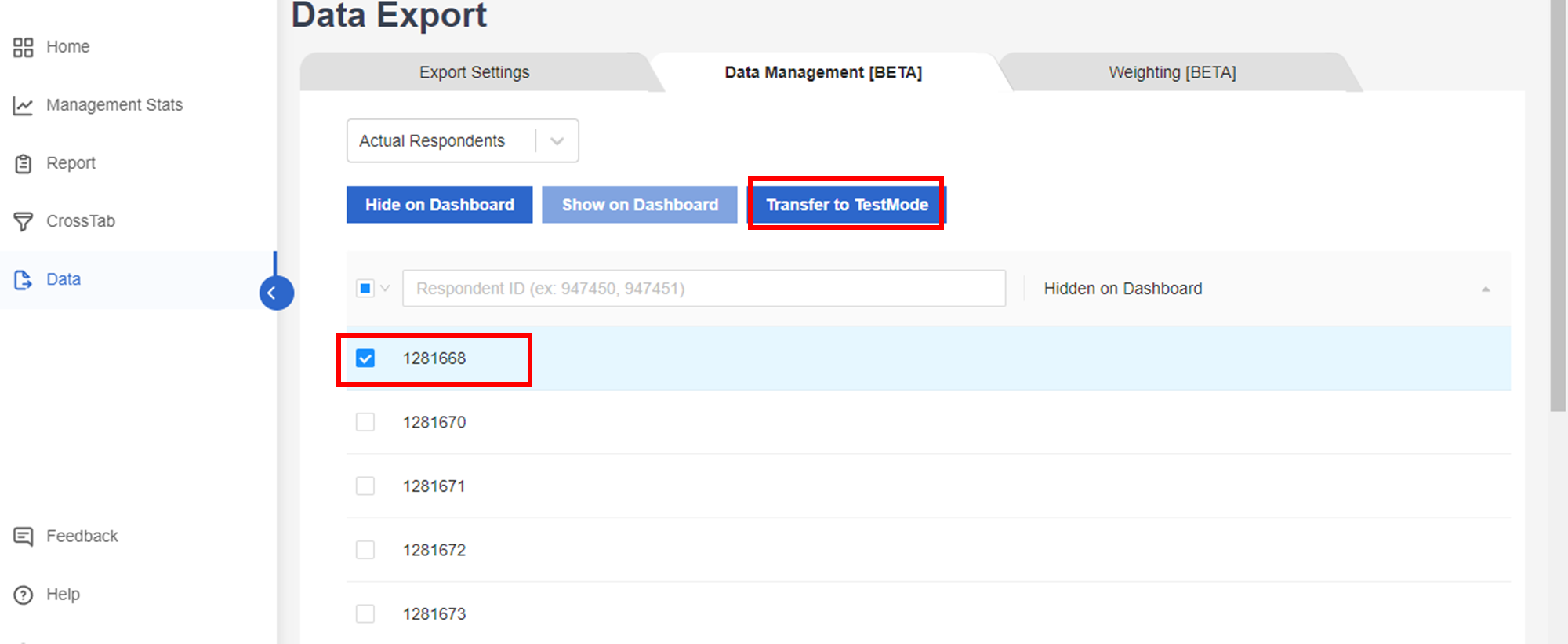
In the case that the user has used the wrong link for testing (used the Live link instead of the Test link) and you want to remove the data collected in the Dashboard, you can do so by clicking the Transfer to TestMode
When the data is moved to TestMode data, then it won't show up in the Dashboard. It also won't show up on the data file for Actual Respondents and will show in Test mode Data instead.
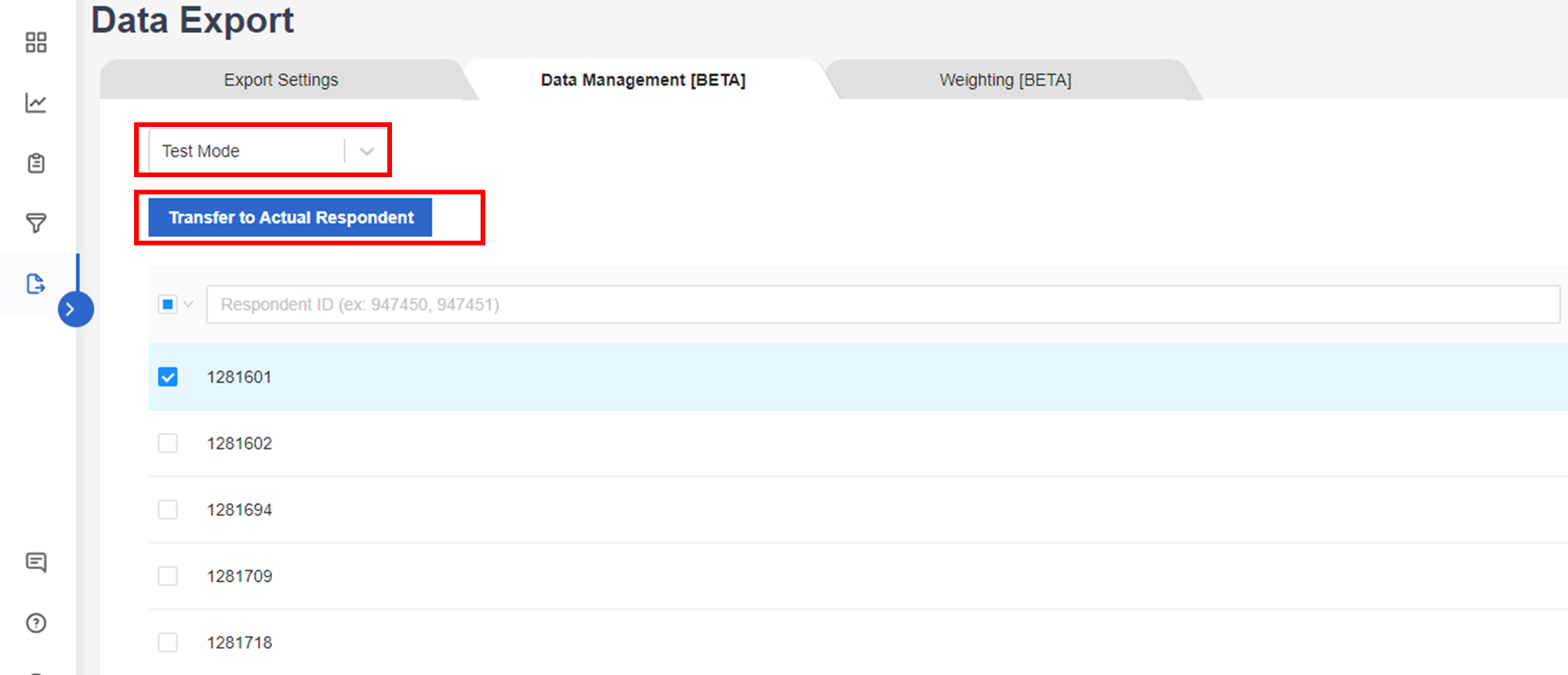
On the other hand, when the user has used the wrong link for data collection (used the Test link instead of the Live link, and the results don't show up on the dashboard), you can move participants on Test mode to the Actual Respondents that will show up on Dashboard and data file. Simply click on the drop-down and select TestMode, then select/determine the respondents' IDs, then click Transfer to Actual Respondent
Note: Full data deletion can only be done backend by the dev team, but users can move respondent data to test mode data on the data management tab to hide them from their dashboard and export data file.
Related Articles
How to download raw data or individual data?
To download the raw survey data on the Dashboard, go to the Data page and simply click Export Data. As shown in the above Export Setting, pre-selected default settings are already available for the user's convenience, but other options are also ...How the data is analyzed and visualized for Loop Questions?
Looped Questions in Dashboard 1. Report Page Each question in the Loop has a visualization chart. Within each chart, a Loop drop down allows users to filter results by a specific loop. Example Visualization for Loop: Question based Example ...How the data is analyzed and visualized for Open Ended Questions?
On the dashboard REPORT PAGE, the text analytics using AI run three different models for the open-ended verbatim -- Summaries, Themes and Keywords. As such, users can see three types of visualization for the standard open end question: Summary The ...How to filter data in the Dashboard?
In the Dashboard, FILTERS are useful analysis tool that allows you to filter the responses from the total sample and show only the data for a certain group/segment or data set that you have selected. How to set it up? 1. You can use the Filter ...SmartCoding on the Dashboard - Overview
What is inca SmartCoding? In this tool, you can add/remove/edit/merge the codes generated by the AI model for your open-ended verbatim. For the coded data, users can either export them to SPSS or CSV data file and run tables in their preferred ...