How to download raw data or individual data?
To download the raw survey data on the Dashboard, go to the Data page and simply click Export Data.
As shown in the above Export Setting, pre-selected default settings are already available for the user's convenience, but other options are also available for download.
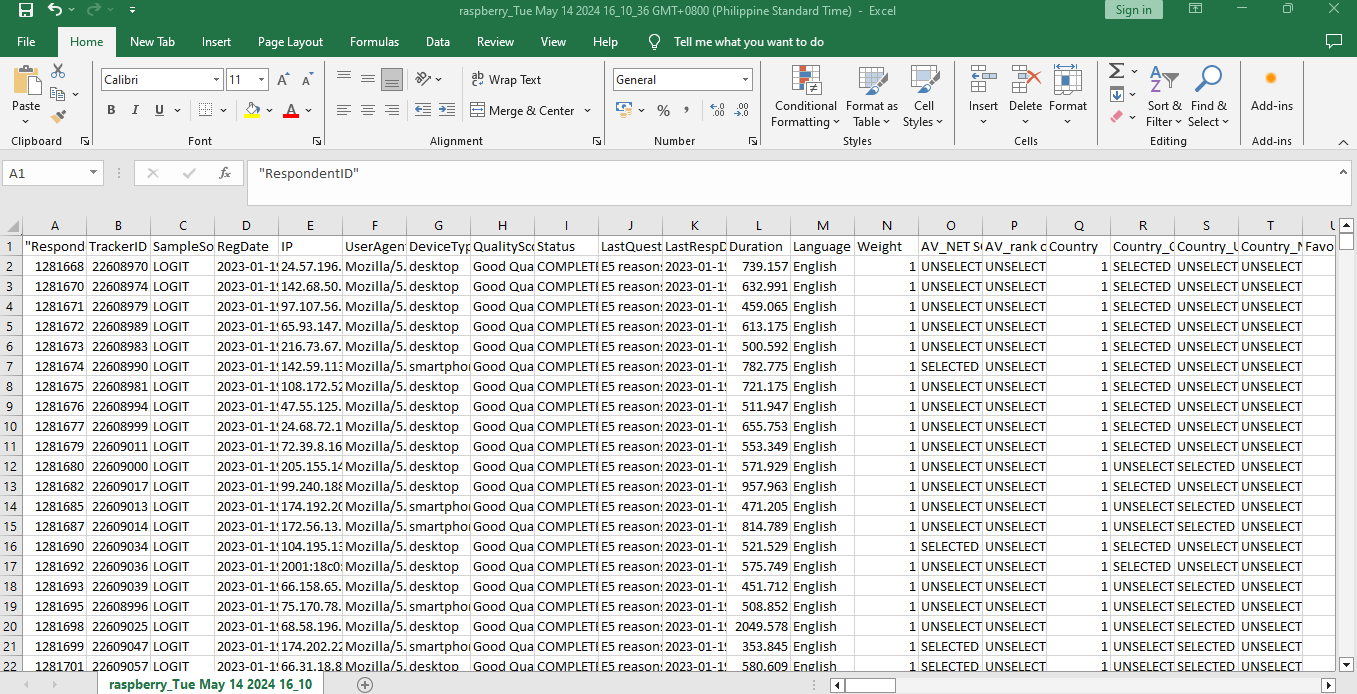
Sample CSV:
Export Setting
- CSV, SPSS, XLSX- You can select the data file in CSV, SPSS or XLSX format to run any detailed analysis you require
- Respondent Options
- Actual Respondents or Test Mode
- In the drop-down, you may select to download survey data of Actual Respondents from the LIVE link or any testing data from the Test Mode Link.
- Default setting: Actual Respondents - Include Incomplete/Hidden Respondents
- Tick this to show data from the participants who were terminated, disqualified, dropout from the survey
- Actual Respondents or Test Mode
- Content Options
- Show URL Metadata
-Tick this to show URL metadata from a virtual question - Show Selection/Indicator Variables
- This option is selected by default
- If the question is asked/displayed, it will show 1. If the question is not asked/displayed it will show a blank - Show Comprehensive Trade-Off Data
- Applicable only if the Comprehensive Mode is enabled on a Tradeoff Ranking Question
- Show URL Metadata
- System Data- all options are selected by default
- Respondent ID - shows the unique ID of each survey participant
- Register Date (RegDate) - shows the time when each participant started answering the survey
- Device Type - shows if the survey is answered on desktop, mobile or tablet
- Last Question Label - shows the last question that each participant answered
- Language - shows the language selected
- Tracker ID - shows another unique identifier for each survey participant (mostly used by panel providers)
- IP Address (IP) - shows the IP assigned to each survey participant
- Quality Score - shows the quality of responses generated from the demerit score or the system's disqualification control
- Last Respondent Date (LastRespDate) - shows the time when each participant finished answering the survey
- Source - shows the sample source if from a Panel or other audience source (general)
- UserAgent - shows the specific unit used in Device Type
- Status - shows Complete for completed interviews; shows Terminate, Disqualification, Quota Full for incomplete interviews
- Duration - shows the response time in seconds or how much time it takes for each participant to answer the entire survey
- First Response Date (FirstRespDate) - shows the time the first response was recorded for each participant
Note: The timestamps are in UTC time format while the Time Zone is GMT 0.
For example, T separates the date (2025-03-20) and the time (07:23:03.317). And Z is UTC.
- AI options (for Open-ended questions)
- Include Multimedia URLs
- Tick this to show the uploaded audio, video and image and get a URL of each media type in the data file. The URLs are recorded in an extra column for the OE question. - Show Original Language for Open Ended Responses
- Tick this to show verbatim responses in the original language used by participants (By default we show machine translation for non-English verbatim) - Show all Open Ended Responses in One column
-This option is selected by default
- If not enabled, open-ended responses are separated in different columns (i.e. the first answer and probe answer) - Show word count
- Tick this to show the total number of words for each participant in each open-ended question - Show Demerit Scores
- TBC
- Include Multimedia URLs
- Format Options
- Show Simplified Headers
- When enabled, the column header (row 1) will only have the question label (for CSV and XLSX)
- If not enabled, the column header (row 1) will have a question ID along with the question label (for CSV and XLSX) - Show Option Labels
- This option is selected by default
- If not enabled, it will show the options codes per question (for CSV and XLSX)
Note: For SPSS data file, the Option Codes and Question labels with question ID are shown by default - Show Open-Ended Question Text
- When enabled, the column header (row 1) for each open end question will show the question text
- Show Simplified Headers
Batch Export Multimedia Data
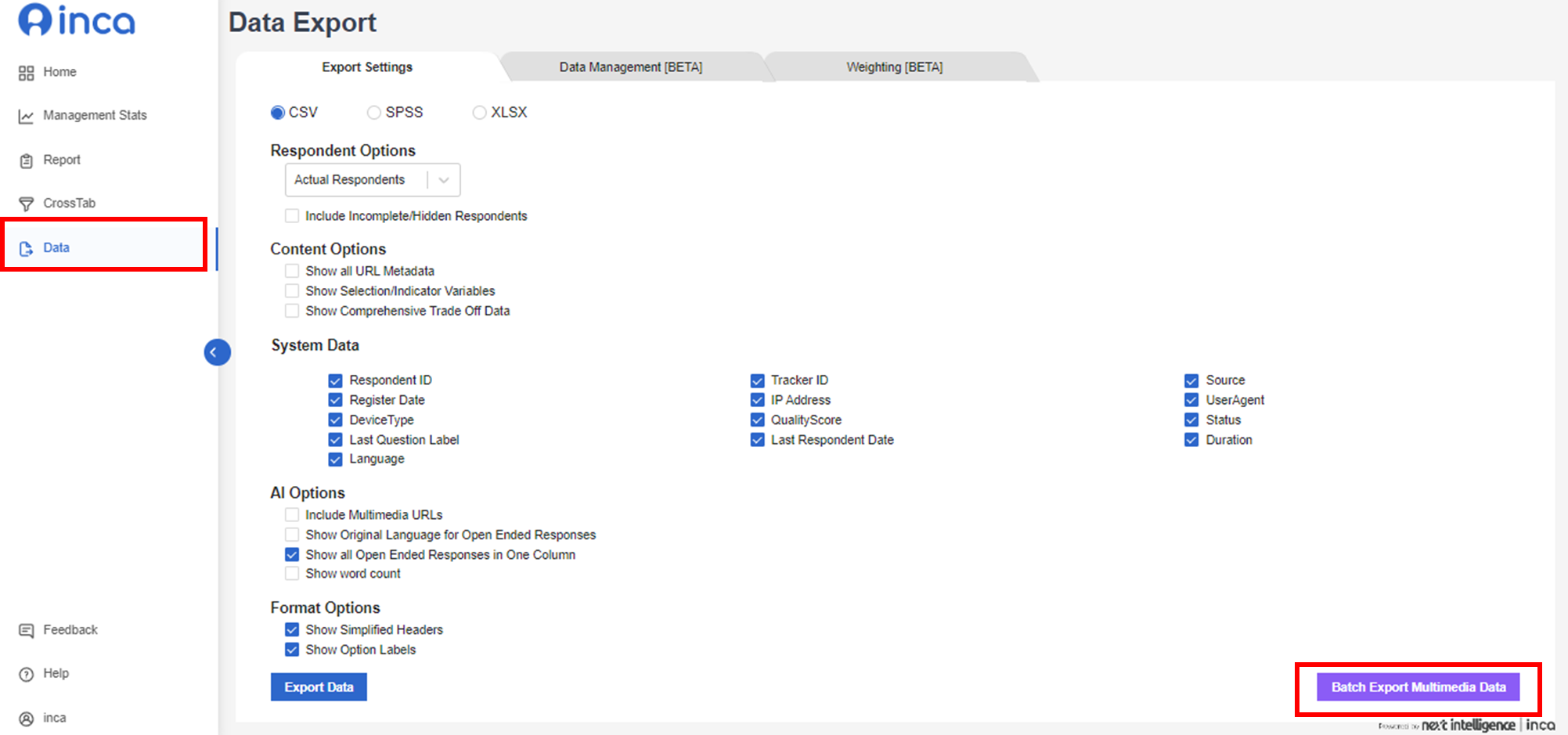
Users will see a zip file in which all the files uploaded by the survey participants across all questions in the project are saved.
In each uploaded file, the default format is QuestionLabel_QuestionID_UPLOAD_RespondentID_Sequence
For example: E2_EXPERIENCE_106099_UPLOAD_1913519_0
If multiple file is uploaded for the same question question from the same participant, the second file will be named E2_EXPERIENCE_106099_UPLOAD_1913519_1
Related Articles
How to download a PowerPoint report?
The inca Dashboard provides the option to download a PowerPoint report on the Report Page. You can download the results with charts as PowerPoint documents by clicking the "P" button in the upper right corner. In the downloaded PowerPoint file, all ...How the data is analyzed and visualized for Loop Questions?
Looped Questions in Dashboard 1. Report Page Each question in the Loop has a visualization chart. Within each chart, a Loop drop down allows users to filter results by a specific loop. Example Visualization for Loop: Question based Example ...How to make data tables or crosstab in the Dashboard?
What is a CrossTab? The Crosstab feature is a useful analysis tool commonly used to compare the results for one or more questions/variables with the results of another question/variable. Crosstabs (cross-tabulation) are basically data tables that ...How the data is analyzed and visualized for Guided Fantasy Projective?
On the dashboard report page, the Guided Fantasy is analyzed and visualized with a Summary: Note: If users need coded results or Themes, users can export the verbatims of the Guided Fantasy question from the raw data file or copy the verbatims ...How to filter data in the Dashboard?
In the Dashboard, FILTERS are useful analysis tool that allows you to filter the responses from the total sample and show only the data for a certain group/segment or data set that you have selected. How to set it up? 1. You can use the Filter ...