What are the ways to preview and test my study?
When creating your survey, there are several ways to test and preview your study...
Using the Question Preview
On the Question Builder Page, the QUESTION PREVIEW tab will give you a quick preview of the question you are working on.
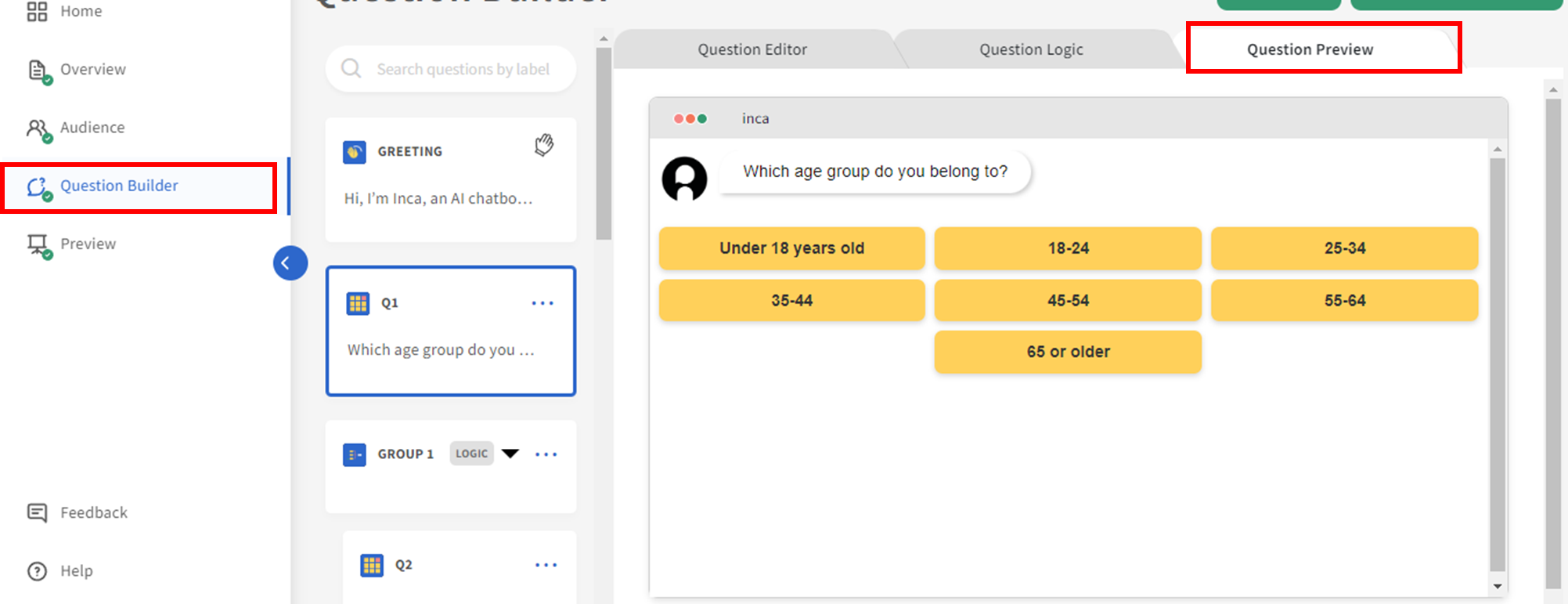
This is an easy way for the user to preview question wording, options design etc. (Example making adjustments and showing option 1 option per row)
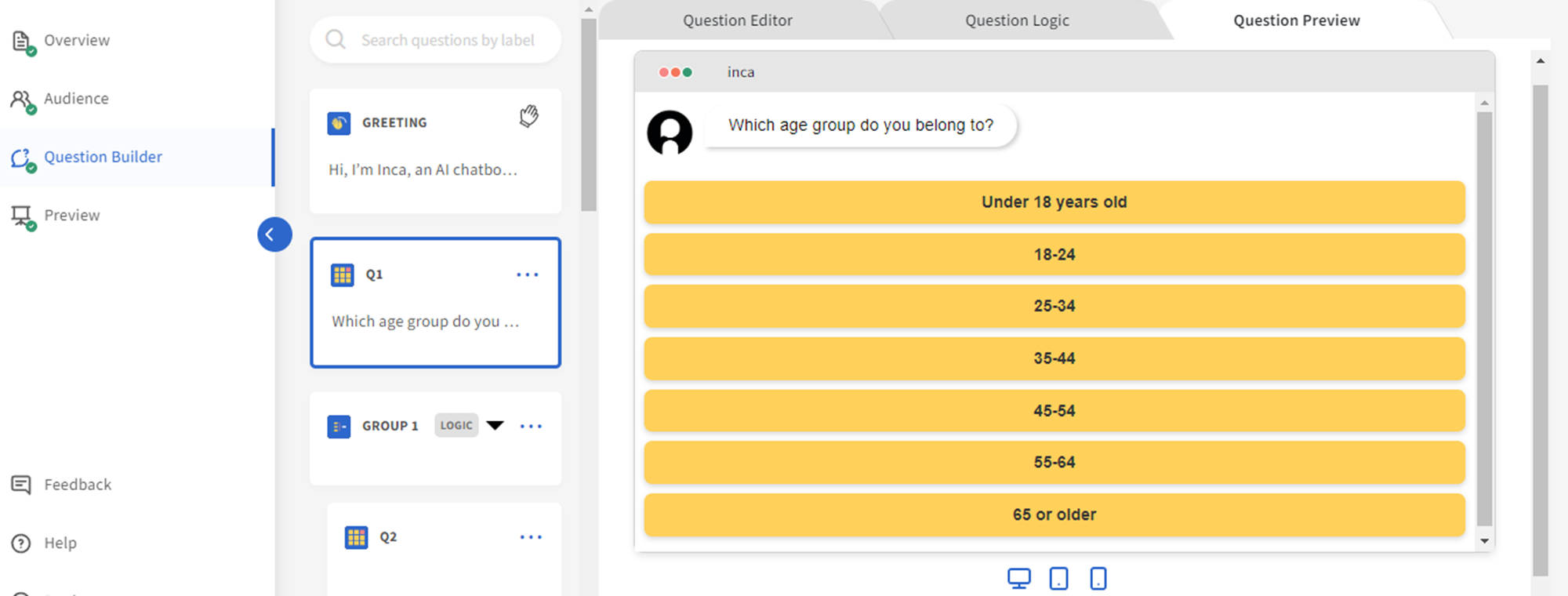
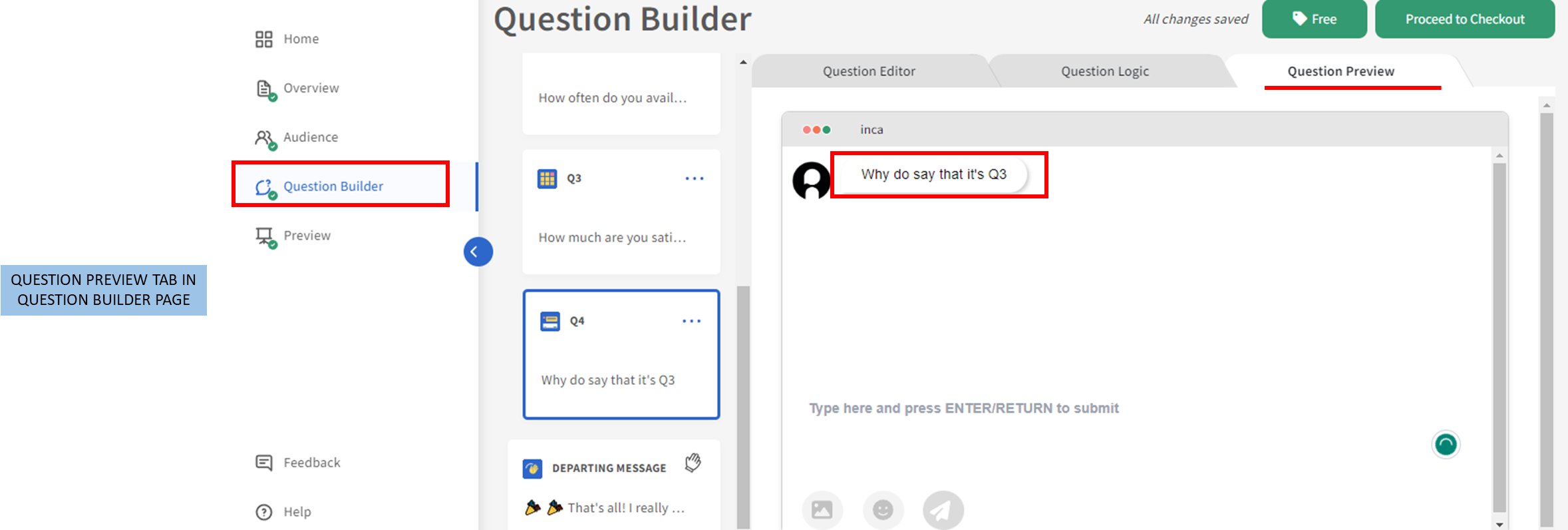
Please note that QUESTION PREVIEW can not be used to test logic and/or answer referencing.
- When you go to the Question Preview in Question Builder, you won't be able to test the logic as it would ignore all the logic set to the question or options for Question Preview.
- When you go to the Question Preview in Question Builder, you won't be able to see the actual answer referenced, because it is a single question preview, and no answer selected in the previous question to be displayed yet.
Using the Preview Page
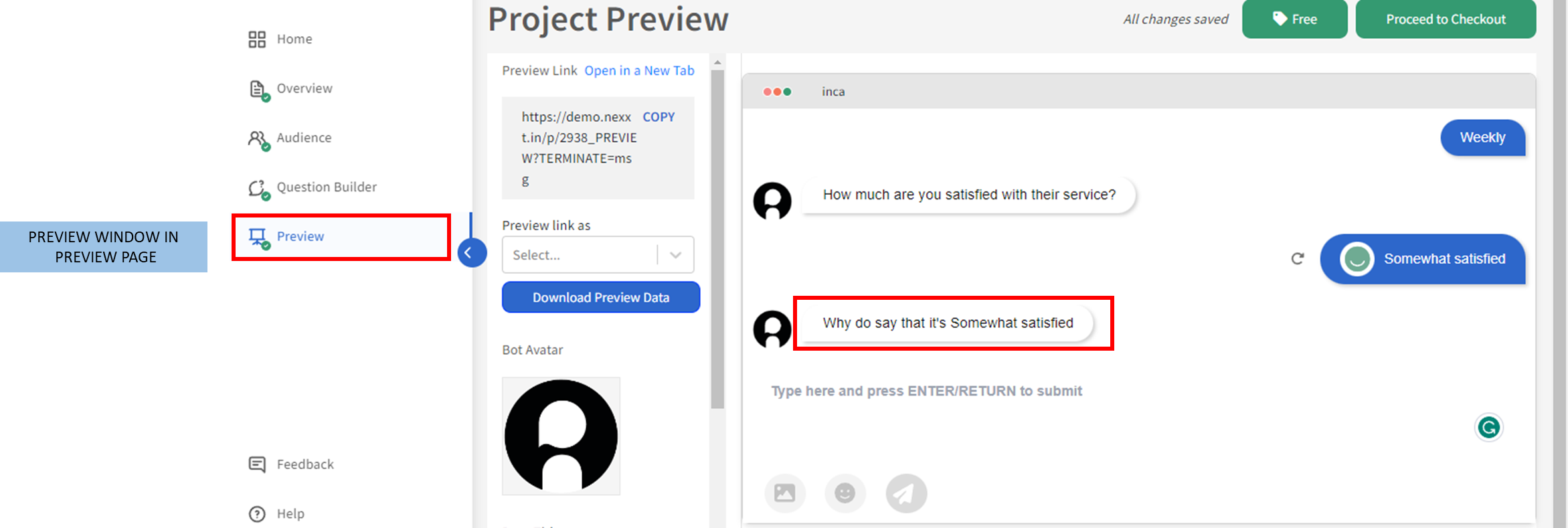
When you're done building most of your questions and if you want to test logic, answer referencing and overall survey flow, it's better to use the PREVIEW PAGE. On the preview page, the simplest would be to use the PREVIEW WINDOW on the page to test out the whole survey. You can also try to preview the study by switching between different devices(desktop, mobile, tablet) by clicking on device icons at the bottom of the PREVIEW WINDOW.
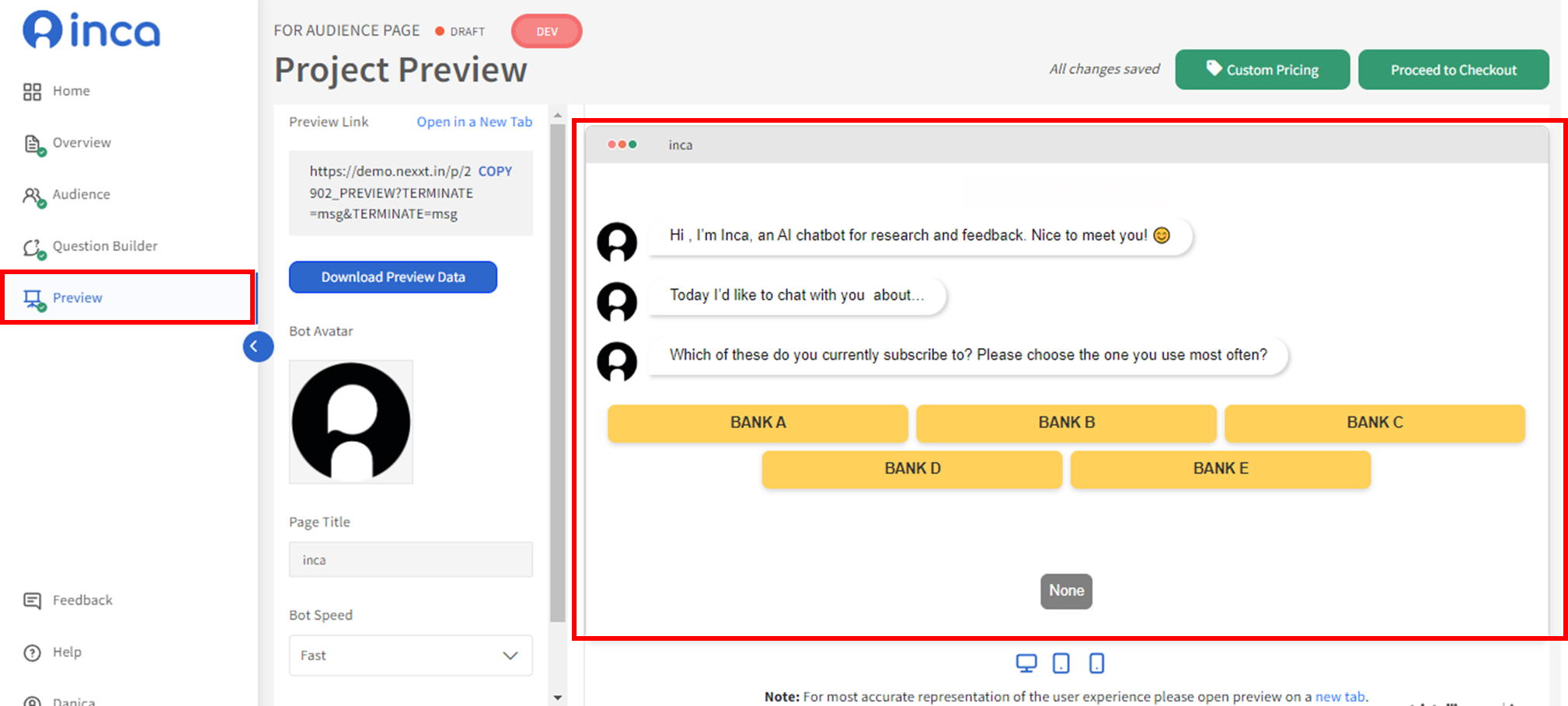
Using the same example, the PREVIEW WINDOW on PREVIEW page will show the answer referenced because it will give a preview of the entire study.
Please note
- The layout of questions including image size, option size, etc. might be slightly different in PREVIEW WINDOW compared to if we were to preview it in a new tab. So if you want to view the exact same experience as the participants, then it's better to use the PREVIEW LINK.
- Also the PREVIEW WINDOW does not include panels and/or other URL metadata, so if you want to test for different panels and URL metadata, then you should open or copy out the PREVIEW LINK for testing.
Using the Preview Link
If you want to view the exact same experience as the participants and/or if you want to test for different panels and URL metadata, then you should open or copy out the PREVIEW LINK for testing.
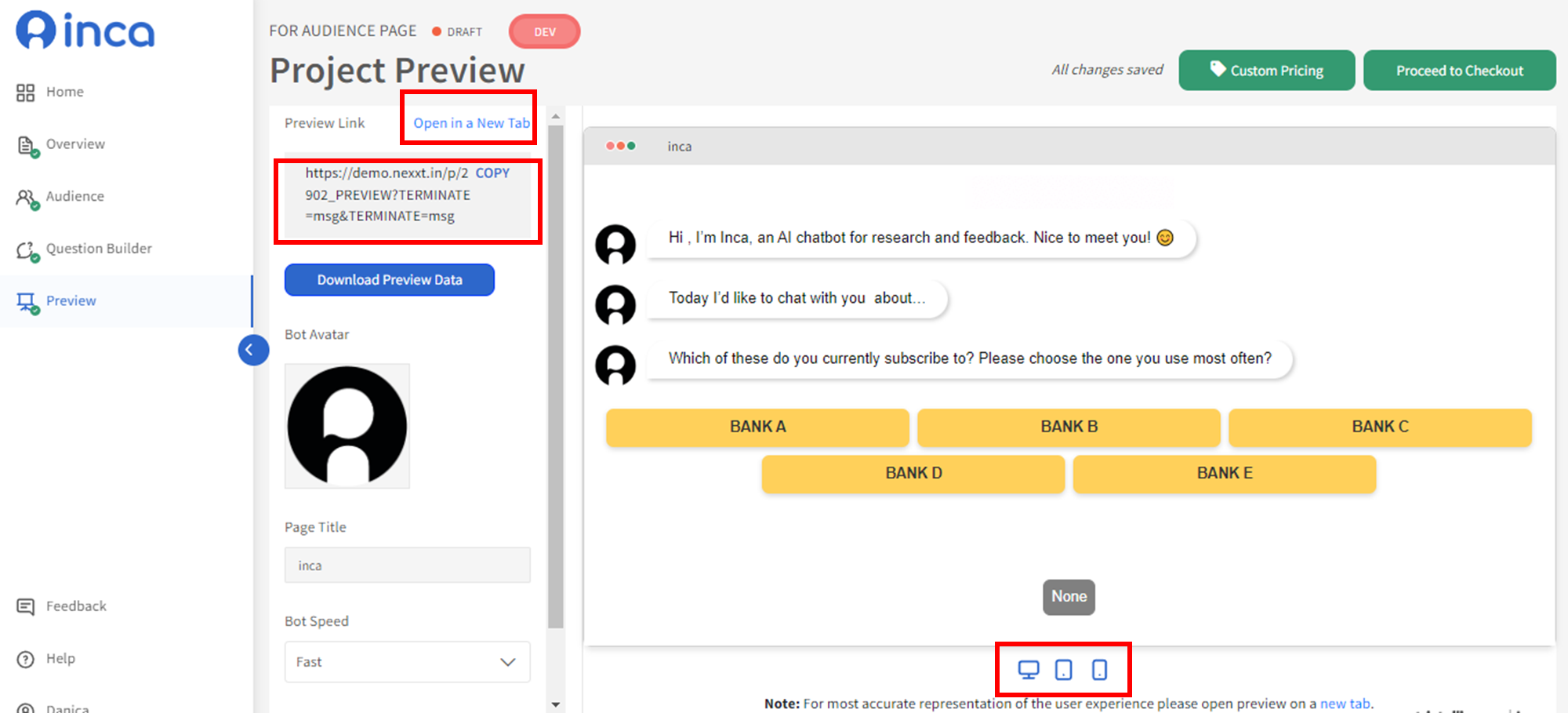
Preview with General Link vs Panel Link
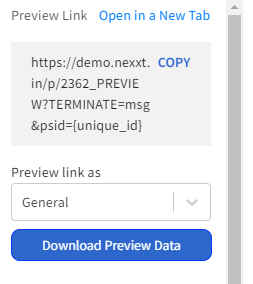
General Link
To test the survey with your colleagues or other users, you may copy and use the General Link. Keep in mind if you make any changes to your questions after sending out the link, make sure to visit the Preview Page to update the preview link with the latest changes.
Panel Link
Select the relevant panel when you want to test with a third-party panel provider. The only difference between a General Link vs. a link with a Panel Provider is that the link with a panel provider has some specified redirects, so when it's completed/terminated/quota full, it will be redirected to a different page. Use the Panel Provider link when you want to check if the redirect pages set up by your panel provider are working.
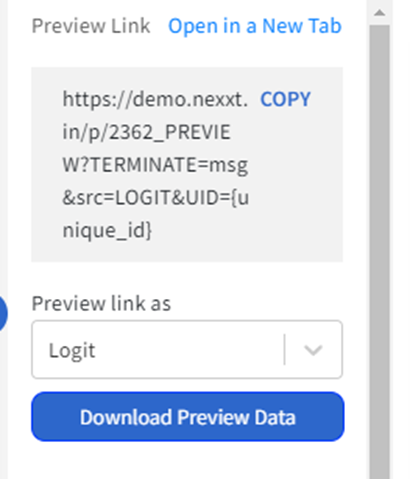
To learn more about setting up the redirects with your panel provider, click here.
Download Preview Data
You can also download the preview data by clicking Download Preview Data and it will show the test responses of each participant who answered the survey link and will not be included in your launched study. Note that this is the raw version of the data (in CSV format) and not the collective answers that can be viewed on the Dashboard page once you've launched your survey.
Related Articles
How to use other study or link options in the Preview Page?
In the Preview tab you can also find other settings to customize the survey chatbot: Bot Avatar - You can change the image of the bot avatar by clicking the bot image. Page Title - You can change the page title of the survey chatbot by editing the ...How to checkout or launch a study?
Before checking out or launching a study, it's always recommended to go through the Pre-Launch Checklist to make sure everything is set up properly. Once everything is checked and looks well to you, you can proceed with launching the study on inca. ...What are the Links available and their differences?
BEFORE LAUNCH Preview Link -Before launching the survey, the PREVIEW LINK is used to test out the whole survey and at that time you are free to make any changes to the study. For more information about testing the preview links, please refer to the ...Pre-launch Checklist
Before your survey is launched, you might be wondering if you have crossed all T’s and dotted all I’s. Use the below checklist to guide you through your pre-launch review process. We provide a FREE review for your FIRST study with inca. You will need ...