How to checkout or launch a study?
Before checking out or launching a study, it's always recommended to go through the Pre-Launch Checklist to make sure everything is set up properly.
Once everything is checked and looks well to you, you can proceed with launching the study on inca.
How to checkout or launch a study on inca?
To launch a study on inca,
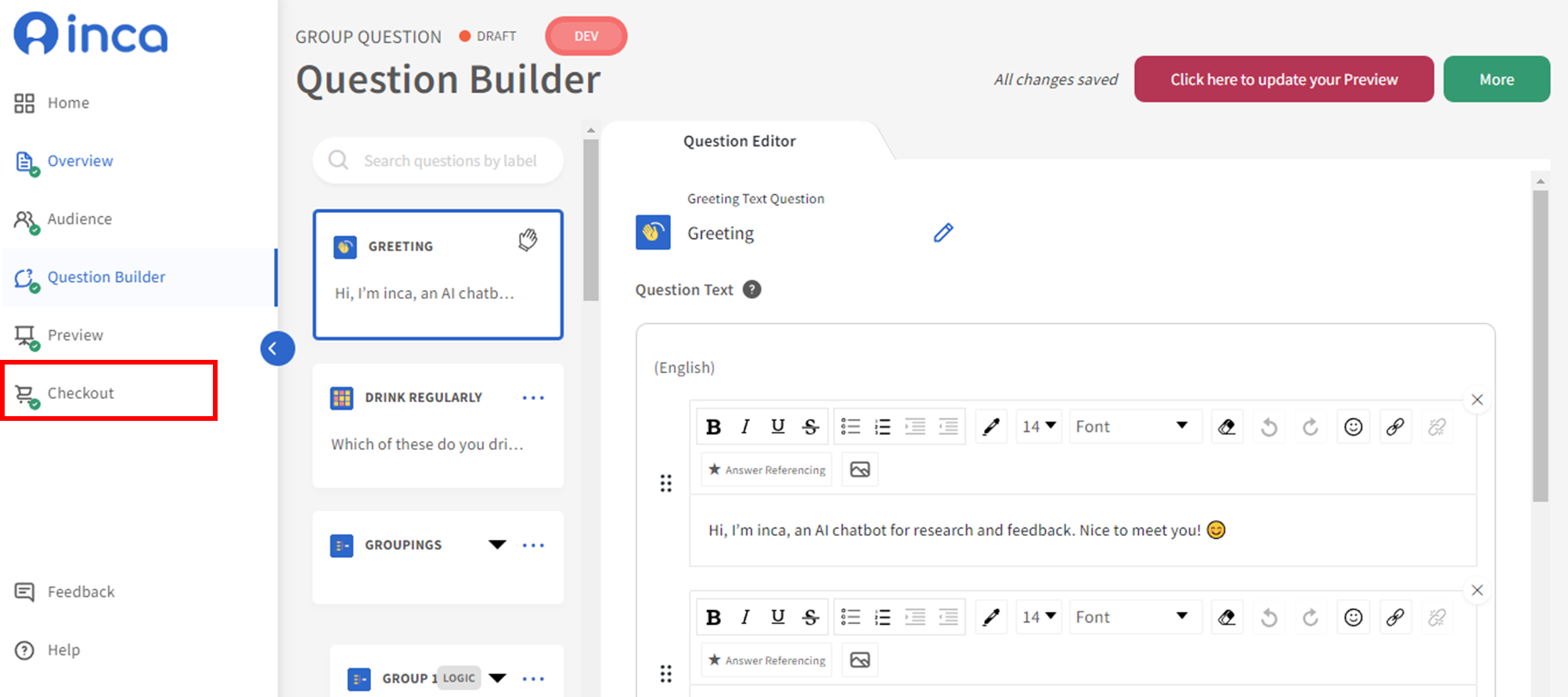
1. Click Checkout on the left side of the page
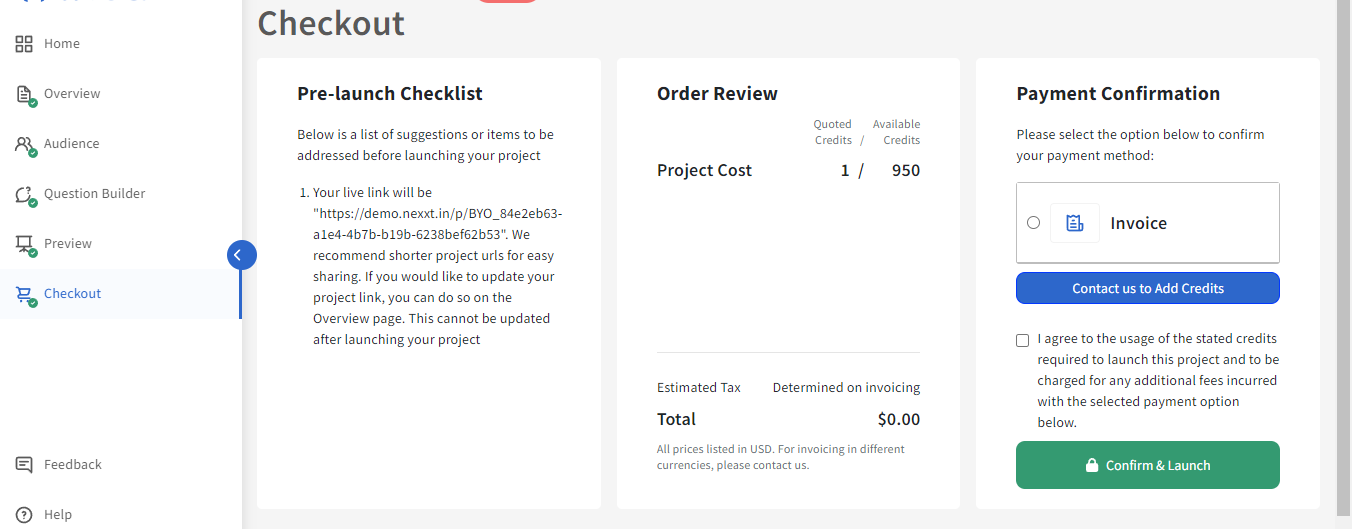
2. Confirm the Pre-launch checklist if there is a list of suggestions or items to be addressed before launching your project.
3. If all looks good, then proceed to Payment Confirmation and select the payment method. Users must agree to the payment option before launching.
4. Tick the box to confirm credit usage then click Confirm & Launch. You need at least 1 available credit to launch a study. In case you have no available credits left on your account, please inform the inca team to update your account.
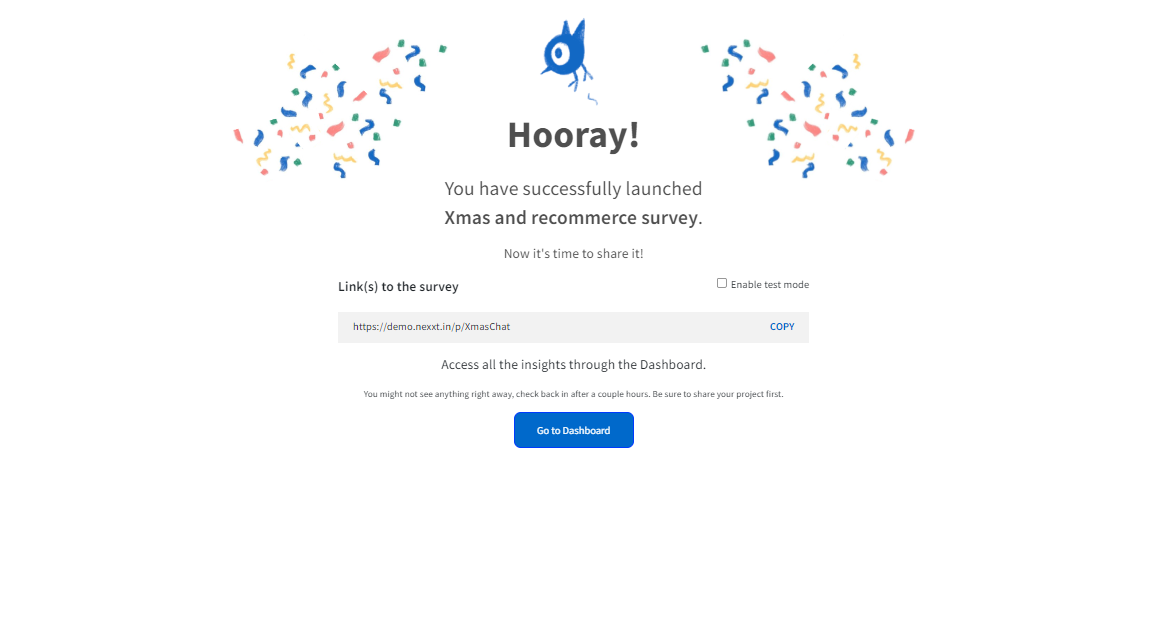
4. Hooray! The study is launched on inca. You can start to share the link(s) and/or monitor responses on the dashboard
 How to share link(s) and/or connect with Audience Source?
To launch a study on inca essentially is to publish all the study settings to a live link which can be used to collect responses from participants. But it does not necessarily mean that launching the study on inca would automatically initiate the data collection process. There are additional steps to be taken, such as sharing the link(s) and/or testing connections with panel, depending on the Audience Source used.
INCA PANEL
If you are using INCA PANEL, then you don't need to do anything after this, as inca platform has a full integration with INCA PANEL. Once the study is launched on inca, it will be automatically launched on the panel side as well. Therefore, you can just sit back and wait for your responses coming in. It usually take about an hour for the panel side to do an extra review and start sending out samples.
Third-Party Online Panel
If you are using a Third Party Online Panel, there are a few extra steps you need to take.
Step 1: Share links with the panel team
In this step, you need to send out LIVE and TEST links to your panel partner (with their redirects embedded), and ask them to use the TEST LINK to test the survey and redirects and send the LIVE LINK to real participants.
To do this,
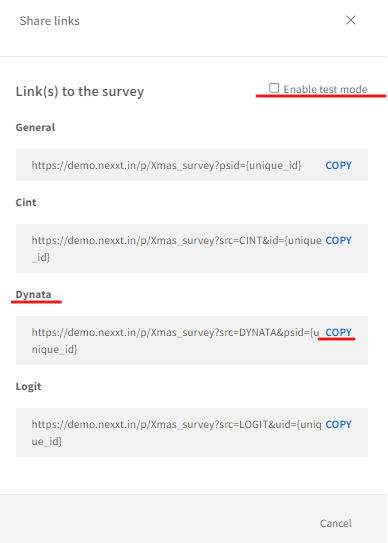
1. Click LINKS on your project card
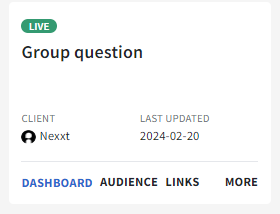
2. Copy out the LIVE LINK under the relevant panel name - e.g. To get a LIVE LINK for Dynata, please copy the link under Dynata.
3. ClickEnable test mode and similarly copy out the TEST LINK.
Please note that "Enable test mode" is only to get a TEST link. The TEST Link and LIVE Link work separately, so even if the test mode is enabled, the LIVE link can still be used to get responses from real participants
Step 2: Test redirects or integration with panel team
After you have shared the study links, the panel will test the survey and redirect and send you the test IDs they have used along with the status (Complete/Termination, etc.). You can then download the Test Mode data from the dashboard and use the data file to check the test IDs and their status.
To do this,
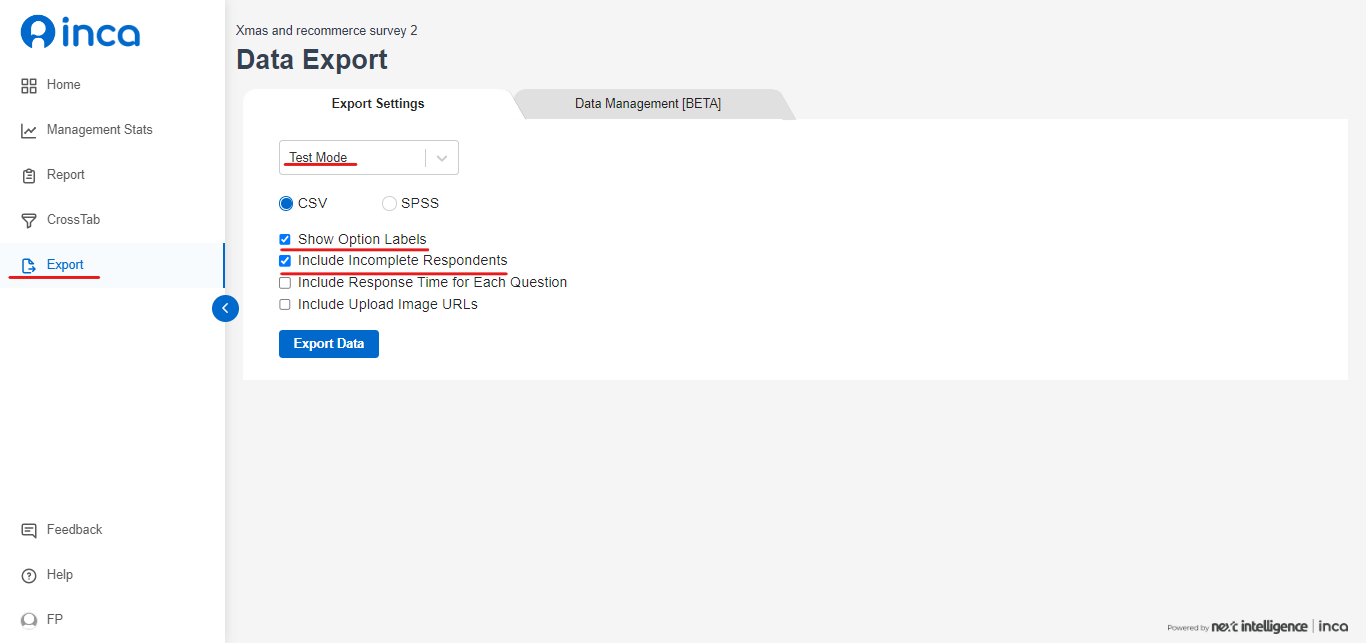
1. Go to Data Export page on the dashboard, choose the Test Mode data and tick to Show Option Labels and Include Incomplete Respondents, and then click to Export Data.
2. In the downloaded data file, please focus on the three columns TrackerID (the IDs used by the panel), Sample source (the name of the panel) and the Status (complete, termination, quota full, etc.).
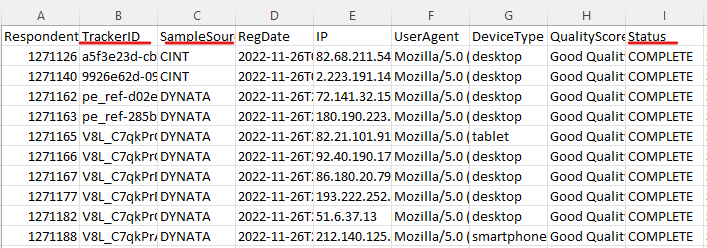
After you have seen that the test IDs and status are correctly captured in the data file, please then confirm with the panel team to (soft) launch the study.
Please see more details about how to integrate with a panel through redirects here.
Other Self-Provided Audience Source
- If you are using some existing member or user or customer list and want to send out a general link to all the participants, then you can simply copy out the LIVE link under General and include it in the invitation.
- If you are using some existing member or user or customer list, and want to send out unique links to each participant, then you can copy out the LIVE link under General and append the unique IDs to the survey link using URL metadata. Please find more details about URL metadata here. As for sending out the unique links to each participant, many mailing platforms have this feature available and it would be best to look at their help centres to achieve this for the one your team is using.
- If you want to source from any social media or public links, then you can simply copy out the LIVE link under General and embed it in the website.
Related Articles
Pre-launch Checklist
Before your survey is launched, you might be wondering if you have crossed all T’s and dotted all I’s. Use the below checklist to guide you through your pre-launch review process. We provide a FREE review for your FIRST study with inca. You will need ...What are the ways to preview and test my study?
When creating your survey, there are several ways to test and preview your study... Using the Question Preview On the Question Builder Page, the QUESTION PREVIEW tab will give you a quick preview of the question you are working on. This is an easy ...How to use other study or link options in the Preview Page?
In the Preview tab you can also find other settings to customize the survey chatbot: Bot Avatar - You can change the image of the bot avatar by clicking the bot image. Page Title - You can change the page title of the survey chatbot by editing the ...What are the Links available and their differences?
BEFORE LAUNCH Preview Link -Before launching the survey, the PREVIEW LINK is used to test out the whole survey and at that time you are free to make any changes to the study. For more information about testing the preview links, please refer to the ...