How to export SmartCoding results to data files and how to read the results in the data files?
Any changes that you made to your coding project should be saved before exporting. To save any changes, click on Save in the upper right corner.
You can view the result of the coding project on the SmartCoding platform (left side with Codes and Net Code names and Percentages) or download it through Export button. Once you are satisfied with the coding project, either generated by the AI or through a codeframe, and saved the changes, click on Export.
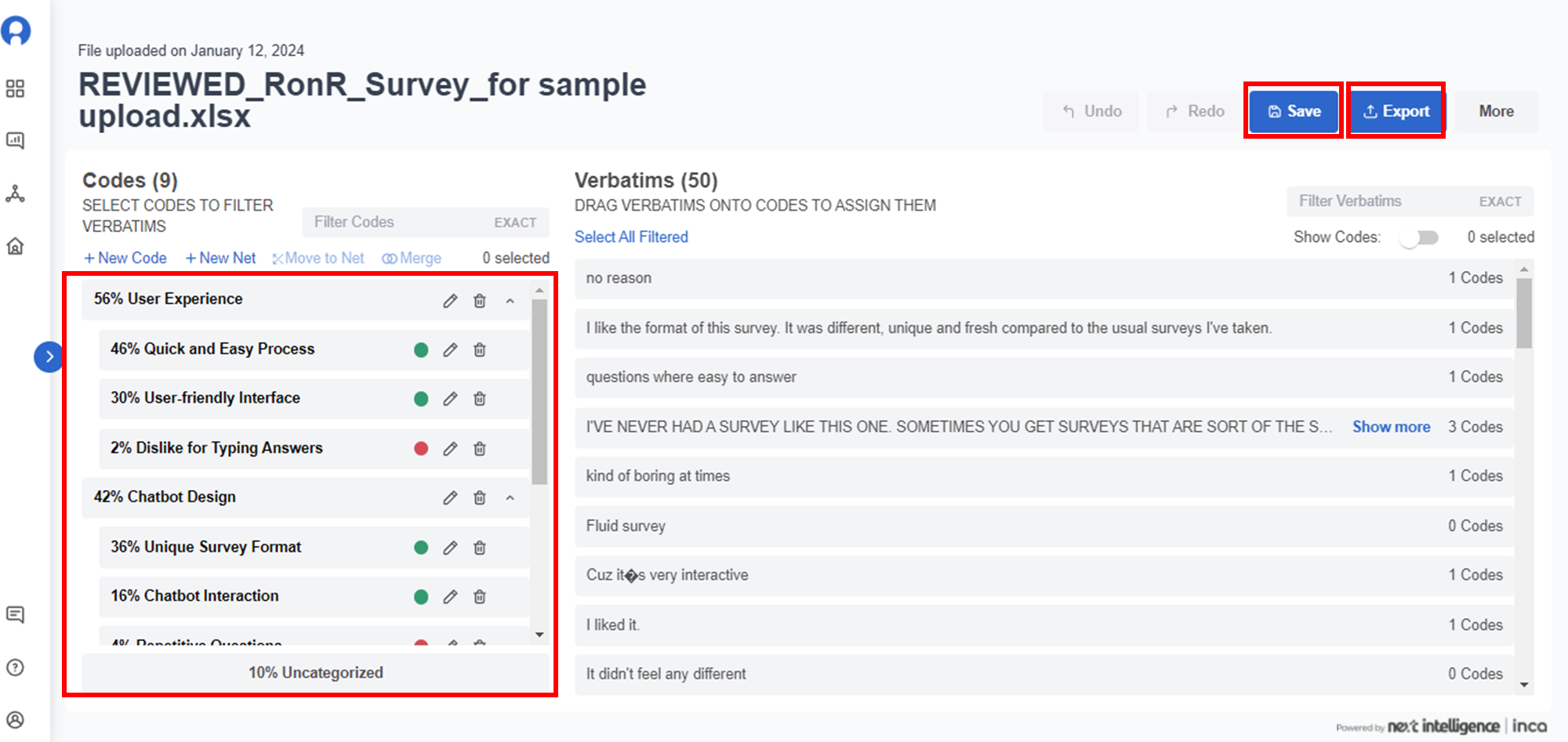
How to view results on the SmartCoding Platform:
This shows the NET percentages and under each NET score are the Code percentages. For example, in the SmartCoding platform view, the NET Score for User Experience is 56%. Under User Experience, there are 3 codes -- Quick and Easy Process (46%), User-friendly Interface (30%) and Dislike for Typing Answers (2%)
The green circles indicate the positive sentiment while the red indicates the negative sentiment of each code.
How to view results on downloaded export file:
On the Export pop-up, the downloaded file can be in Microsoft Excel, CSV or SPSS format. Users can also select the information to be included in the Export Settings:
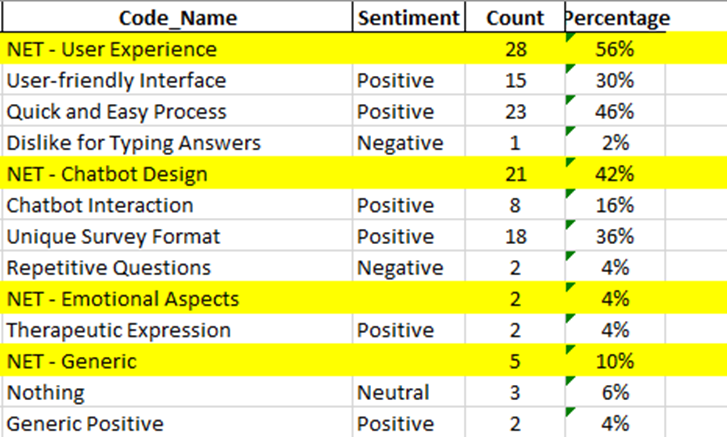
Codes Overview - In one worksheet, this will show the columns for Code name (for each NET Codes and Codes) Sentiment (for each Code), Count (number of verbatims counted on that Net Code and Code), and Percentage (% scores counted on the Net Code and Code).

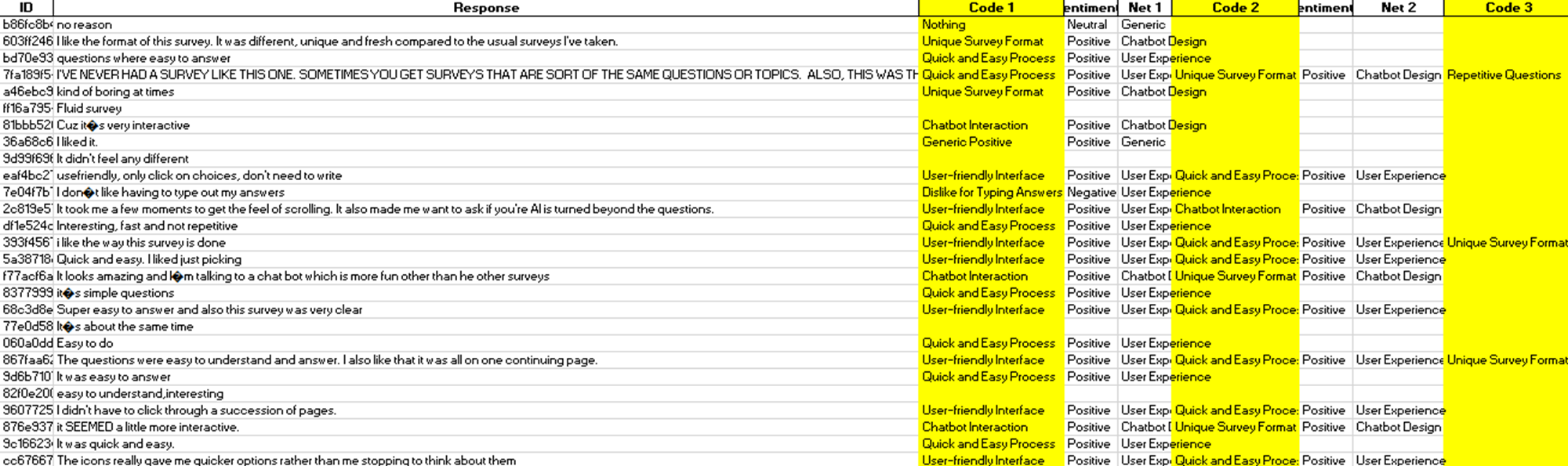
Verbatim with Codes - In one worksheet, this will show the code assigned for each verbatim response. Each verbatim response has one or more Code names and Net Code assigned as well as Sentiment.
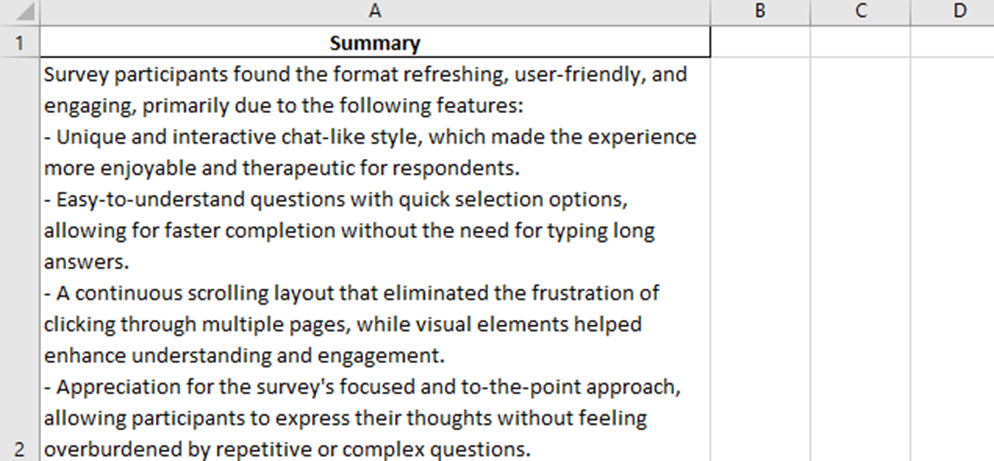
AI Summarization - The Summary model worksheet provides the key insights and highlights for all the verbatim.
Related Articles
How to upload data for SmartCoding?
To start a new coding project, go to the SmartCoding Directory and click+ New SmartCoding Note: If you need to recode an open end question from your dashboard project (Reports page), you only need to click RECODE in the open end question card and ...How to Modify SmartCoding?
Users can modify the results of SmartCoding whether they are (1) using the SmartCoding app or (2) using the inca Dashboard 1. If you are using the SmartCoding App as a separate tool, it means you have manually uploaded you data (verbatims file) in ...How can I create a codeframe for SmartCoding?
Human-in-the-Loop Codeframe Generation The human-in-the-loop (HITL) SmartCoding allows human researchers to prompt the AI to help shape the code frame generation. The HITL coding functionalities are available both on the inca dashboard and in the ...How can I add Filter variables to SmartCoding?
When uploading your data in SmartCoding, users can also add Filter variables. Filters are useful analysis tool that allows you to filter the responses from the total sample and show only the coded data for a certain group/segment or data set that you ...How can I create project "folders" to organize my SmartCoding instance?
Projects Feature Projects should be used as a way to organize SmartCoding instances visually on the directory. Each SmartCoding instance should only be assigned to one project. The simplest way to think of this feature is to think of the interaction ...