How can I add Filter variables to SmartCoding?
When uploading your data in SmartCoding, users can also add Filter variables. Filters are useful analysis tool that allows you to filter the responses from the total sample and show only the coded data for a certain group/segment or data set that you have selected (i.e. By Gender, By Country, and Preferred Brand/Logo/Concept).
How to set it up?
Adding Filters when uploading your data
1. Upload the data set including the question columns/variables that you want to use as filters. The variables should be categorical (single choice).
To add the variables, select the source question for your Variable column in the dropdown (Which column contain other analysis variables to be included?)
Users can add multiple variables within the data set you uploaded.
2. After assigning all the columns for Verbatims and Variables, users can proceed with reviewing and generating their codeframe.
3. Users will be notified via email once coding is completed. This could take a few moments to several minutes depending on the number of verbatim analyzed
Adding Filters when uploading your data (Video tutorial):
To learn more about how to upload data for SmartCoding, refer to this article here.
Creating and Using Filters
Creating and Using Filters
Once the initial variables have been specified and the data has gone through preprocessing you will be able to create and use filters with the inca SmartCoding webapp. Simply select the filter button on the right side of your screen.
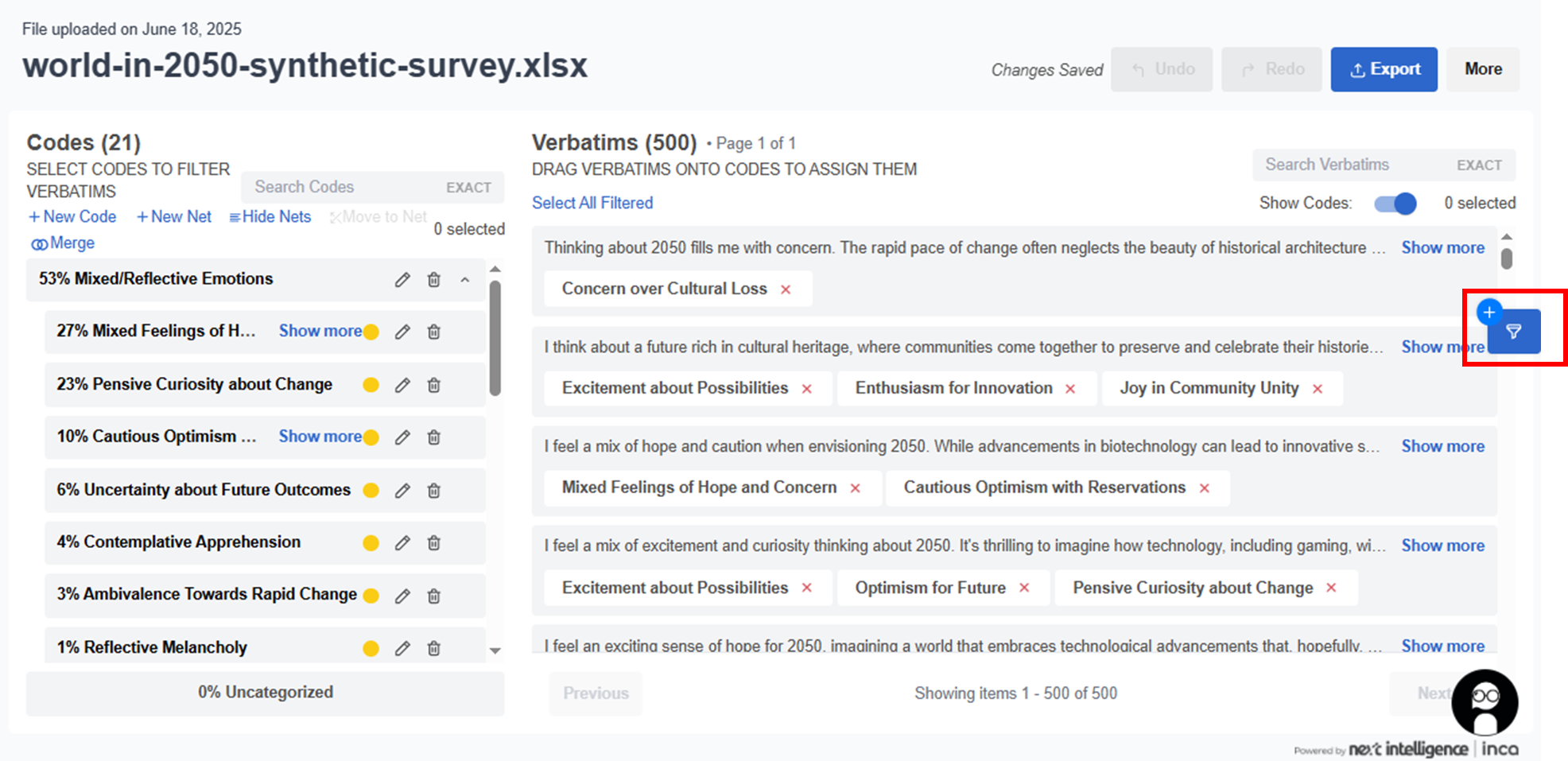
In the Analysis Variable field, click the drop down to select the available variables you have added during Step 1 in uploading your data
In the Analysis Variable field, click the drop down to select the available variables you have added during Step 1 in uploading your data
In case you need to add more Filter variables but it's not included in the current data set you uploaded, users can upload a second file again by clicking +New Variable. For this to work, both files must have at least one column in common (best example is having the same Respondent ID)
Once you have selected the variable, give the filter a name/label, then select the options you want to include and press “Apply Filter.”
Note: Users can select multiple options in a variable and the filter logic will have an "or" relationship within the options.
Once created, the filters can be toggled on and off and will be applied to all of the data on your screen.
Note: Users can enable multiple filters and the filter logic will have an "and" relationship with all the variables enabled.
Once filters are applied, all numbers and data on the screen should be updated to reflect the filters. This will not change the sorting of the overall codeframe itself. All exports created with the filters on will also reflect the filtered data, not the total dataset.
Creating and Using Filters Video tutorial:
Re-sort by filter
When you click Re-sort by filter, this will allow users to sort the codes and nets by highest-to-lowest percentage. When unticked, the original order of codes and nets will be applied (base on total).
Note: In terms of credit usage, users will not be charged (deduct SmartCoding credits) again when running filters in the same SmartCoding instance.