What is Image Hotspot and how to set it up?
Main use:
This question type is mainly used to gather feedback on images or ads/concepts that are a mixture of image and text.
Participants are presented with an image with predefined regions to select from and choose whether they feel like, dislike or confused. An open-ended question is then asked to comment on the reasons for their selection.
A quick video to show how Image Hotspot works on the inca chatbot
How to set up in the platform:
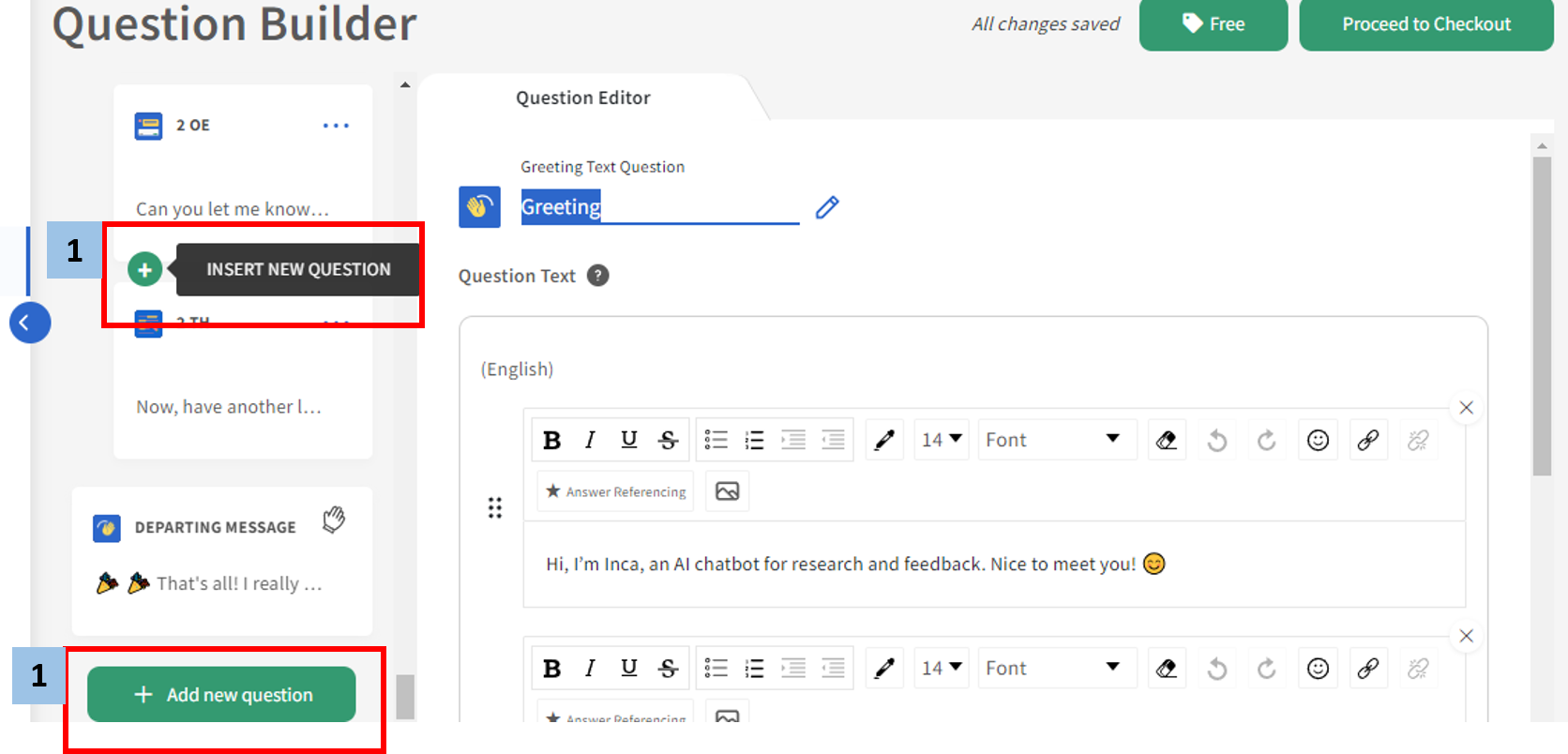
1. In the Questionnaire Builder page, add new question OR insert new question by hovering over an existing question and click the green (+) button (either above or below the existing question).
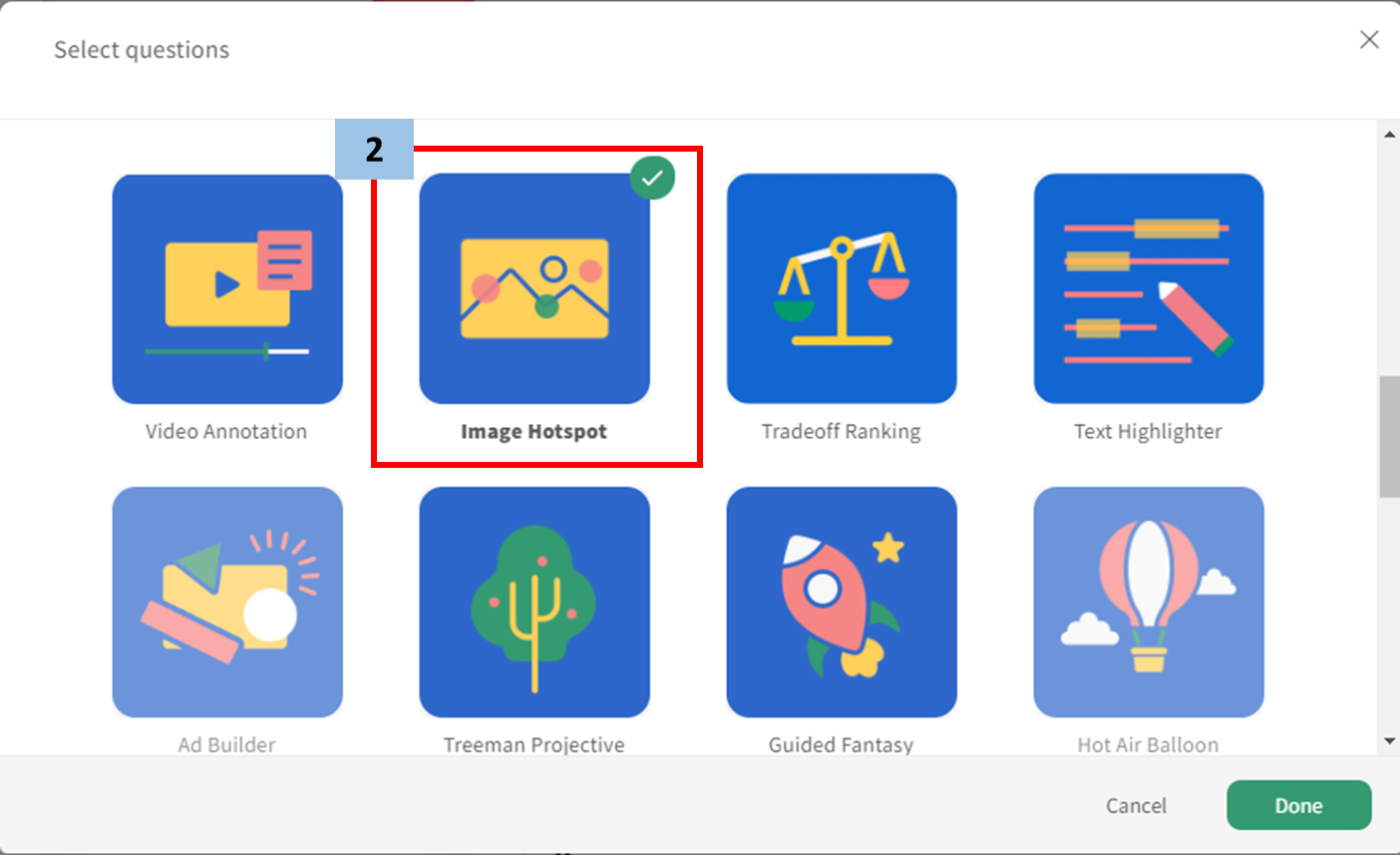
2. Select Image Hotspot from the popup menu that appears.
3. Write your question number or label in the upper box and write your question in the Question Text Box.
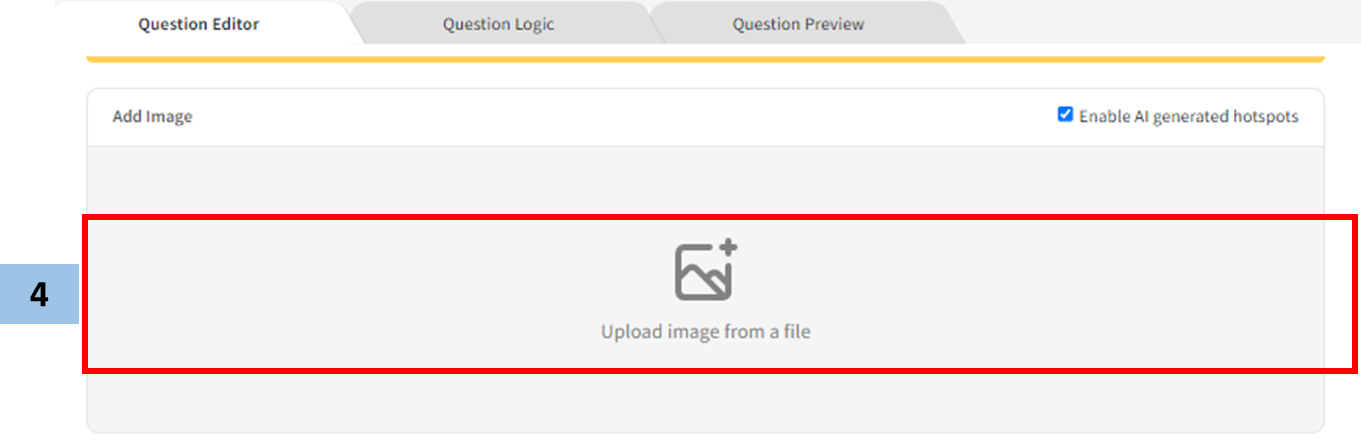
4. Add the image to be tested. Once the image have been uploaded, the system will automatically generate areas.
5. Confirm the areas/labels to your test image. (The labels will show only on programming and dashboard).
- To add another area/label, click "+ Add New Area" and hover the red box to your selected area then add the label.
- You can edit the text of generated areas/label by hovering to the blue text box
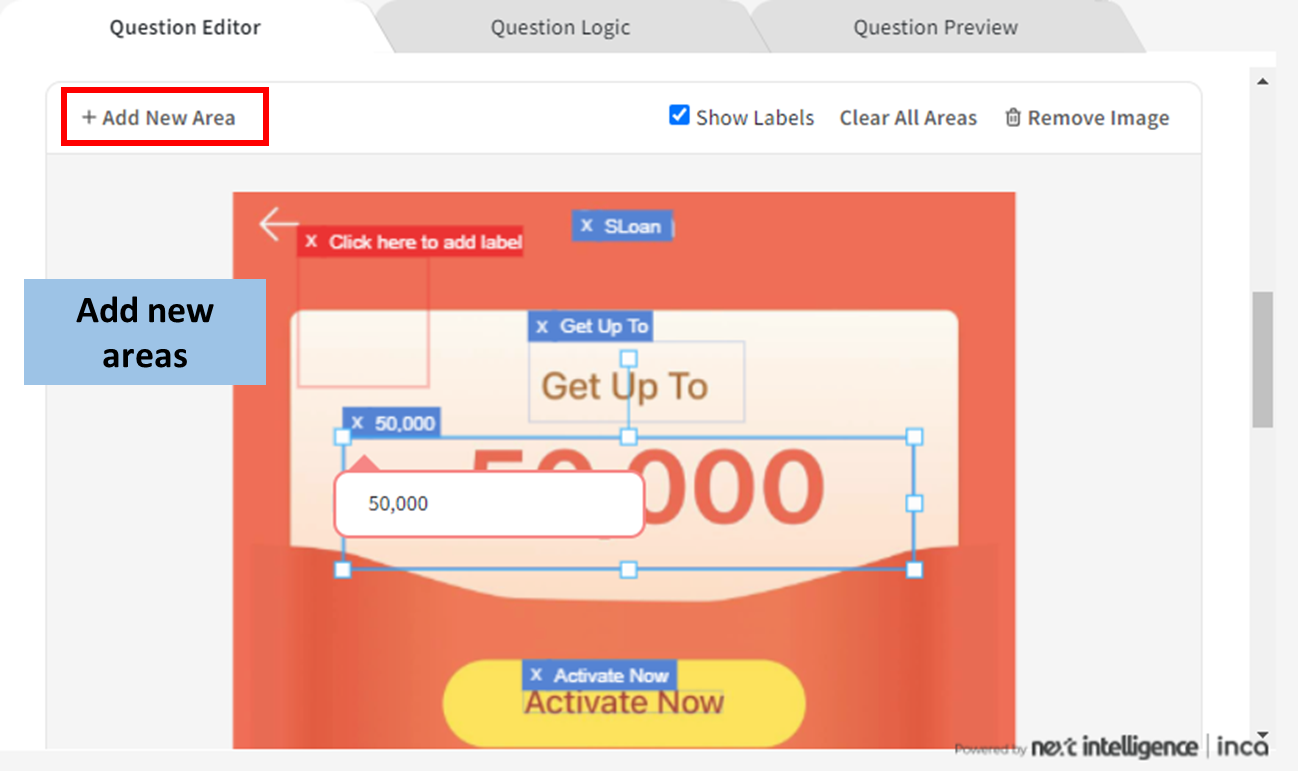
- You can also delete the area/label by clicking the X icon of the blue text box. (Toggle on the Show Boxes in the Question Setting to guide the participants which areas are clickable). To remove all AI generated areas, simply click Clear All Areas.
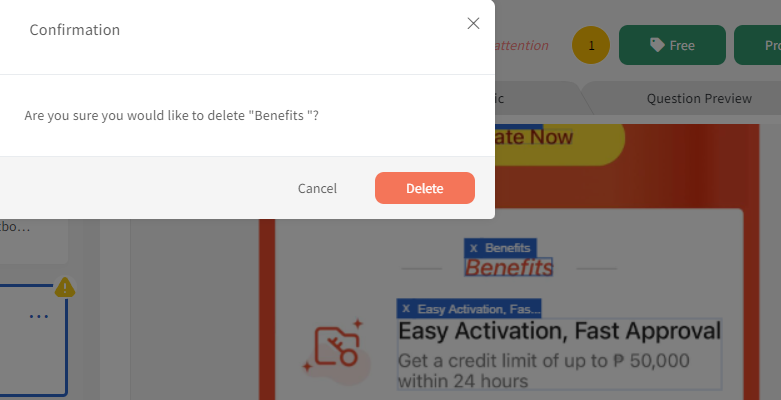
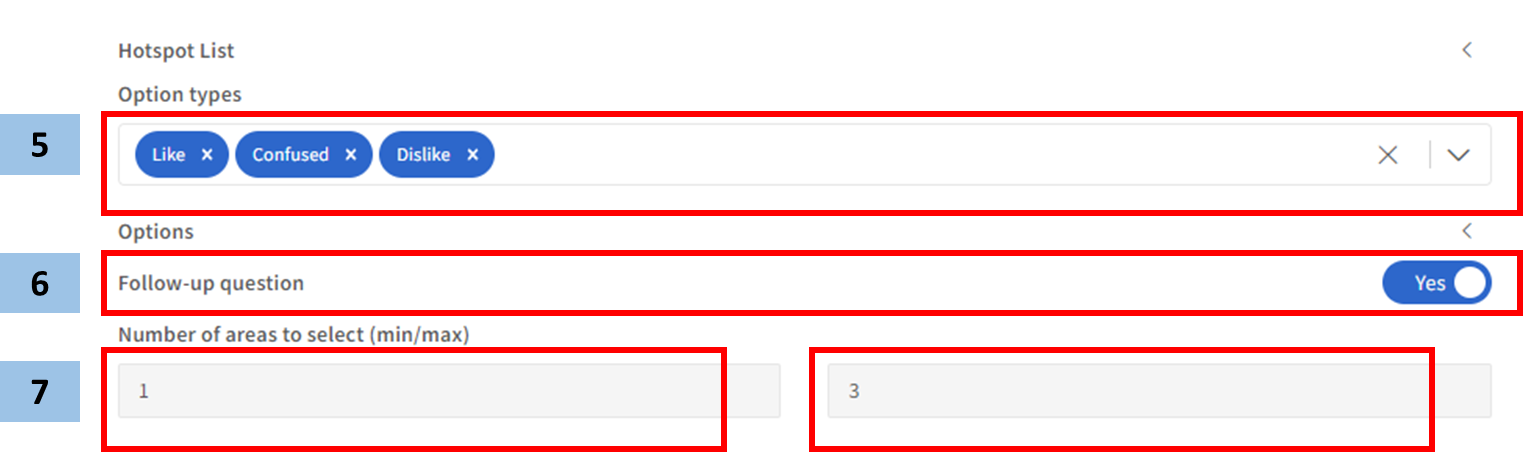
5. Select the options types: Likes, Dislikes and Confused
6. Toggle on the Follow-up question (By default the follow-up question is: Could you tell us why you selected (answer)?
7. Select the minimum (left box) and maximum (right box) areas/text to be selected.
Note: There is no limit for the maximum number of highlights but users can input a number to set the maximum number of highlights; the maximum number usually corresponds to the total number of hotspots/areas generated or to be tested
- To allow participants to update or change answers after submitting, toggle on Allow User Corrections.
- To allow participants to see blue boxes/borders to help them make a selection, toggle on ShowBoxes.
Other Option Settings
The user can edit the Option label (a reference to data/dashboard), Option text (how the participants view the selection), Value/codes and image by clicking the "<" icon

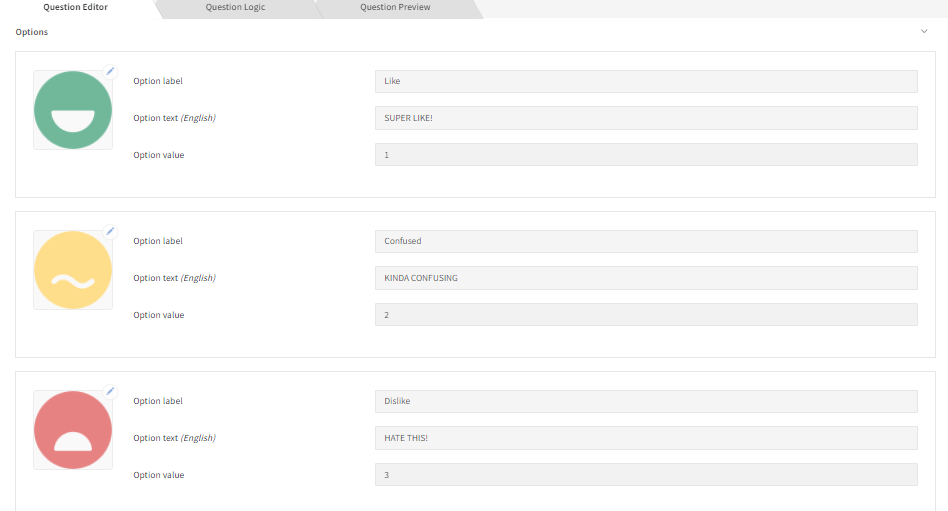
Other examples:
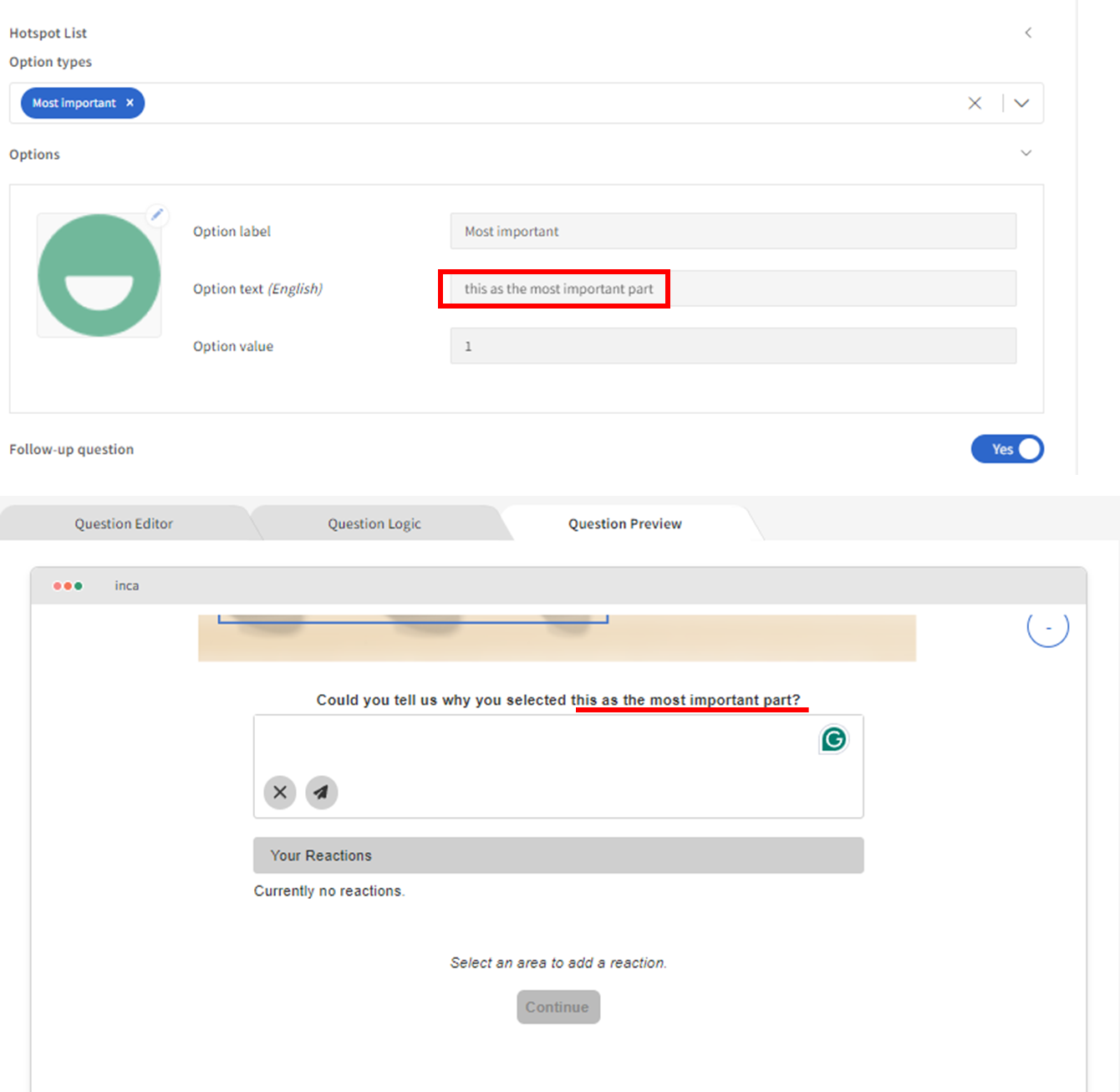
New update:
The new version of hotspot also know as Heatmap provides an additional option for our users. Applying the Heatmap enables the participant to select any region on the test image and divide your image into an even grid by defining the number of columns and rows you want in the grid. This means that participants can highlight any area of the stimulus as an area they like, dislike or find confusing. Again the participant will be asked to tell us why.
A quick video to show how Heatmap (Image Hotspot) works on the inca chatbot
- Add the image to be tested and click Apply Heatmap
- Specify the Hotspot areas as rows and columns (for example 8 x 12 grid). The maximum number of columns and rows is 20 x 20.
- Users can re-label the Hotspot areas and adjust the number or columns and rows accordingly
Related Articles
How to set up projective technique using Treeman?
Main use: Treeman is a type of Projective technique that elicits the emotions and feelings of participants on a particular topic. Presented with an image of a Blob Tree, participants are asked to select a character that best illustrates the way they ...What is a Loop Question and How to set it up?
<br> Main Use The Loop question allows users to ask the same question or set of questions, and dynamically repeat them multiple times for a participant. The set of questions can be repeatedly asked across different stimuli or based on answers ...What is a Virtual Question and how to set it up?
Main use: Virtual Question is a question that is hidden from the real survey conversation. With this question type, we can create variables that combine different options from other questions. Those variables can eventually help with the survey logic ...How to set up a Choice Question?
Main use: Using a standard choice question, participants can select one or several answers from a list. This question type includes both single-choice and multiple-choice questions. How to set up the platform: 1. In the Questionnaire Builder page, ...How to set up a Scale Question?
Main use: Similar to a choice question, but by default, the scale option is shown only in a horizontal manner. They are usually used to gauge agreement, importance, preference or likelihood. Using a Scale Question vs a Choice Question - By default, ...