What is a Hot Air Balloon Projective and how to set it up?
Main use:
Mainly used to assess the prioritization of features or attributes in consumers' minds and to understand why.
Participants are presented with a fun minigame where they can drop sandbags representing features or attributes or any test objects they consider less useful or important, allowing them to take off and fly to new heights.
Click here for a demo survey link using Hot Air Balloon projective
How to set up in the platform:
1. In the Questionnaire Builder page, add new question OR insert new question by hovering over an existing question and click the green (+) button (either above or below the existing question).
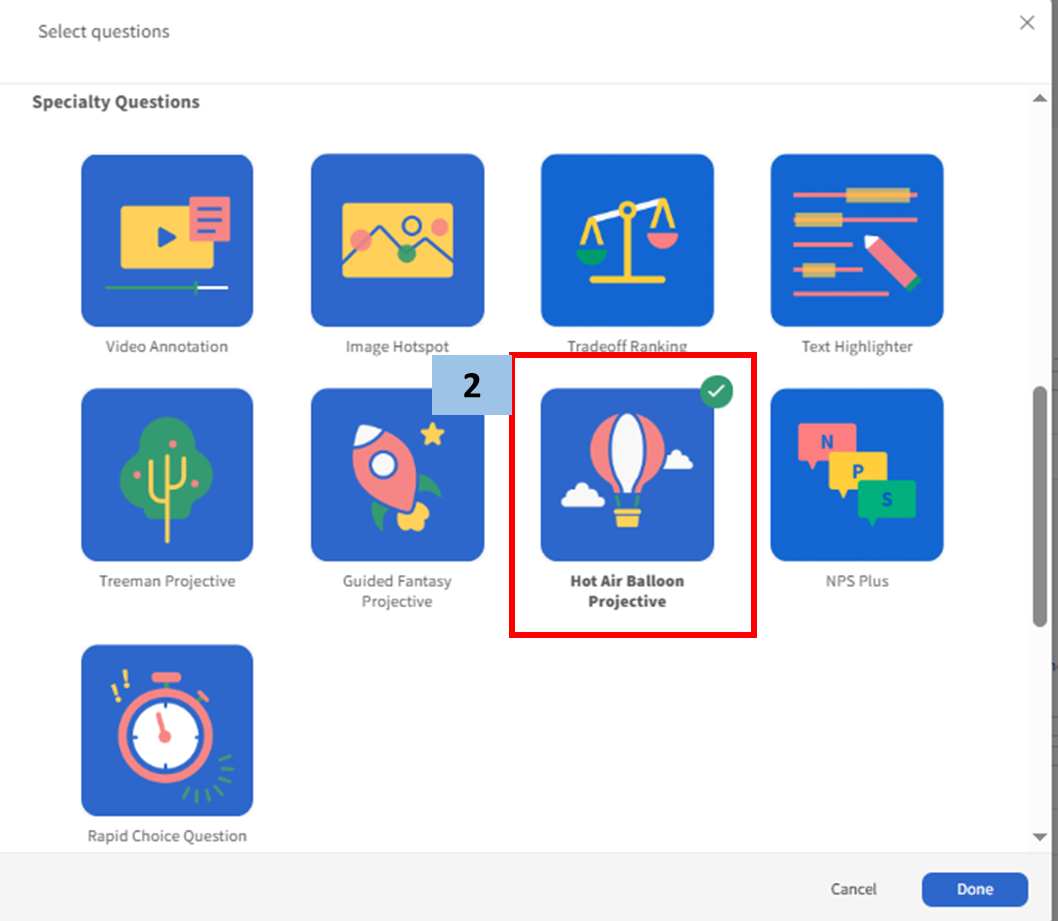
2. Select Hot Air Balloon Projective from the popup menu that appears.
3. Write your question number or label in the upper box.
4. Modify the Introduction Text or keep the default text as is.
5. Modify the Question Text or keep the default text as is.
6. Add the participants' choices using the Response Options Box (Content and Settings)
A. Multiple Selection (enabled by default)- Using the drop down, you can select (or type in) the least number of allowed responses (left) and the maximum number of (right) allowed responses.
TO RANK ALL OPTIONS IN ORDER (e.g first to last, rank 1 being the least important), the minimum value (left) and the maximum value (right) should be the same numberTO RANK ONLY A FEW OPTIONS (e.g, top 3 least important benefit), the minimum value (left) should be at least one and the maximum value (right) should be the total number of options that you will allow to rank.
B. Piped Options
- If adding options from an existing question, toggle on Use piped optionsC. Randomize Options- If you want to randomize a response to shuffle the choices (and to avoid response bias), toggle on Randomize options. This will display the options in a random order instead of the order you added them in.D. Option Format- The users can specify the option formats and choose from 'Text only', 'Image only' or 'Text and image'
E. AutoFill Option Values
- If enabled, the option values will be auto filled based on the options (1 to N)
7. Modify the Closing Text or keep the default text as is.
- This projective is often followed by a separate Open Ended question to understand why certain features/attributes/test objectives are less important. We also recommend adding SmartProbe to the why question(s)
- Additionally, you may also want to show all the features/attributes/test objectives (or sandbags) not dropped and ask a separate Rank Order question to understand of the important ones, which ones are more important, followed by why.
On the dashboard REPORT PAGE, users can see a visualization like the following screenshot for Hot Air Balloon.
In addition, when users add a follow-up Open End question (i.e. Why least important), users need to filter the response from the Hot Air Balloon question to see the open end response for each feature/attribute/test objective.
Related Articles
How to set up projective technique using Treeman?
Main use: Treeman is a type of Projective technique that elicits the emotions and feelings of participants on a particular topic. Presented with an image of a Blob Tree, participants are asked to select a character that best illustrates the way they ...How to set up projective technique using Guided Fantasy?
Main use: Guided Fantasy is an animated projective technique that allows participants to elicit how they feel about a brand (Planet X brand). With Guided Fantasy, participants are asked to imagine they are on a spaceship travelling to Planet X (e.g. ...What is a Loop Question and How to set it up?
<br> Main Use The Loop question allows users to ask the same question or set of questions, and dynamically repeat them multiple times for a participant. The set of questions can be repeatedly asked across different stimuli or based on answers ...What is Image Annotatation and how to set it up?
Main use: This question type is mainly used to gather feedback on images or ads/concepts that are a mixture of image and text. Participants are presented with an image with predefined regions to select from and choose whether they feel like, dislike ...What is a Virtual Question and how to set it up?
Main use: Virtual Question is a question that is hidden from the real survey conversation. With this question type, we can create variables that combine different options from other questions. Those variables can eventually help with the survey logic ...