How to understand the Significant Differences on the Crosstab Page?
Interpretation of Significant Differences
Let’s use the following example to illustrate how to interpret the significant differences on the Crosstab page. In the following case, we want to compare people's favourite sportswear brands across different age groups, and in addition, we want to validate if the differences observed are significant at a 90% confidence level.

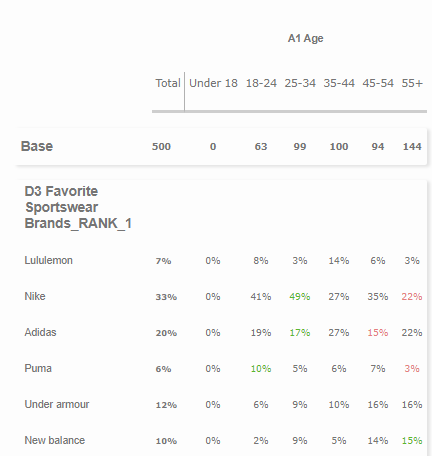
With the results in the above table, we can see that 49% of 25-34 y.o. consider Nike as their favourite brand and this number is highlighted in green. It indicates we are 90% confident that people aged 25-34 are more likely to consider Nike as their favourite brand when compared to the total sample (33%). Similarly, if the number is highlighted in red, it means this number is significantly lower than the total.
Explanation of Significance Test
Although this intuitive understanding is essentially correct regarding how to interpret the data, it is not, at a technical level, a valid way to describe the test. This is because the people in the 25-34 category are included in the total sample. Thus, if we compare those two groups, we would be double-counting - to use the more formal statistical language, we would violate the assumption of independent samples.
The only way that 25-34 y.o. can be different from the total is if they are different from the people that are not 25-34 y.o. The standard solution to this problem is to subtract the data of the 25-34 y.o. from the total, and then perform the significant test. Therefore when we compare the differences between the subgroup and the total sample, we conduct the independent sample test between the subgroup and the total sample minus that subgroup.
In terms of what test we use,
When comparing percentages, we use z test with unpooled variance
When comparing mean values of scores, we use an independent sample t-test with equal variance not assured.
Related Articles
How to make data tables or crosstab in the Dashboard?
What is a CrossTab? The Crosstab feature is a useful analysis tool commonly used to compare the results for one or more questions/variables with the results of another question/variable. Crosstabs (cross-tabulation) are basically data tables that ...How to make summaries from different segments in the Dashboard?
What is Smart Summary? The Smart Summary feature similarly works like a Crosstab but for Open End questions. Smart Summaries are AI generated summaries that allow you to view verbatim summaries based on the total sample (Total), side-by-side with the ...How the data is analyzed and visualized for Loop Questions?
Looped Questions in Dashboard 1. Report Page Each question in the Loop has a visualization chart. Within each chart, a Loop drop down allows users to filter results by a specific loop. Example Visualization for Loop: Question based Example ...How to filter data in the Dashboard?
In the Dashboard, FILTERS are useful analysis tool that allows you to filter the responses from the total sample and show only the data for a certain group/segment or data set that you have selected. How to set it up? 1. You can use the Filter ...SmartCoding on the Dashboard - Overview
What is inca SmartCoding? In this tool, you can add/remove/edit/merge the codes generated by the AI model for your open-ended verbatim. For the coded data, users can either export them to SPSS or CSV data file and run tables in their preferred ...