How to Add and Apply Weights?
About Weighting
Weighting is a statistical technique used to adjust the results of a survey to bring them more in line with the actual demographics of the population being studied. inca allows users to add and apply weights when certain groups of survey participants are under or overrepresented,
Weighting usually takes three main steps -
- The first step is to calculate the weight for each participant based on the weighting targets we specified;
- The second step is to add respondent/participant-level weights to the data;
- The final step is to apply weights in all the calculations for analysis and reporting.
This article will guide you on each of the steps.
Calculate Weights
In inca, weights must be determined manually before adding weights to the platform. This allows for many more options in terms of how weights are calculated but requires an understanding of how to calculate weights. In this section, we will go over a brief example of how to calculate weights in a simple situation where weights are calculated based on only one question or dimension.
Typically weights are calculated when the data from a survey (the sample) does not match the general population. For example, if 60% of the participants to your survey are male and 40% are female, but in reality you know that your population is closer to a 50/50 split, weights can be calculated to adjust the sample so that it matches the general population.
The most basic approach to this is to calculate a multiplier for each group based on the percentage of the sample and the percentage of the population for that group. For the example stated above, this would be done as follows:
- Male: 50% / 60% = 0.5 / 0.6 = 0.83
- Female: 50% / 40% = 0.5 / 0.4 = 1.25
The values of weights would be 0.83 and 1.25 for males and females, respectively.
Things could become more complicated when there are multiple weighting questions or variables. There are several ways to handle those situations and two of the most common include Cell-based Weighting and Raking/RIM Weighting. If you require assistance with these methods, you can connect with your internal analytics team or reach out via email to the Nexxt team.
Add Weights
To add weights in inca, there are some simple steps to follow.
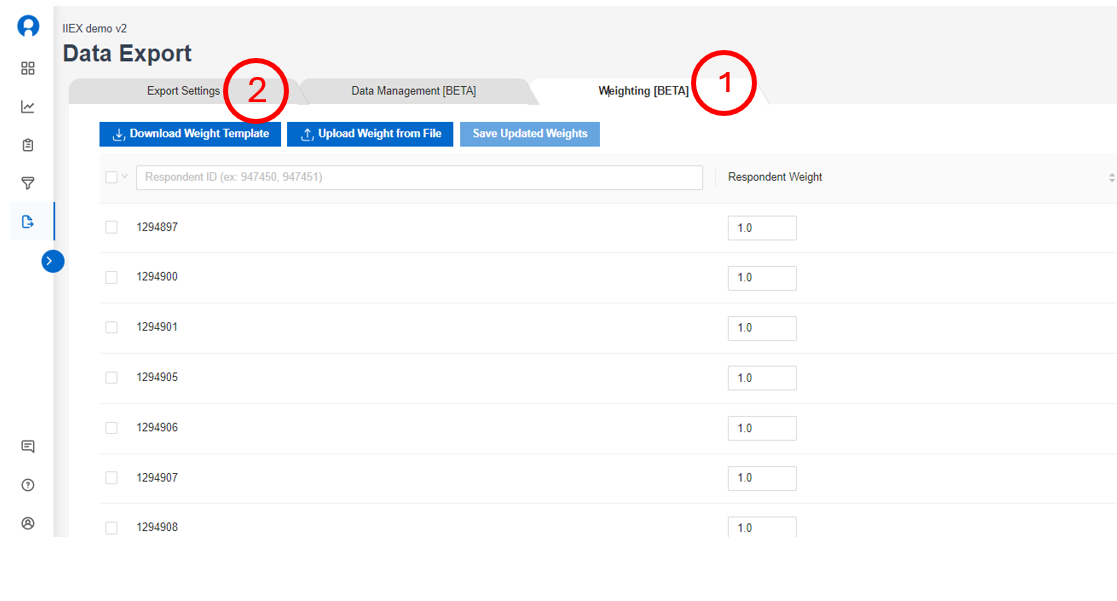
- Go to the Data Page on the dashboard page and navigate to the Data Weighting tab
- Click the button Download Weight Template.
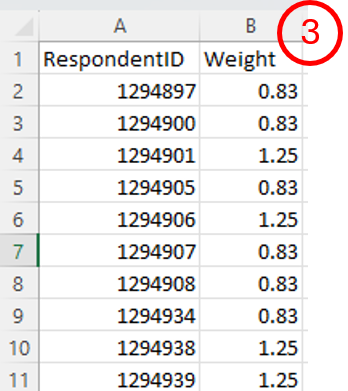
- In the Weight Template, in which there are two columns, one for RespondentID and the other for Weight. You'll then need to insert weights you've already calculated for each participant. Taking from the previous example, what you need to do is to filter out the RespondentIDs for males and assign them a weight of 0.83, and filter out the RespondentIDs for females and assign them a weight of 1.25.
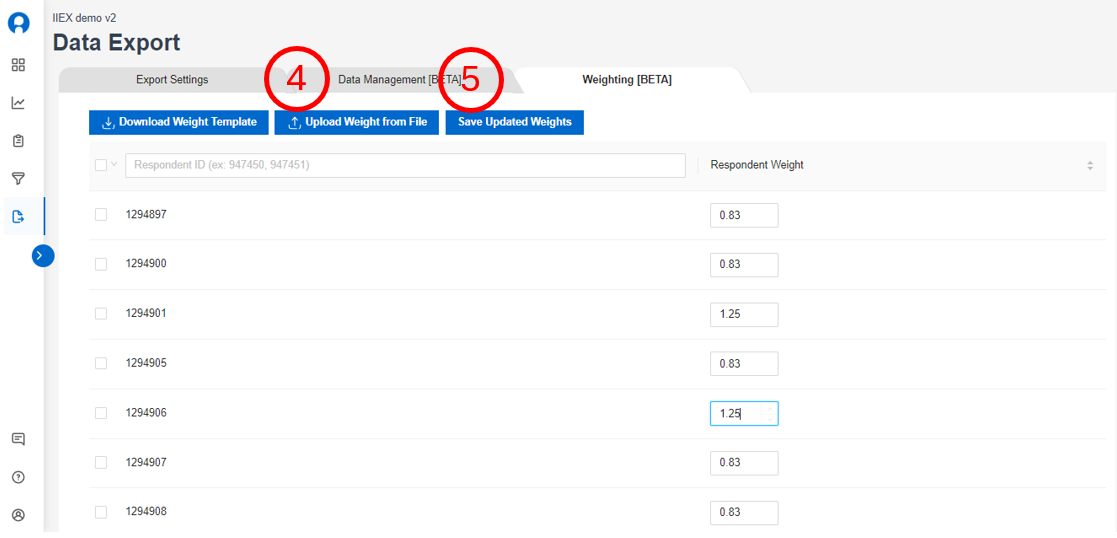
- Click on Upload Weight from File and import your updated Weight Template, which will update the weights on the dashboard page
- Click on Save Updated Weights if the updates look good to you.
Apply Weights
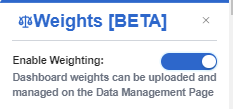
To see weighted results on the REPORT page, you can click the Weights icon on the side (see screenshot below), and then toggle on to enable weighting. For the crosstab page, it's very similar, just click the Weights icon and toggle on to show weighted results.
After the weighting is enabled, we will show all the results with weights applied including percentages, counts, mean values and base sizes. In addition, we indicate unweighted base sizes for your reference as well. On the REPORT tab, you can see the unweighted base by hovering over the numbers of the weighted base. On the CROSSTAB tab, you can find the unweighted base row beneath the row of the weighted base.
Related Articles
How to filter data in the Dashboard?
In the Dashboard, FILTERS are useful analysis tool that allows you to filter the responses from the total sample and show only the data for a certain group/segment or data set that you have selected. How to set it up? 1. You can use the Filter ...How to create new variables for analysis?
Main use In the Dashboard, you can create VARIABLES, which allows you to combine different options from existing questions for analysis purposes e.g. adding a filter and using in crosstab as a new stub or header. Creating VARIABLE is similar to ...How to make data tables or crosstab in the Dashboard?
What is a CrossTab? The Crosstab feature is a useful analysis tool commonly used to compare the results for one or more questions/variables with the results of another question/variable. Crosstabs (cross-tabulation) are basically data tables that ...SmartCoding on the Dashboard - Overview
What is inca SmartCoding? In this tool, you can add/remove/edit/merge the codes generated by the AI model for your open-ended verbatim. For the coded data, users can either export them to SPSS or CSV data file and run tables in their preferred ...How to make summaries from different segments in the Dashboard?
What is Smart Summary? The Smart Summary feature similarly works like a Crosstab but for Open End questions. Smart Summaries are AI generated summaries that allow you to view verbatim summaries based on the total sample (Total), side-by-side with the ...