Main use:
Using an open-ended question, participants can freely type answers in their own words (as opposed to a pre-determined list in Choice questions), which can be in lengthy essays or short texts.
A. For inca platform users, you access inca SmartProbe Studio as you build your open-ended questions in the Question Builder thru the Project Directory (see Section A, below)
B. For inca SmartProbe API users, you can create SmartProbe instances in the SmartProbe Directory, and access SmartProbe Studio directly through any of your SmartProbe instances (See section B, below)
1. In the Project Directory, click New Project. Once you are in the Questionnaire Builder page, add a new question OR insert a new question by hovering over an existing question and clicking the green (+) button (either above or below the existing question)
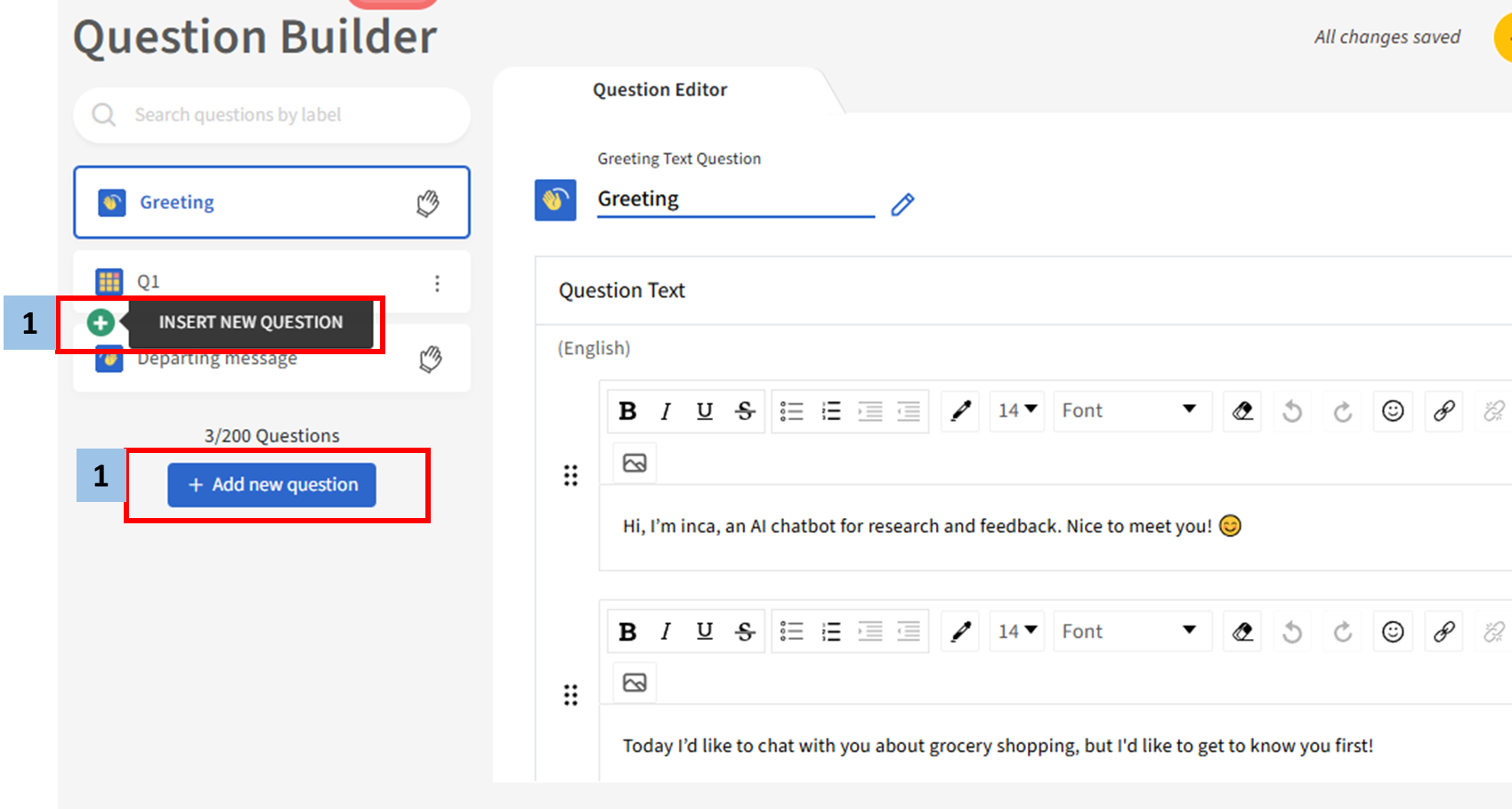
2. Select Open Ended from the popup menu that appears.
3. Write your question number or label in the upper box and write your question in the Question Text Box.
4. When you want the AI to probe participant answers and prompt them for answers that could have more value/insight derived from a follow-up, enable the probing by turning on “SmartProbe” toggle in Question Settings. Wait for “SmartProbe Configuration” to load.
5. Review the simulated conversations or try it yourself. You can let inca generate more examples for you if you’d like to see more. If they look good you can just leave it and continue to build your questions.
Simulated Conversations
Try It Yourself
6. You may decide how many times you’d like inca to probe. If probing more than once, enable the toggle and specify the maximum number of rounds probing you require.
Best Practice on selecting number of probing:
- One to two turns works well for a single focused topic; three to five turns suits questions with multiple distinct themes, certain probing techniques or qualitative frameworks where depth really matters.
- If a question covers three distinct themes — like emotional benefits, utility, and sensory cues in laddering— plan for at least three to four turns to do them justice.
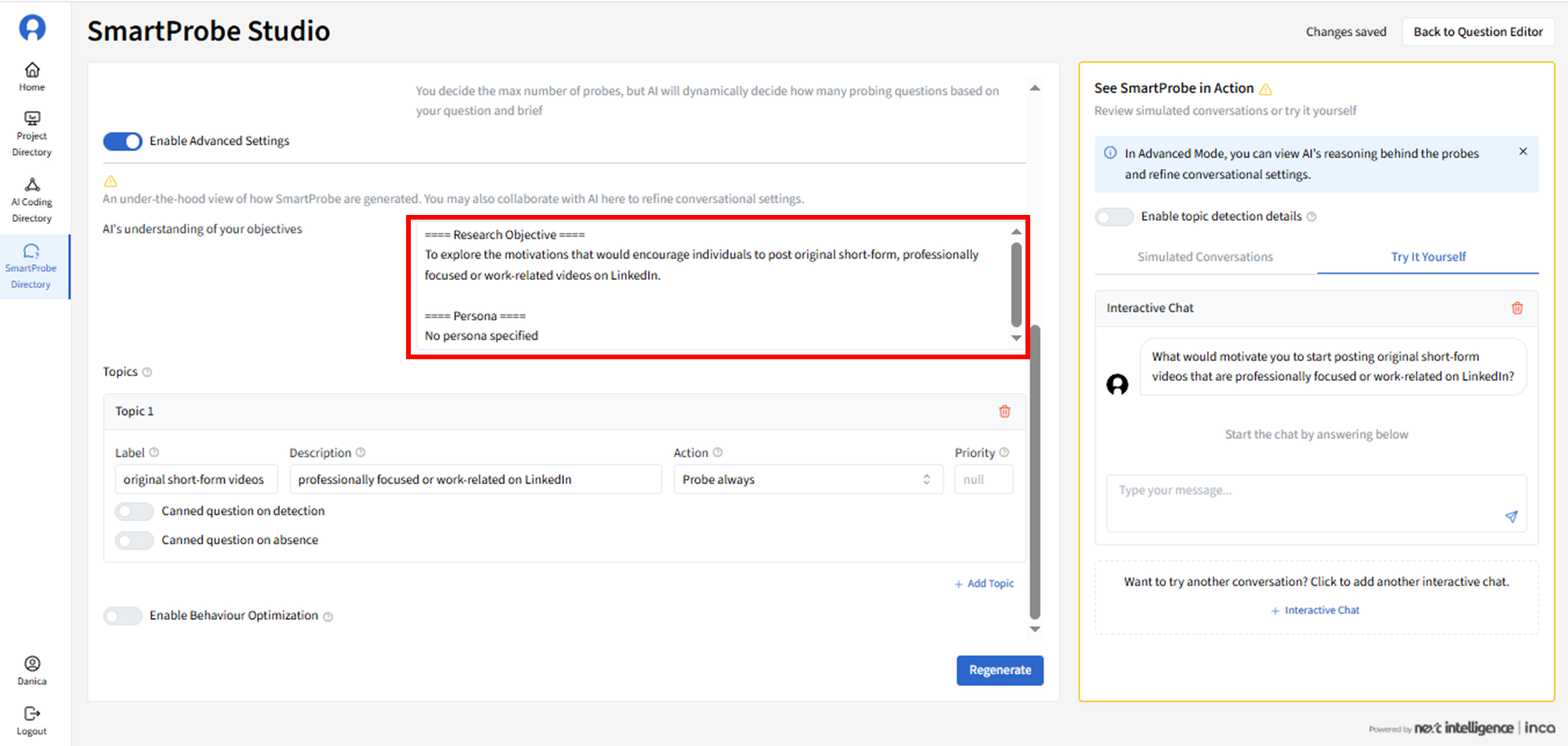
7. Users have the option of adding a brief with specific objectives, context or any specific content to help inca generate probing questions that reflect your brief.
Once you've added the brief, click Regenerate
8. Users also have the option of going to “inca SmartProbe Studio” if you think the SmartProbe can be further optimized.
Click “Go to SmartProbe Studio”
You will see your question information is captured in the “Your Input” section and the Advanced Settings should be toggled on
“Advanced Settings” shows how inca’s AI is reasoning and allows that reasoning to be refined through a structured template. It gives you complete transparency and control.
In this mode, your original “brief” is no longer editable. You will edit it directly in the “AI's understanding of your objectives” section. All the edits will be reflected in simulated conversations after you hit “Regenerate”
To learn more about the Advanced Settings, please go to the section inca SmartProbe Studio (Advanced Settings) by scrolling down further below.
Section B. How to set up using the inca Smartprobe Directory (API users)
1. API users need to create an inca account (through an invitation from their inca Customer Success Manager or main contact person). Once on the inca platform and logged into their account, API users will have access to the SmartProbe Directory, where they can create new SmartProbe instances by clicking + New SmartProbe or + New SmartProbe Express. You can choose Express if you want to just quickly integrate inca SmartProbe, whether for one question or even across all of your questions or surveys.
Note: For existing API users who want to use inca SmartProbe Studio but do not yet have an inca platform account, please inform your Customer Success Manager, and we will set up your account (and, in some cases, update your MSA). Similarly, once you are logged into your account, you will have access to the inca SmartProbe Directory, where you can create new inca SmartProbe instances.
2. Input required details for your inca SmartProbe instance.
Project ID - Project ID supports multiple entries if you're reusing this instance across related projects. When project ID(s) are selected, only instances associated with those projects are shown.
Client ID - Client is a single-select field. Users can only see/edit inca SmartProbe instances associated to clients which user has access to.
3rd Party Platform - When
setting up an inca SmartProbe API instance, users can select
the third-party survey platform where the main survey is programmed i.e Decipher, ConfirmIt, Qualtrics, Nfield, Askia, Alchemer, Other
SmartProbe name - Give your instance a clear name — something that makes it easy to identify in the directory. This could simply be your question label like Reason for Appeal, Barriers to Trial etc.
Language - inca SmartProbe probes in 90 languages natively. Users can select multiple languages for a multi-country study, but you'll need to provide question text in each language you select but the AI always works in English internally.
Question Wording - This is the survey question the AI will be probing on. Type in your main question here.
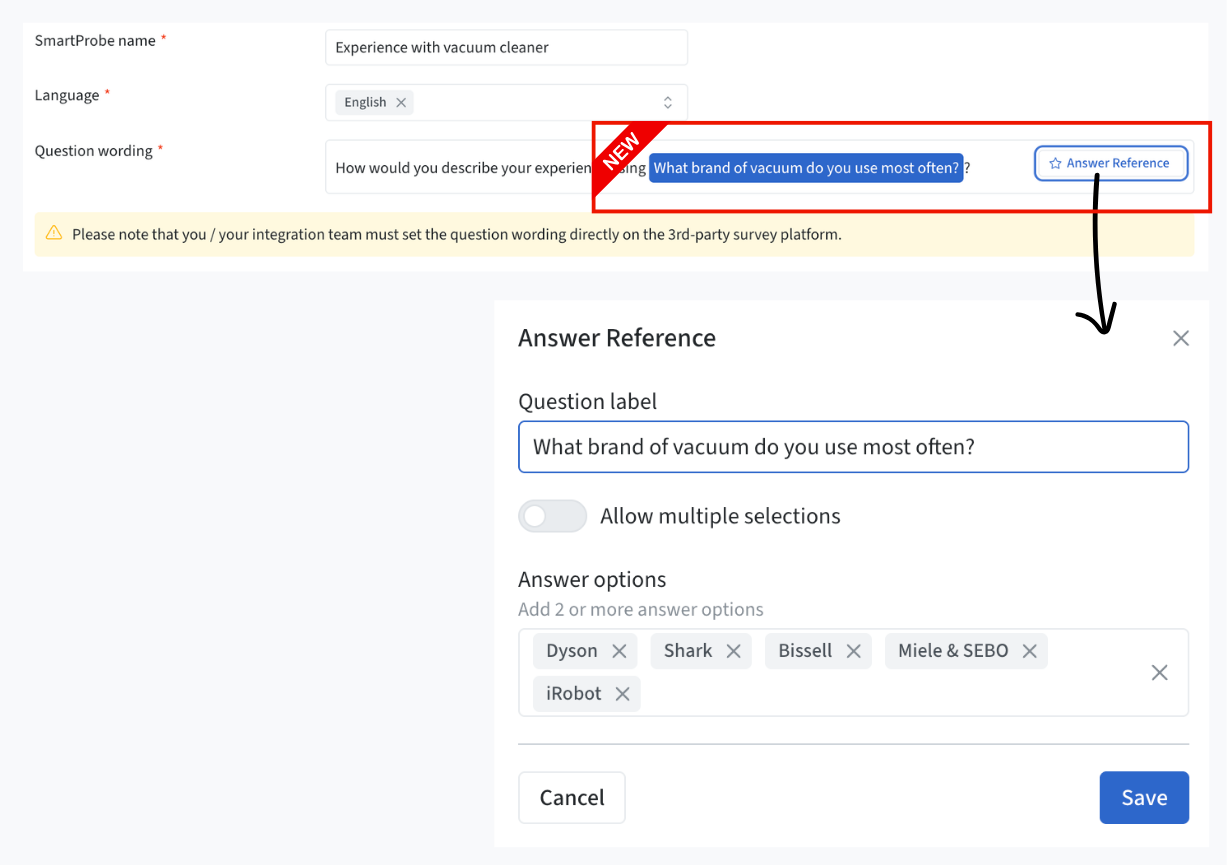
Answer Referencing - This dynamically references an answer from another question in the survey
Please note that Answer referencing in inca SmartProbe Studio is for simulation purposes only. The actual participant experience will continue to reflect how the survey is scripted in your survey platform.
Do you want to brief the AI? - Users have the option of adding a brief with specific objectives, context or any specific content to help inca generate probing questions that reflect your brief.
Tool Tip: If your study uses specific terminology in another language — local brand names, culturally specific concepts — include those terms in your brief or topic descriptions.
3. You may decide how many times you’d like inca to probe. If probing more than once, enable the toggle and specify the maximum number of rounds probing you require.
Best Practice on selecting number of probing:
- One to two turns works well for a single focused topic; three to five turns suits questions with multiple distinct themes, certain probing techniques or qualitative frameworks where depth really matters.
- If a question covers three distinct themes — like emotional benefits, utility, and sensory cues in laddering— plan for at least three to four turns to do them justice.
Important Note on Multi-turn Probing:
Multi-turn probing is fully supported on most platforms, however there may be limitations or more advanced configuration depending on the platform you are integrating with. If you have already setup single-turn integration, you may need to update the integration code. Please click the Export button to provide your programmer with more detailed information.
4. After deciding the required number of probes, click Generate
5. Users will see sample generated probes in the Simulated Conversations section. If you would like more examples, click + Example Conversation. You can also try answering the question by toggling Try It Yourself.
6. Users also have the option to brief the AI — and for most projects, we recommend it. This is where you can share your research objectives, any specific topics you want to explore or avoid, and any context that would help the AI probe more purposefully. Add your question objective and click Regenerate.
7. If the generated probes meet your expectations, you can click Export to generate the configuration for your developers. Then, copy the URL and share it with your programmers to finalize the integration in your survey platform.
8. If the generated probes are still not right with the current configuration — or if you're optimizing a complex or high-stakes question — enable Advanced Settings.
Other SmartProbe API Features:
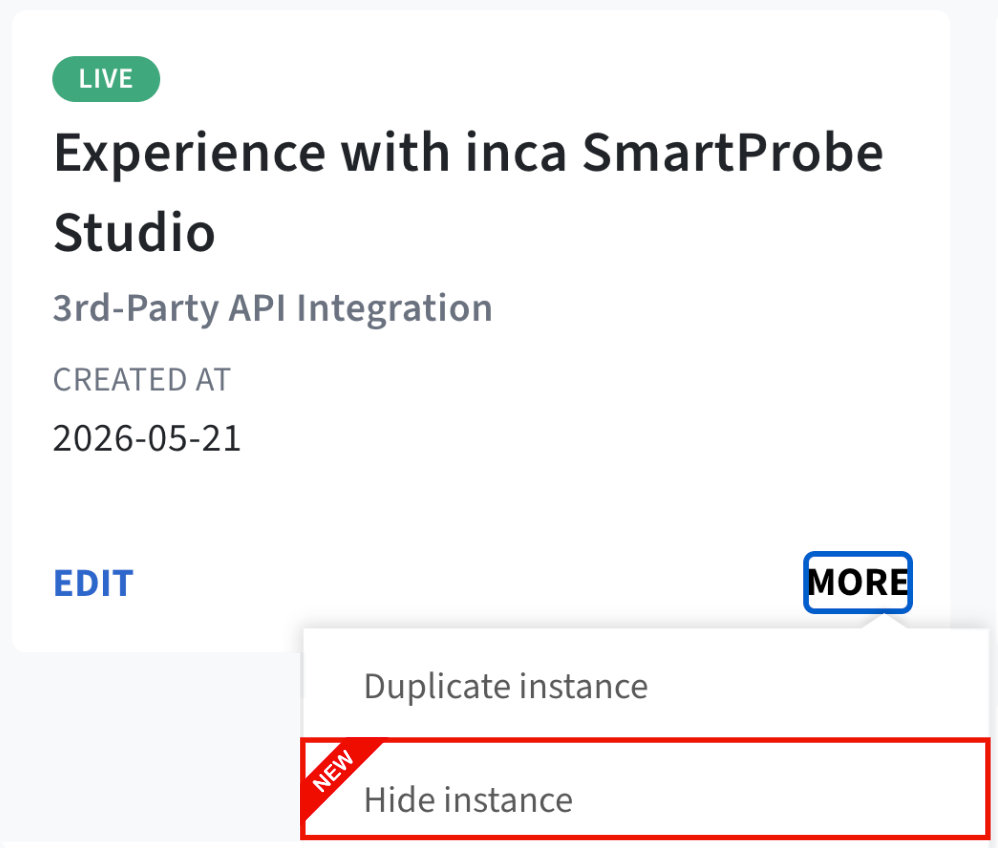
- Duplicate intances - This allows users to duplicate SmartProbe instance and all it's saved settings
- Hide instances: This allows users to hide SmartProbe instances from the SmartProbe Studio directory
• Publish & republish: This allows users to tweak a SmartProbe instance before launch, mid-project, or when reusing an instance for a new project. Users can simulate conversations with any changes before deciding whether to republish to make your changes live.
• Close & re-open: Users can close the instance to prevent any further usage from being recorded, with the option to re-open it later.
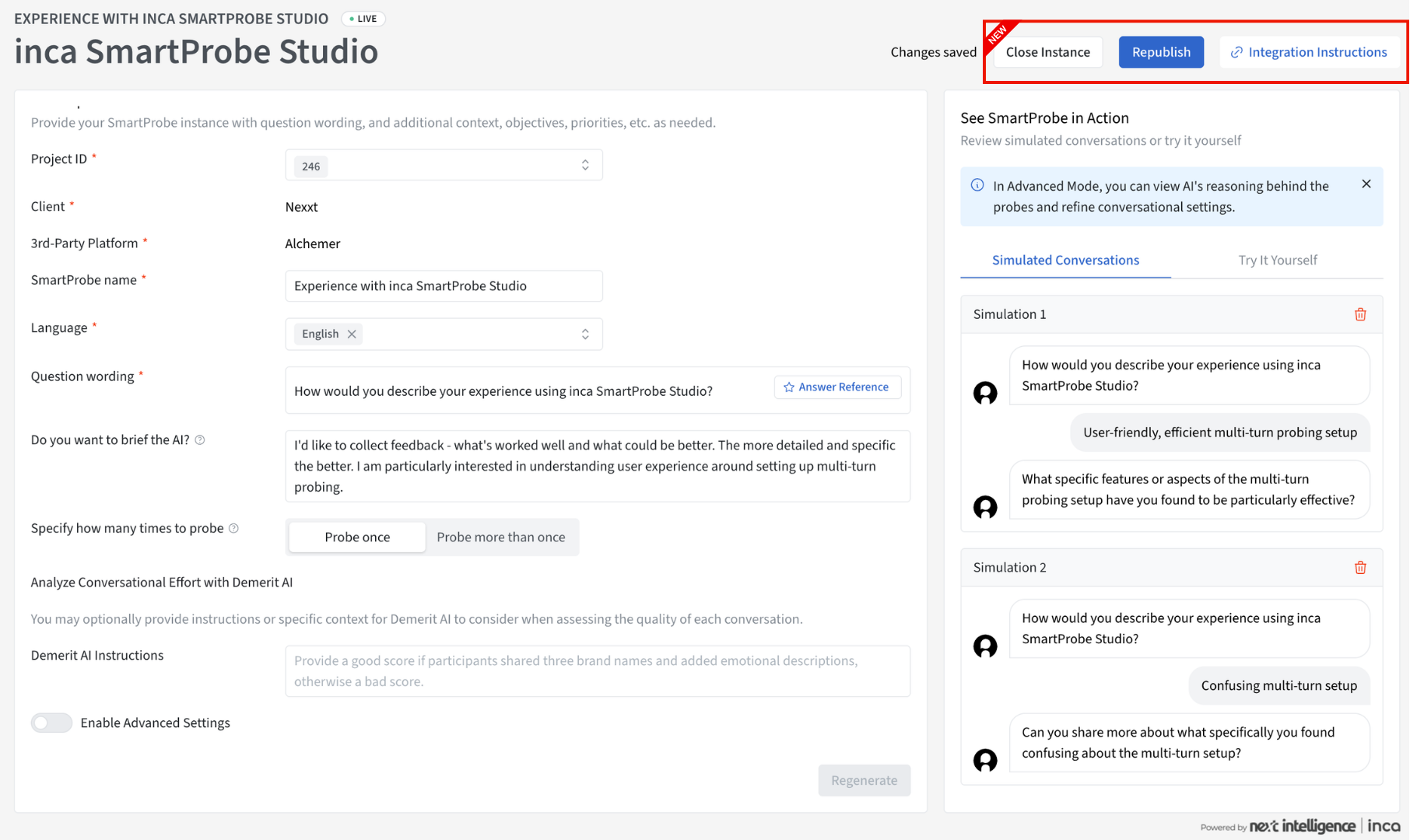
To learn more about the Advanced Settings, please go to the section inca SmartProbe Studio (Advanced Settings) right down below.
inca SmartProbe Studio (Advanced Settings)
When optimizing the probing of an open-ended question, you may select any combination of the following settings in the inca SmartProbe Studio. Optimizing probes thru these Advanced Settings works the same whether your are using the inca platform or the API.
1 AI's understanding of your objectives
This is like your moderator plays back the objectives you’ve shared with them, so take a look at AI’s take on the objectives and refine as needed.
AI may pick up cues in your brief about the tone/personality you’d like it to adopt. In most cases the brief doesn’t provide any specific instructions. Now that you see this “Persona” section, you are welcome to include instruction to ask AI to take on a particular persona
There is no longer a word limit for briefs, but users should aim to be clear and concise about their goals. A good brief should include any of the following:
1. Objectives: What they want to achieve and the topics to cover, including any rules
2. Context: Background information the AI should be aware of
3. Persona: How they want the AI to ask questions (i.e. The survey participants are Teens, therefore the conversation should be appropriate for this age segment and use friendly conversational tone)
4. Specific requirements: Clear guidance on what to do and what not to do. For example, if probes should not mention other brands, they can state: “Important: Do NOT mention other brands or competitors.”
2 Topics
In this section, the AI has generated Topics or keywords phrase or name (including people/brands/products/etc.) that are of interest to your study, which a participant might mention in their open-ended response.
Now that you see the topics, you may be reminded of other topics you’d like to specify but you didn’t think of when you wrote the brief. You can add topics.
Users can set/refine topics for the AI and confirm if they are aligned with your thinking.
Users can set also set/refine the Action for each topic:
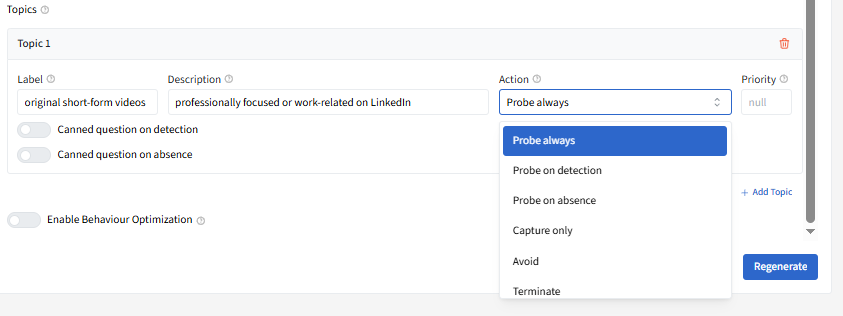
Topic Action:
Probe always: triggers to probe on this topic always, even if other topics are mentioned.
Probe on detection: triggers to probe on this topic if the topic is detected. In other words, SmartProbe will probe for more details when a participant has mentioned this topic.
Probe on absence: triggers to probe on this topic if the topic is NOT detected. In other words, SmartProbe will acknowledge the participant’s answer but then divert the question so that it focuses on this topic.
Capture only: triggers to stop probing and move on to the next question in the survey. The topic is captured or counted as a variable that can be used for other questions.
Avoid: ensures that it will NOT generate any probe related to this topic. If a participant mentions the topic, then the probe will divert the conversation away from that topic to something else that is still relevant to the research objectives.
Terminate: triggers to end the entire survey when this topic is mentioned
Users can also use Canned Questions when the action is use any "Probe always” / “Probe on detection” / “Probe on absence".
On the new text field, user can type in their canned text or the specific probing question.
Priority
Since each request only produces one probe question, if multiple topics are triggered to probe, then SmartProbe will randomly choose one of them to focus on. This randomization behaviour is the default, but you can override by adding a priority field to the topic (a number, 1-10, with 1 indicating “highest priority” and 10 indicating “lowest priority”). Each topic must have a unique priority number. The order of the topics is not important: only the priority field indicates a preference between topics
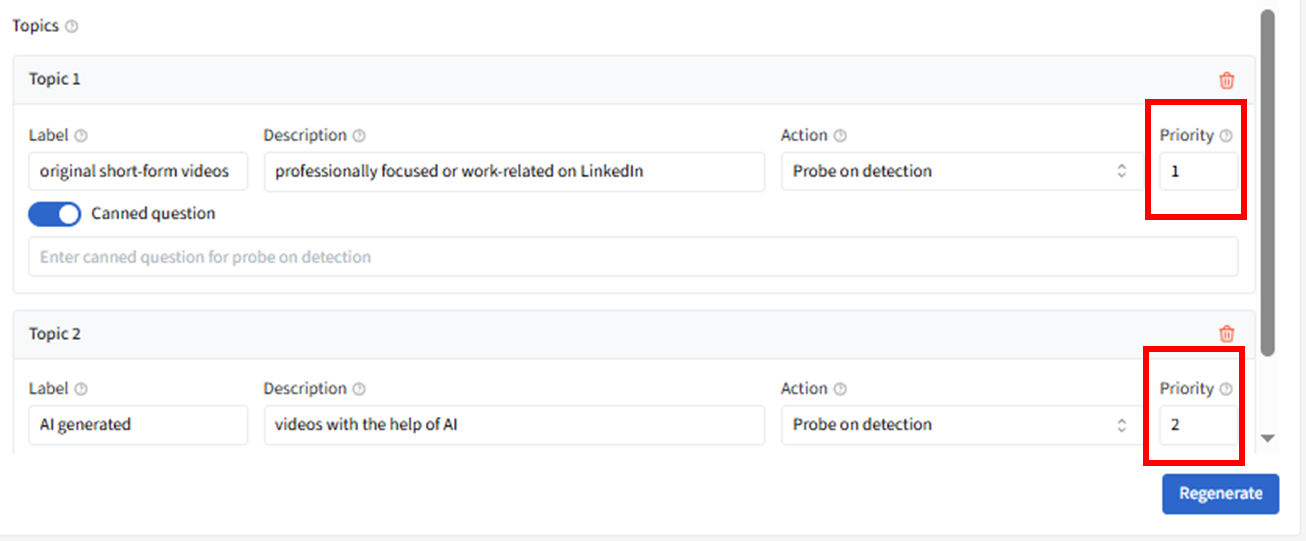
After making changes to all of the Advanced Setting, click Regenerate. Once you are satisfied with the Simulated Conversations, make sure that it has the status "Changes Saved" and then click "Back to Question Editor" to continue editing other questions in your survey.
3 Behavior optimization (Training Examples)
When this is enabled, users can train AI on the fly by identifying examples of good and bad probes and giving reasons why.
An example below would be a good use case on when to use Behavior Optimization.
Question:
Why do you say Guinness is different to other beer brands?
Brief:
We want to probe into how the points of difference people mention about Guinness make them feel when drinking Guinness. Focus on the emotions people feel.
After setting up the questions and brief, and without Behavior Optimization you will see the Simulated Conversations below:
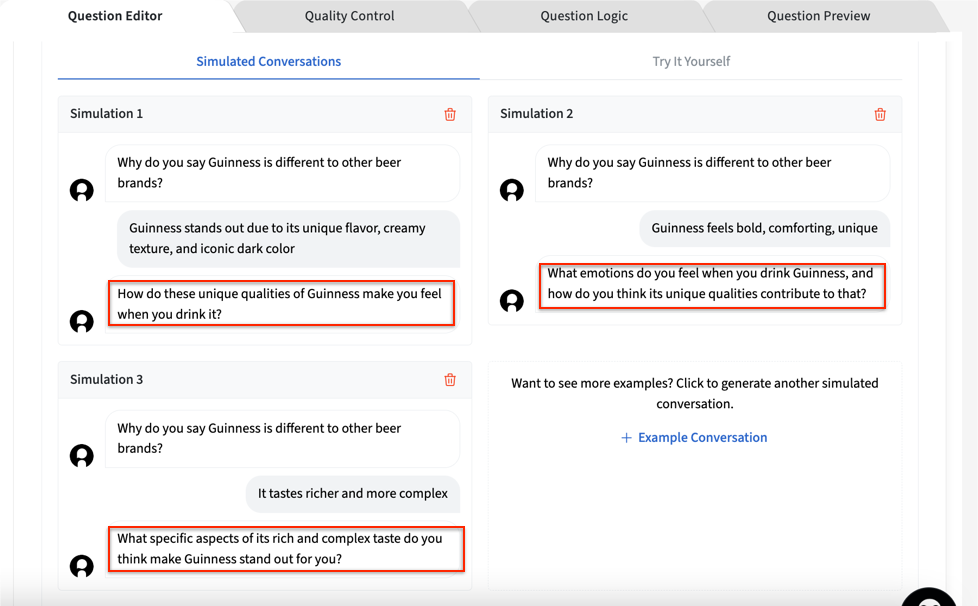
In this case, you also have a specific objective to understand how the points of difference people mention about Guinness ladder to the emotions they feel when drinking Guinness.
The probes generated above does not consistently address your specific objective. Thus, using Behavior Optimization can help with this. Click "Go to Smartprobe Studio" and then enable Behavior Optimization. Once enabled, you will see the Simulated Conversations on the right side.
Simulation 1 is considered a good/expected probe to your specific objective, so you can save this as a "good" example to train the AI (click Save as Example).
Simulation 3 is considered a probe that does not exactly follow your specific objective, so you can save this as a "bad" example for the to AI avoid (click Save as Counterexample).
When adding a Counterexample, users can then add the reason why they found this probe to not useful and/or adding your ideal probe.
After making the adding all the Examples and Counter examples, click Regenerate.
Once you are satisfied with the Simulated Conversations, make sure that it has the status "Changes Saved" and then click "Back to Question Editor" to continue editing other questions in your survey.
Section A - part 2:
inca includes a built-in quality-control system that evaluates participant responses during surveys and conversational interviews.
The system provides user-configurable Demerit AI to assess open-ended responses and may assign demerit points when a response is considered low quality. Demerit points may also be assigned based on participants’ responses to certain close-ended questions. If a participant accumulates enough points, they may be disqualified.
Before getting into the settings, here are the main terms used in inca:
● Demerit AI - The AI-based quality check that evaluates open-ended responses.
● Demerit score - The raw AI score returned by Demerit AI. This ranges from 0.0 to 1.0.
● Flagged - A response is flagged when the raw demerit score is 0.8 or higher.
● Demerit points - The points assigned when Demerit AI flags a response and the question’s demerit influence is enabled; or when participant’s answers to close-ended question(s) are flagged.
● Disqualification Control - The project-level setting that determines how many total demerit points a respondent can accumulate before being disqualified.
● Respondent Quality - The overall quality status shown in the dashboard and export:
○ Good Quality
○ Flagged
○ Disqualified
Note: Other survey rules may terminate a participant or quota them out, but disqualification is a separate status that is based only on demerit points.
How Demerit AI works
Demerit AI evaluates the response in the context of the current dialogue only.
A dialogue includes:
the original open-ended question, and
any follow-up probe questions if probing is enabled
Demerit AI considers the wording of the question and the participant’s response, and it can flag responses such as:
gibberish or keyboard smashing
uninformative answers
off-topic or irrelevant responses
shallow or low-effort responses
responses in the wrong language
toxic or inappropriate remarks
repeated or inconsistent responses within the same dialogue
What Demerit AI does not do
- It does not look at answers to other questions in the survey
- It does not affect probing behavior
- It does not terminate the dialogue early
- It does not replace quota logic or other survey termination logic
- It does not interact with SmartCoding
Configuring Demerit AI in the inca Survey Builder
On the inca platform, Demerit AI can be configured at both the project and question level.
Project-level default
Users can enable Demerit AI as a project-level default in the Overview Page on the Conversational Settings tab
That default is only applied if the user explicitly enables it.
Question-level override
For any open-ended question, the user can:
This means a question can have:
Demerit AI on or off independently of other questions
its own Demerit AI Instructions
its own Demerit Influence
An example of Open end Question when it inherits the Project-Level Setting:
When you want to override the Project Level Setting, simply go to the Open end question and in the Question Settings, go to the Demerit AI and in the drop down, select On or Off
When turned OFF, the Demerit AI will be turned off independently of other questions.
When turned ON, the Demerit AI will operate independently of other questions. It will then have its own Demerit instructions and Demerit Influence. One use case is when a survey has a lot of open-ended questions, allowing you to customize how the Demerit Influence works for each individual question.
Important behavior
Demerit AI can be enabled even if SmartProbe is not enabled
Demerit AI does NOT affect probing, only quality scoring only
Demerit AI Instruction
Users can optionally provide Demerit Instructions to give the AI additional context or criteria for evaluating responses. We can brief the AI accordingly for example: "Provide a good score if participant has provided at least three brand names and some emotional descriptors, and otherwise a bad score" With that instruction in place, one-word answer of just "Brand A" would be allocated demerit points.
How open-ended demerit points work
Open-ended demerit is controlled by two settings:
Demerit AI: Turns the check on for the question or project default
Demerit Influence: Determines how many demerit points are added if the response is flagged
Demerit Influence options
If a question has Demerit AI enabled but the influence is set to Disabled / No Influence, the response is still scored and may be flagged, but it does not contribute points toward disqualification.
Flagging threshold
A response is considered flagged when the raw demerit score is 0.8 or higher.
To learn more about how the Disqualification system works
Section B - part 2. inca Demerit AI (API users)
Demerit AI is the built-in quality control check for open end responses and it is
enabled by default.
A demerit score between 0 and 1 will be included in your data export for each conversation — where 0 means no quality issues detected, and 1 indicates very low conversational effort.
Use Case without Demerit Instructions
Take the question: "If you were the CEO of this hotel, what's the one thing you'd do differently to better serve customers like yourself?" A one-word answer like "nothing" would likely score close to 1 — flagged as very low effort. Whereas a thoughtful, specific response like "I'd make sure premium coffee was available in the lobby every morning, served in proper cups — the kind of small touch that makes guests feel genuinely looked after" would score close to 0.
Users can optionally provide Demerit Instructions to give the AI additional context or criteria for evaluating responses.
Use Case with Demerit Instructions
Take the same question — but this time, it's a closing question where we're simply inviting any final thoughts. We can brief the AI accordingly: "We are just asking for final thoughts and suggestions. A response of 'no' or 'nothing' is perfectly reasonable and expected — please do not treat these as low effort." With that instruction in place, the same one-word answer of "nothing" would now score close to 0.
Voice+ Features
If the survey is generated on the inca platform, participants now have the option to answer open-ended questions using voice or video, leading to longer, more detailed answers. Then, in real-time, inca returns a probe that participants can also answer by voice or video. To learn more about this feature, please go to the Voice+ article here.
Voice+ is not available among API users. The entire survey must be programmed in inca to use the Voice+ features.
Other Useful Question Settings
Allow Copy Paste
Allow participants to copy and paste text from different windows or sources. We recommend disabling it when you don't want them to repeat their stock answers without thinking.
Allow User Corrections
By default (Yes), participants are allowed to change their answer in this question type